
How to Add Live Polls to Mailchimp
Put a clickable poll inside your Mailchimp emails, count one vote per subscriber with *|UNIQID|*, and show live results every time the email is opened.
 First Publish Date:
Ask your Mailchimp audience a question and let them answer right from the email.
A Sendtric live poll sits inside your Mailchimp email as a set of clickable answer images. Subscribers pick an answer, the vote is recorded against their Mailchimp ID, and the results can update in the email itself on the next open.
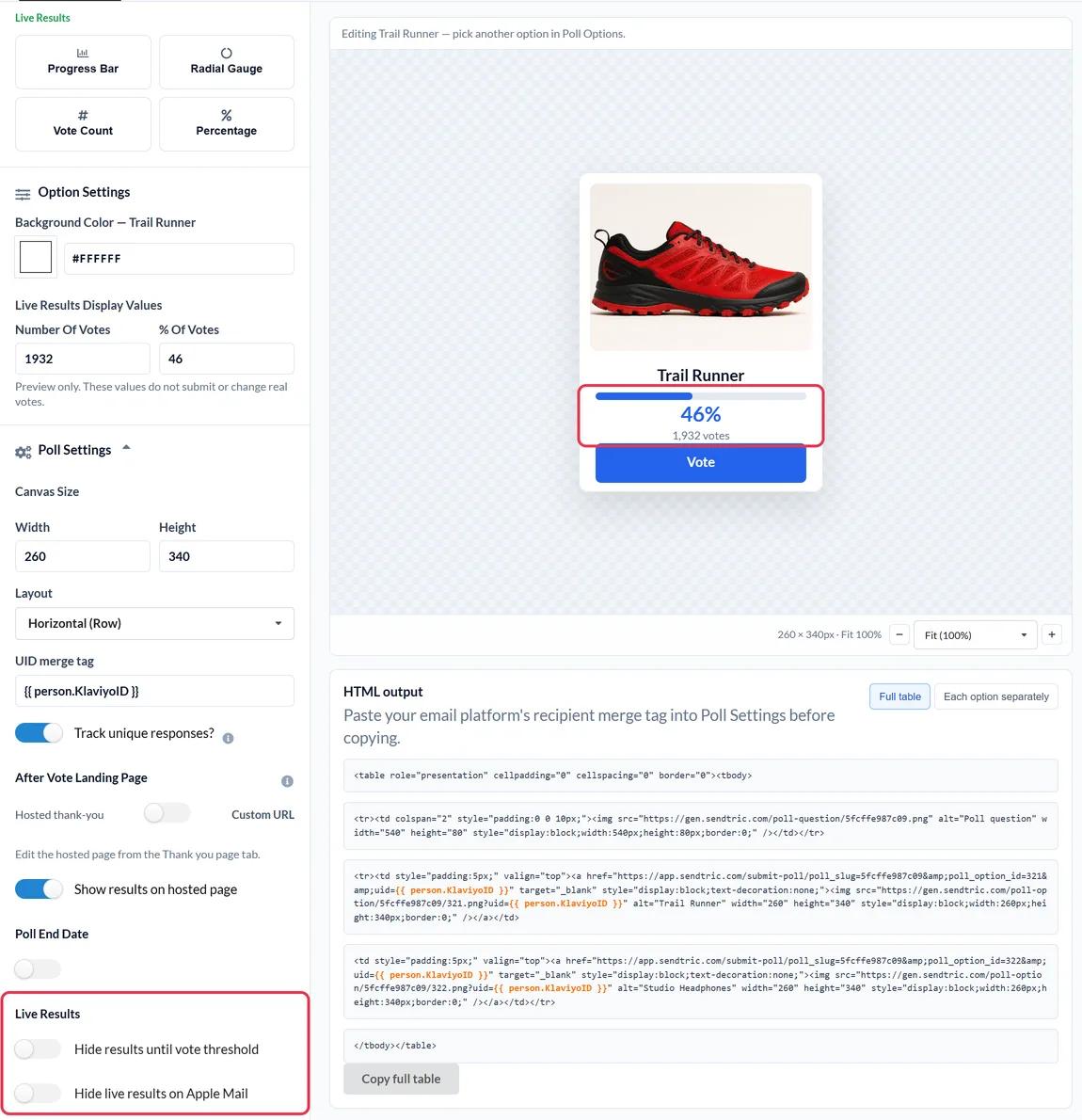
Mailchimp has its own Survey content block, which sends people to a hosted survey page. A Sendtric poll is different: the answer options are images inside the email, you design them yourself, and they can show live percentages, vote counts or result bars.
What you can do with a live poll in Mailchimp
- Product votes: show three products as images and ask which one people want restocked first.
- Quick feedback: a Yes / No, a 1 to 5 star rating or an NPS score at the bottom of a post-purchase email.
- Preference questions: ask what subscribers want to hear about, then download the answers per subscriber and use them to update your Mailchimp audience.
- Send people somewhere useful: on the Power plan and above, each answer can open its own page, like a category page for the product they voted for.
Which poll features you get depends on your Sendtric plan:
| Poll feature | Available on |
|---|---|
| Text polls, Yes / No | All plans, including Free |
| Image and product vote presets, star and feedback ratings | Standard and above |
| Results on the hosted thank-you page | Standard and above |
| Live results in the email, a custom page per answer, poll end date | Power and above |
| NPS (0 to 10) | Power and above |
See pricing for the full plan comparison.
How to add a live poll to Mailchimp
You build the poll in Sendtric, tell it which Mailchimp merge tag identifies each subscriber, and paste the code into your email. Allow about five minutes the first time.
Step 1: Create the poll
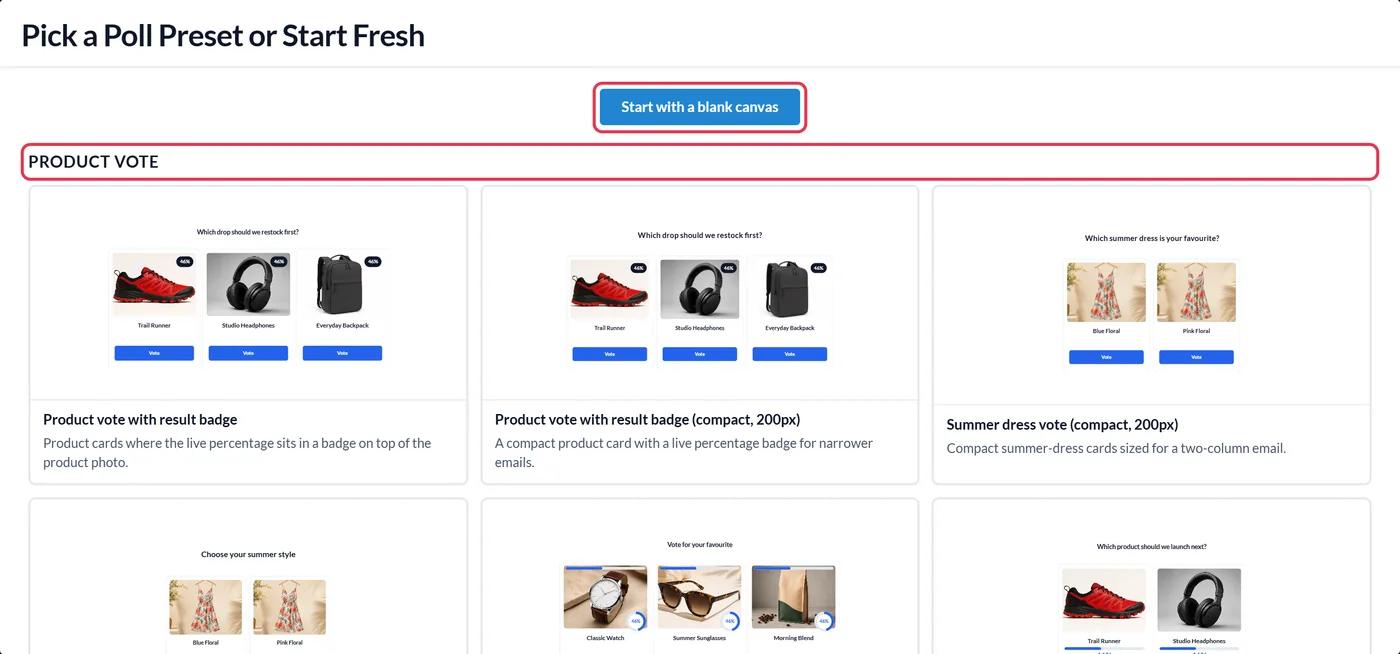
In Sendtric, go to Polls and click Create New. Pick a preset, such as a product vote or a star rating, or start with a blank canvas. Add your answers and style them to match your email.
Step 2: Add the Mailchimp merge tag
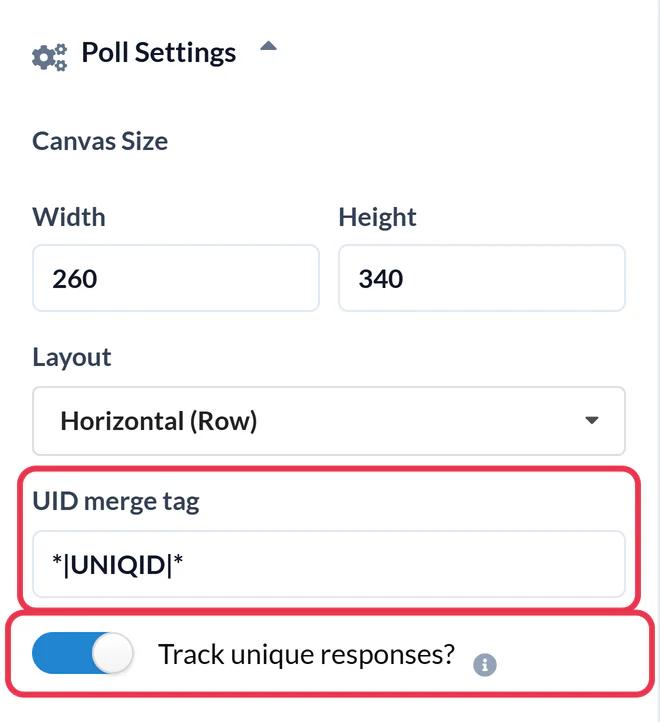
Open Poll Settings and type *|UNIQID|* into the UID merge tag field. Mailchimp swaps this for each subscriber's unique ID when it sends, which is how Sendtric counts one vote per person. Turn on Track unique responses? if you want a per-subscriber download of the answers. Then click Save.
Step 3: Copy the code
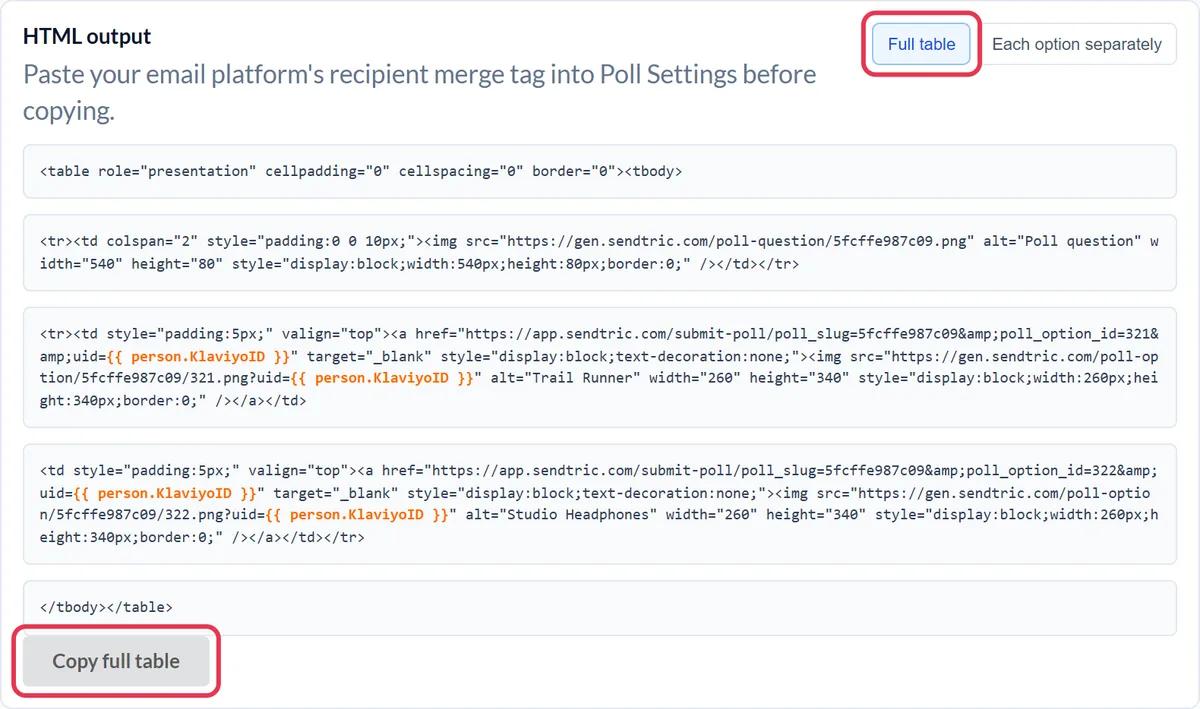
Under the canvas, in HTML output, click Copy full table. If you would rather place each answer separately, use the Each option separately tab instead.
Step 4: Paste it into Mailchimp
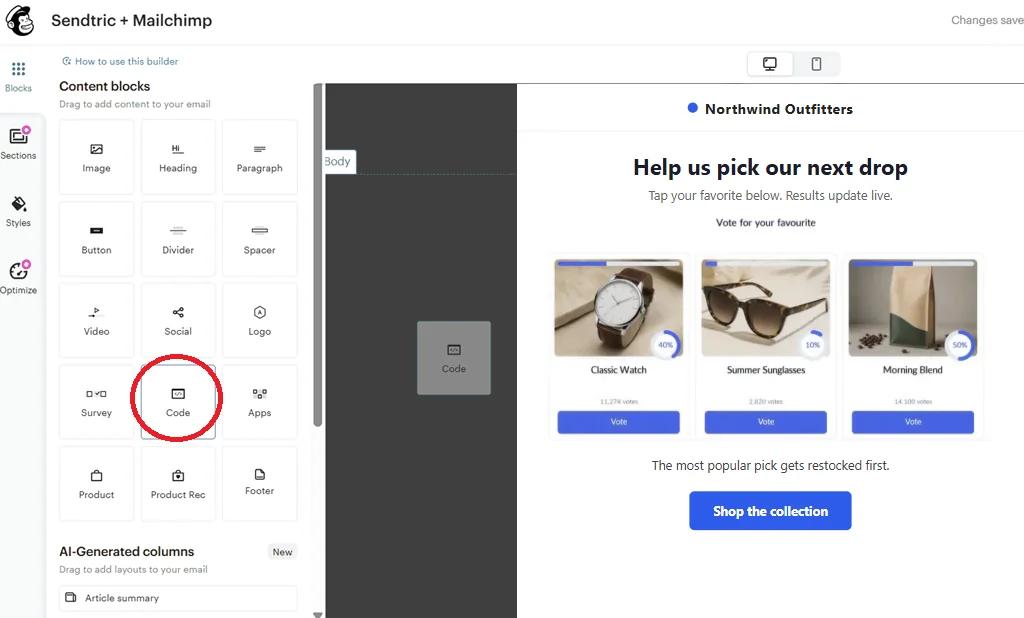
In the Mailchimp email builder, drag a Code block from Content blocks to where you want the poll. Paste the code into the block's editor and save.
Step 5: Test it with a real send
Mailchimp test emails leave merge tags unfilled, so a plain test send shows *|UNIQID|* as literal text and every click counts as the same voter. To check the poll properly, send the campaign to a small segment that only includes you and a colleague, then click an answer. You should see a short "Please wait" page, then the thank-you page or your own page. You can also use Preview with Enable live merge tag info turned on to confirm the tag is filled before you send.
Using the Mailchimp integration instead of copy and paste
If you connect Mailchimp under Settings > Integrations in Sendtric, a Push to Mailchimp button appears in the poll editor. It sends the saved poll to Mailchimp as a template, with *|UNIQID|* already filled in. Pushing needs Mailchimp Standard or higher; on Free and Essentials, copy the code as shown above. Read more in how to push a widget to Klaviyo, Mailchimp or HubSpot.
Putting the poll next to other content
To sit the poll beside text or an image, add a Columns block first, then place the Code block inside one column. Polls with two or three narrow answers fit best this way.
Mailchimp Live Poll FAQ
Does voting happen inside the Mailchimp email?
The poll and its results show inside the email. When someone clicks an answer, a browser tab opens for a moment to record the vote, then shows your thank-you page or the page you chose for that answer.
Which Mailchimp merge tag should I use?
Use *|UNIQID|*. It is unique to each subscriber in your audience, so Sendtric can keep one vote per person and replace it if they change their mind.
Do live polls work in Mailchimp automation flows?
Yes. The poll is ordinary HTML with images and links, so it works in automation flows (previously called Customer Journeys) as well as regular campaigns. Because results are live, a subscriber who gets the email weeks later still sees the current numbers.
How quickly do the live results update?
Usually within about a minute of a new vote. Some email apps keep their own copy of images for longer, so a reopen can occasionally show slightly older numbers.
Can I get the answers back into Mailchimp?
With Track unique responses? on, you can download a file that lists each subscriber's ID and their answer from the poll report. You can then use it to tag or segment those subscribers in Mailchimp.
Can I change the answers after sending?
You can restyle the poll, but don't delete answers or change the preset once the email is out. Links in emails you already sent would stop recording votes.
This guide covers one piece of Sendtric's email personalization platform. For every live polls option and example, see the main page.
More Mailchimp guides
- Countdown Timers - Add Countdown Timers in Mailchimp
- Countdown Timers - Add Dynamic Timers in Mailchimp
- Personalized Images - How to Add Personalized Images to Mailchimp
- Rule-Based Images - How to Add Rule-Based Images to Mailchimp
- Dynamic Weather - How to Add Dynamic Weather to Mailchimp
- Critical Alerts - How to Add Critical Alerts to Mailchimp
- Social Proof Counters - How to Add Social Proof Counters to Mailchimp
Using a different platform? See all Sendtric integrations.
