
How to Add Social Proof Counters to Mailchimp
Add a number that grows as people open or click your Mailchimp email, to show a product, event or offer is popular.
 First Publish Date:
Show your Mailchimp subscribers how many others are interested.
A Sendtric social proof counter is an image with a live number in it, such as "2,340 people viewed this". The number is the running total of how many times the counter has loaded, or how many people clicked its link, and it's refreshed each time the email is opened.
Social proof counters need a Sendtric Power or Enterprise plan. On other plans the editor shows that it's a Power feature. See pricing to compare.
What you can do with social proof counters in Mailchimp
- Product launches: under the new product image, show how many times it's been seen across your campaign and its resends.
- Event sign-ups: count clicks on the "Save my spot" button and show the total to people who open later.
- Back-in-stock and waitlist emails: a growing number tells subscribers they're not the only ones waiting. There are more ideas in our post on back-in-stock emails with counters.
- Newsletter features: show how many readers have already clicked through to the guide you're featuring.
How to add a social proof counter to Mailchimp
Step 1: Start from a preset
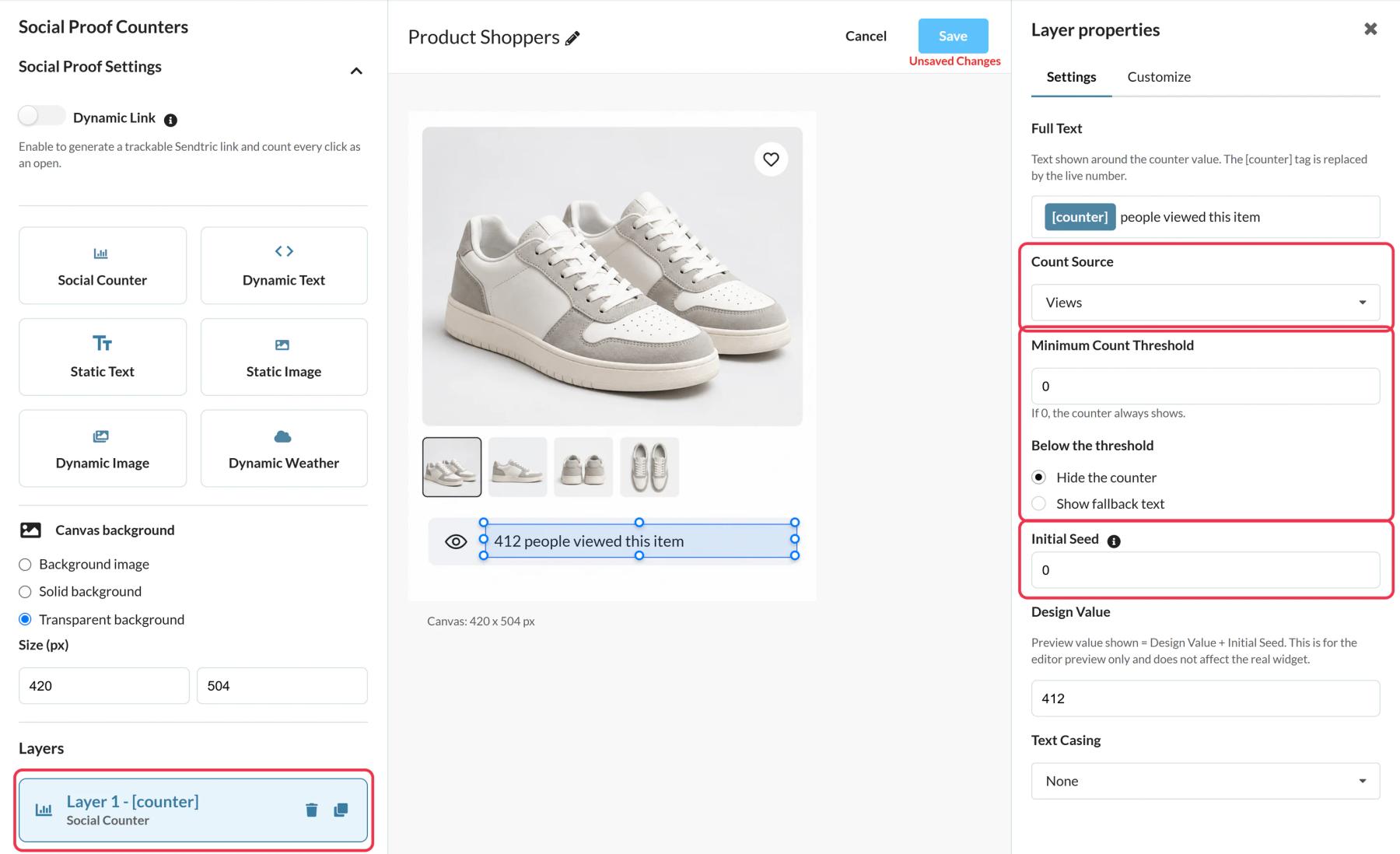
In Sendtric, open Social proof counters and click Create New. Choose a preset like Product Shoppers or Fan Favorite, or start with a blank canvas, then style it to match your email.
Step 2: Choose what the number counts
Select the Social Counter layer. Under Count Source, pick Views to count every load of the counter image, or Opens to count clicks on a Sendtric link. Use Initial Seed to add a starting number, and Minimum Count Threshold to hide the counter (or show short fallback text) until the number is big enough to be convincing.
Step 3: Add a Dynamic Link if you're counting clicks
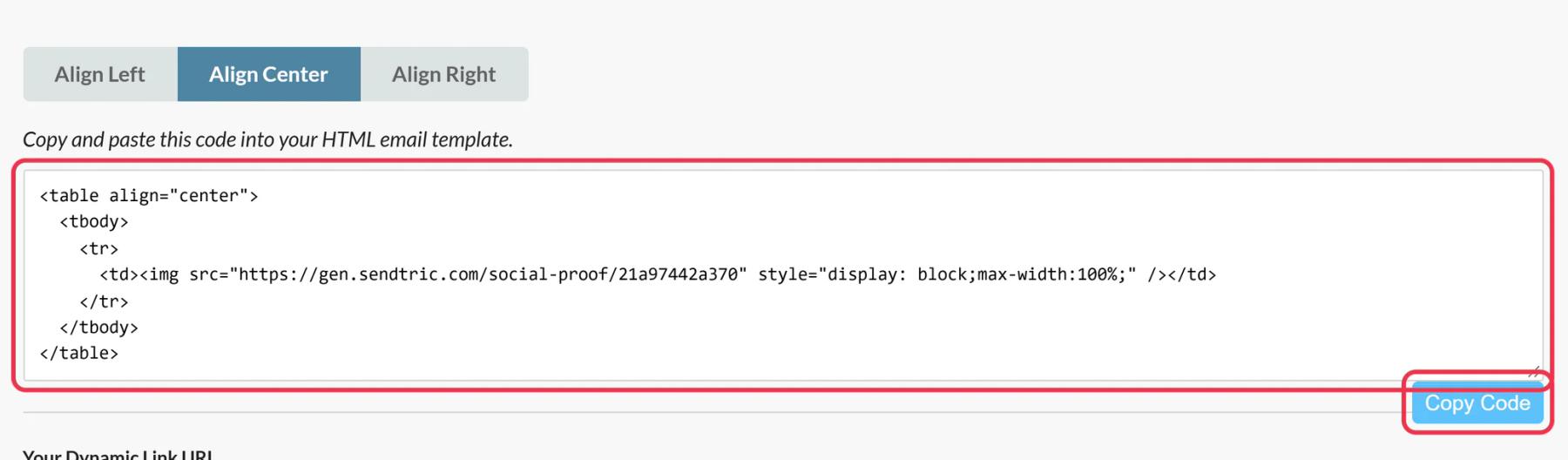
For Opens, set up a Dynamic Link in the Social Proof Settings panel with your page as the Destination URL (it must start with https://). Save, then copy both the counter code and Your Dynamic Link URL.
Step 4: Paste the counter and link the button
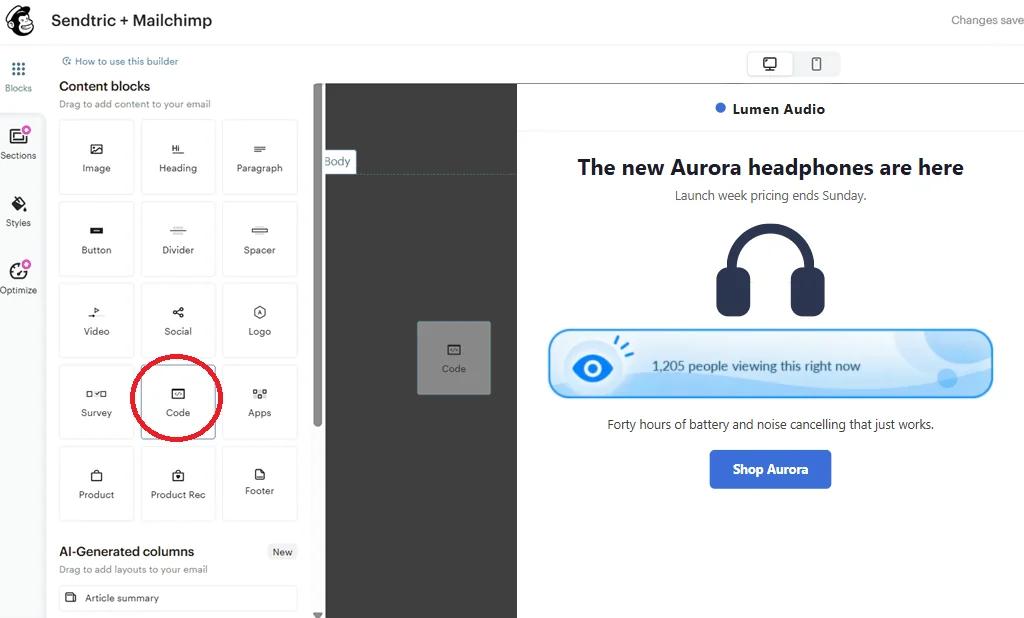
In the Mailchimp builder, drag a Code block from Content blocks to where the counter goes and paste the counter code. If you're counting clicks, select the Button block that should be counted and paste the Dynamic Link URL as its link. The counter image itself isn't clickable.
Step 5: Send a test
Open a test email and check the counter shows the number you expect. New views and clicks show up within a minute or two, and your own test opens count too, so keep tests to a minimum on a live counter.
Be honest about what the number means
The counter is an all-time total, and every open counts, including repeat opens by the same person. Word the text to match, such as "2,340 views" or "1,200 people clicked", rather than "people viewing right now".
Change where the button goes after sending
The email itself can't be edited once it's sent, but the Dynamic Link's Destination URL can. If a product sells out, point the link at a similar product or a waitlist page in Sendtric and every sent email follows.
Mailchimp Social Proof Counter FAQ
Does the number change while someone is reading the email?
No. The number is set when the email is opened. If the subscriber reopens it later, they see the newer total.
Can I use one counter in several Mailchimp campaigns?
Yes. Paste the same code into each campaign and they all add to and show the same total. Create separate counters if you want separate numbers.
Why would I use Opens instead of Views?
Views go up every time the email loads, so they grow quickly. Opens only count clicks on your Dynamic Link, which is a stronger sign of interest and suits sign-ups or limited offers.
Does Mailchimp's own click tracking still work?
Yes. The Dynamic Link is an ordinary link on your button, so Mailchimp handles it like any other link in the email. Sendtric counts the click as the reader passes through to your page.
Which plan do I need?
A Sendtric Power or Enterprise plan. There's no Mailchimp plan requirement for copying the code into a Code block.
Want to see what else you can do? Explore Sendtric's social proof counters in more detail, or browse the full email personalization toolkit.
More Mailchimp guides
- Countdown Timers - Add Countdown Timers in Mailchimp
- Countdown Timers - Add Dynamic Timers in Mailchimp
- Live Polls - How to Add Live Polls to Mailchimp
- Personalized Images - How to Add Personalized Images to Mailchimp
- Rule-Based Images - How to Add Rule-Based Images to Mailchimp
- Dynamic Weather - How to Add Dynamic Weather to Mailchimp
- Critical Alerts - How to Add Critical Alerts to Mailchimp
Using a different platform? See all Sendtric integrations.
