
How to Add Social Proof Counters to Salesforce Marketing Cloud
Add a counter image to Marketing Cloud emails that shows how many times an offer has been viewed or clicked, with a link you can repoint after sending.
 First Publish Date:
Show Marketing Cloud subscribers how many others have already looked or clicked.
A Sendtric social proof counter is an image with a number in it that grows over time, like "8,450 people opened this offer". It counts all-time views of the image or clicks on a tracked link, and the number is fresh each time the email is opened.
You'll need a Sendtric Power or Enterprise plan to create social proof counters.
What you can do with social proof counters in Salesforce Marketing Cloud
- Popular offer banners: a running view total next to the main offer in a large promotional send.
- Click-through proof on a webinar or download: count clicks on the registration button with Opens and a Dynamic Link, and show the total above it.
- Consistent counts across journeys: reuse one counter in several Journey Builder emails about the same product, so the total keeps growing in all of them.
- Redirect after the event: change the Dynamic Link's destination once registration closes, so later clicks reach the recording instead.
How to add a social proof counter to Salesforce Marketing Cloud
Step 1: Start a counter
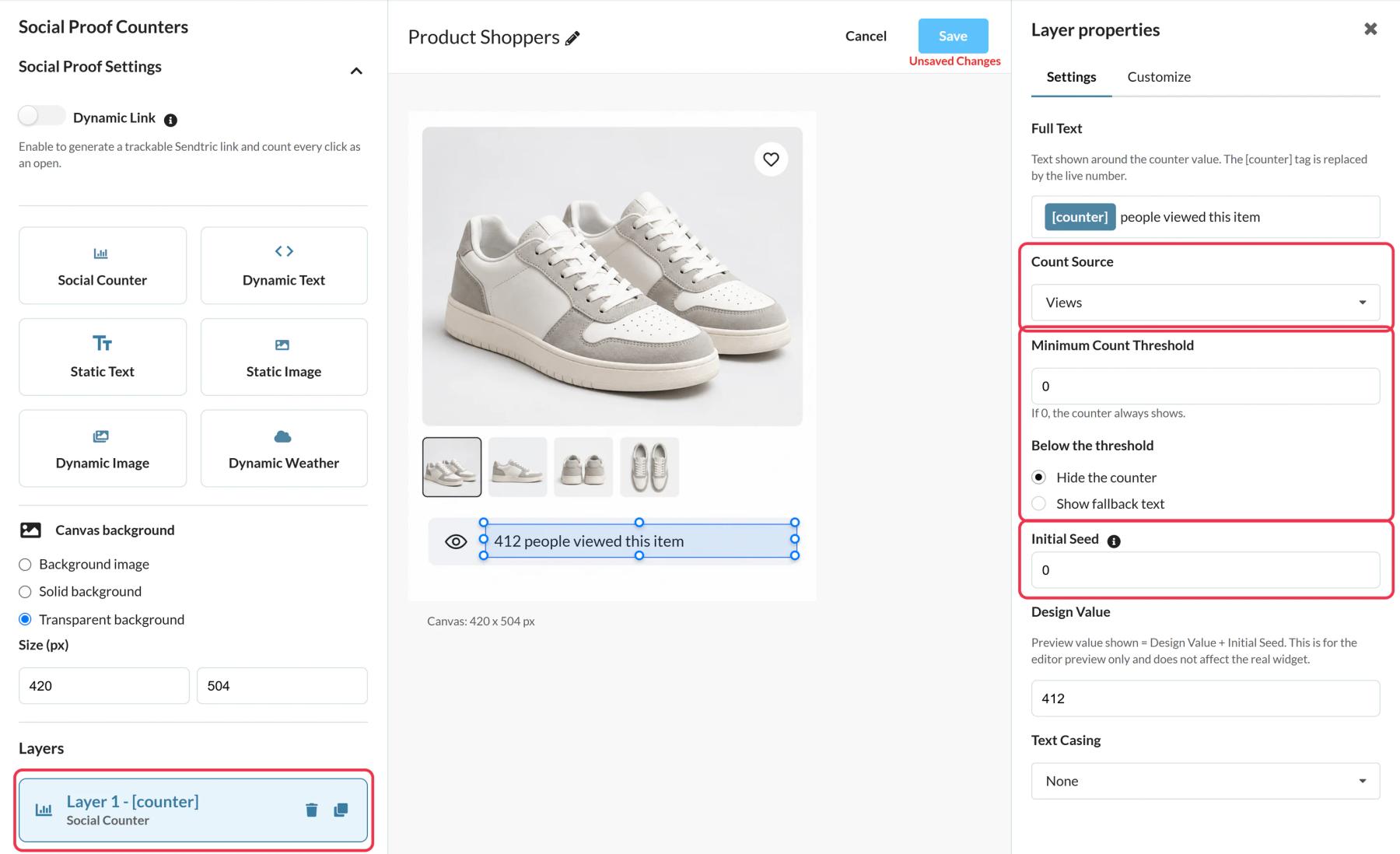
In Sendtric, open Social proof counters and click Create New. Pick a preset, for example Fan Favorite for a clicks counter or Trending Destination for a views counter, or start blank and add a Social Counter layer.
Step 2: Set the count source and threshold
Choose Views or Opens under Count Source. Opens counts clicks on the counter's Dynamic Link, so add one with a Destination URL that starts with https://. Set a Minimum Count Threshold so a low number stays hidden, and an Initial Seed if you want to include earlier activity.
Step 3: Copy the image code and the link
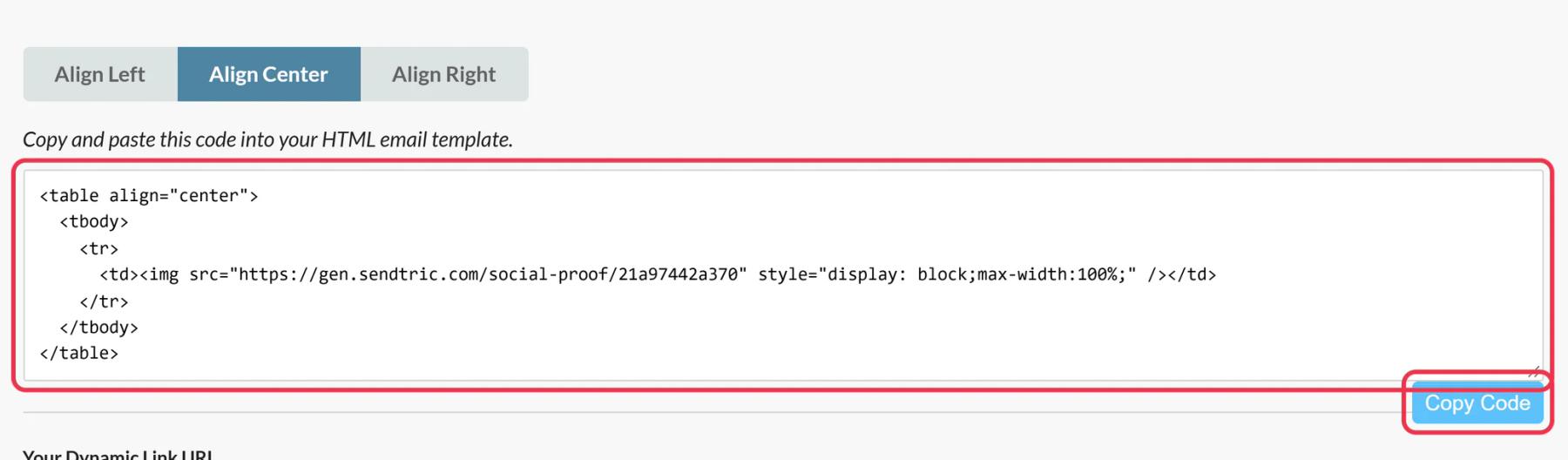
Save, then Copy Code for the image and Copy URL for the Dynamic Link if you're using one.
Step 4: Build it into the Content Builder email
Drag an HTML content block into the email and paste the counter code into its HTML editor. For a clicks counter, set the Dynamic Link URL as the link on a Button block (or a link in your HTML), because the counter image isn't linked on its own.
Step 5: Test and check the count
Send a test, open it and click the button, then look at the counter's views and Dynamic Link opens in Sendtric. New activity appears within a minute or two.
Test the click path
Before the real send, click the button in your test email and check two things: that you land on the Destination URL, and that Dynamic Link Opens for the counter went up in Sendtric. If the count didn't move, the button is probably pointing at the destination page directly instead of the Dynamic Link URL.
Word it as a total
The number is a running total of image loads or clicks, including repeats by the same person, not unique people and not people viewing right now. Phrases like "people opened this offer" keep the claim accurate. How to create a social proof counter has more setup detail.
Salesforce Marketing Cloud Social Proof Counter FAQ
What plan do I need?
Sendtric Power or Enterprise. See pricing.
Does the counter need personalization strings?
No. Every subscriber sees the same total, so you paste the code as it is.
Do repeat opens count?
Yes. Every load of the image counts as a view, including repeat opens, and each counts toward your plan's views.
Can I change the link destination after sending?
Yes. Change the Destination URL of the Dynamic Link in Sendtric and new clicks go to the new page.
Will the number change while the subscriber is reading?
No. It's set at the moment the email is opened. Reopening the email shows the latest number.
Read more about social proof counters and how it all fits into a wider email personalization strategy.
More Salesforce Marketing Cloud guides
- Countdown Timers - How to Add Countdown Timers to Salesforce Marketing Cloud
- Live Polls - How to Add Live Polls to Salesforce Marketing Cloud
- Personalized Images - How to Add Personalized Images to Salesforce Marketing Cloud
- Rule-Based Images - How to Add Rule-Based Images to Salesforce Marketing Cloud
- Dynamic Weather - How to Add Dynamic Weather to Salesforce Marketing Cloud
- Critical Alerts - How to Add Critical Alerts to Salesforce Marketing Cloud
Using a different platform? See all Sendtric integrations.
