
How to Add Live Polls to Salesforce Marketing Cloud
Add a clickable Sendtric poll to Content Builder emails, keep one vote per subscriber with %%subscriberid%%, and download answers to load back into a data extension.
 First Publish Date:
Ask Marketing Cloud subscribers a question and count their answers per subscriber ID.
A Sendtric live poll puts clickable answer images straight into your email. Each vote is tied to the subscriber's Marketing Cloud ID, and on Power plans the answer images can show live results that change as more people vote.
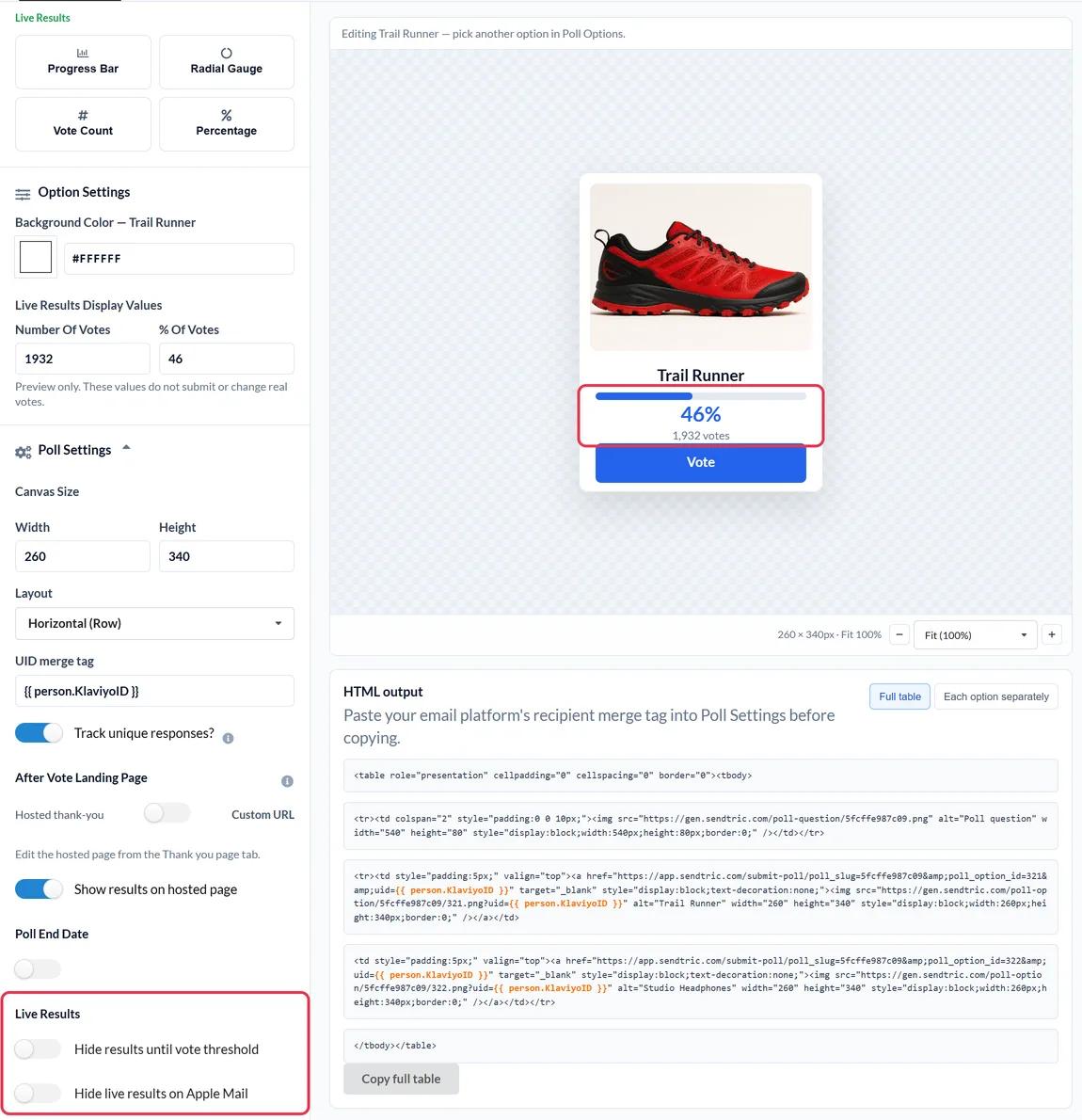
Content Builder has an Email Form block for collecting form submissions. A Sendtric poll is a lighter option when you only need one question: the answers are images you design, one click records the vote, and the results can be drawn into the email itself.
What you can do with a live poll in Salesforce Marketing Cloud
- Feed preferences into your data: ask which topics or product lines subscribers want, then load the per-subscriber answers into a data extension for future segmentation.
- Measure satisfaction at scale: an NPS (0 to 10) question in a post-purchase or post-support journey email, on the Power plan and above.
- Route each answer: send people who choose "Upgrade" to a pricing page and people who choose "Not now" to a resources page, with a custom page per answer on Power.
- Pick next season's range: show three product images and let subscribers vote, with live percentages on each image (Power and above).
| Poll feature | Free | Micro | Standard | Power and Enterprise |
|---|---|---|---|---|
| Answer options | 2 | 3 | 5 | 11 |
| Image and shape layers | No | No | Yes | Yes |
| Results on the hosted thank-you page | No | No | Yes | Yes |
| Live results in the email | No | No | No | Yes |
| Custom page per answer, poll end date | No | No | No | Yes |
How to add a live poll to Salesforce Marketing Cloud
Step 1: Build the poll
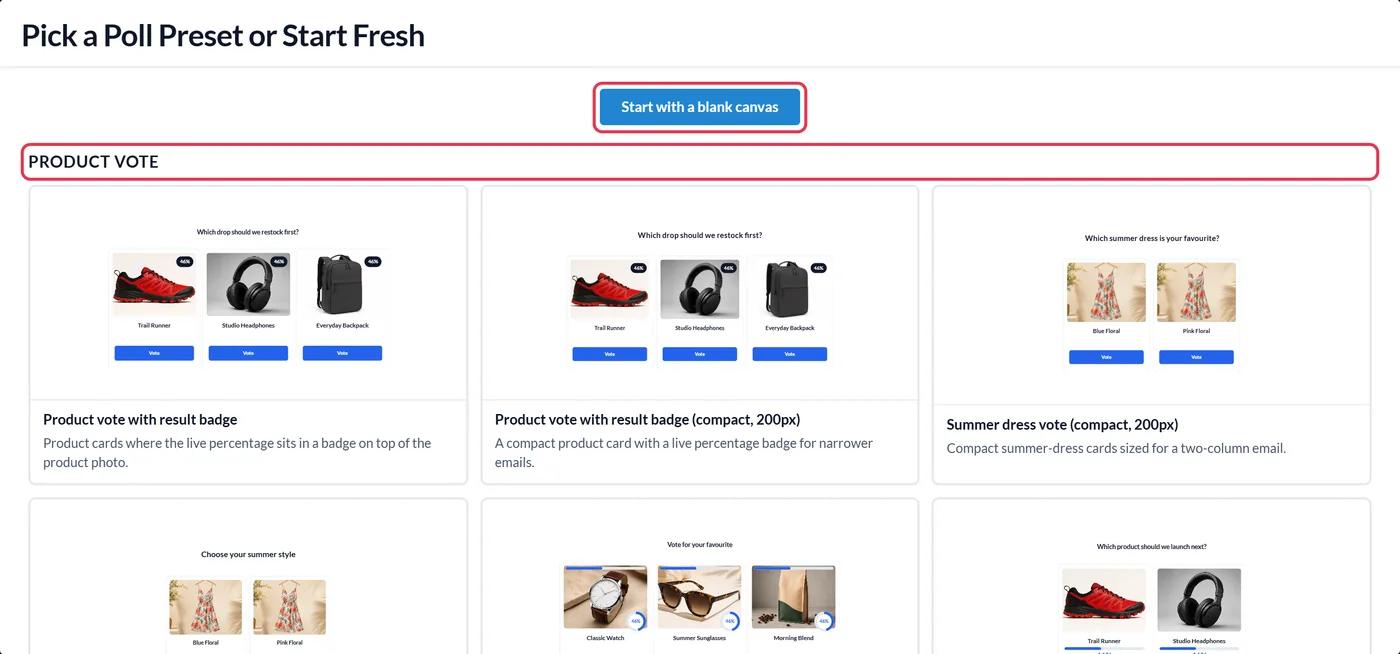
In Sendtric, open Polls and click Create New. Start from a preset, such as Yes / No or a star rating, or from a blank canvas, and add your answers.
Step 2: Set %%subscriberid%% as the UID
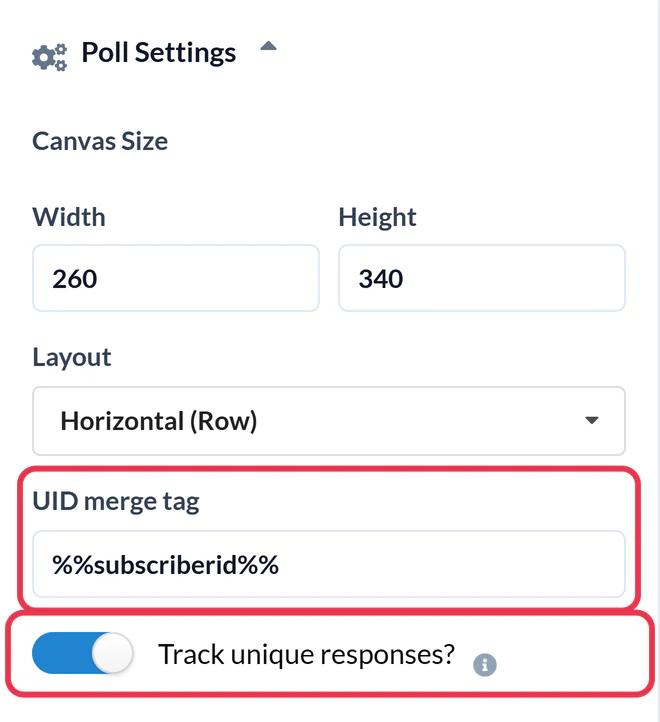
In Poll Settings, enter %%subscriberid%% in the UID merge tag field. Marketing Cloud swaps it for each subscriber's ID at send time, which is how Sendtric keeps one vote per person. Turn on Track unique responses? to be able to download each subscriber's answer, then Save.
Step 3: Copy the HTML
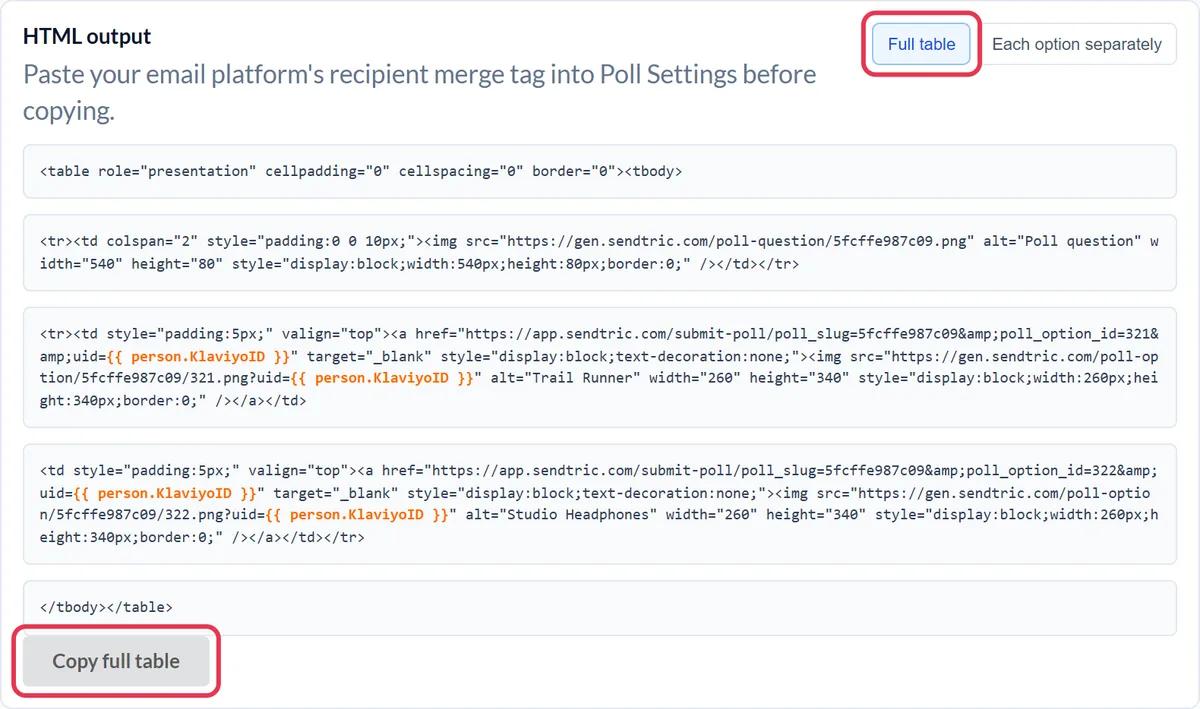
In HTML output under the canvas, click Copy full table. Copy is only enabled once the UID merge tag is set.
Step 4: Paste into an HTML block
In Content Builder, open the email and drag an HTML content block into place. Select the block and paste the poll code into its HTML editor, then save.
Step 5: Test with two subscribers
Use Preview and Test to send a test to two subscribers you control, and vote from each. A tab opens for a moment while the vote is recorded, then the thank-you page or your own page appears. Both votes should show in the poll report. If the second vote replaced the first, %%subscriberid%% wasn't replaced, so check the field.
Loading answers back into Marketing Cloud
With unique tracking on, the poll report has a User Unique Poll Results CSV with each subscriber ID and their answer. Import it into a data extension and match the rows to your subscribers by ID to build segments or journey entry criteria. See how to see poll results and download reports.
Polls in Journey Builder
The poll is plain HTML, so it works in journey emails too. Subscribers who enter the journey weeks later vote into the same poll, and with live results they see the up-to-date totals.
Salesforce Marketing Cloud Live Poll FAQ
Why %%subscriberid%% and not the email address?
It's a unique ID for each subscriber and doesn't put an email address into the vote link. Sendtric only stores the vote and that ID.
Is a vote recorded without leaving the email?
The poll and results are inside the email, but clicking an answer opens a browser tab briefly to record the vote, then shows your thank-you page or the page you chose.
How often do live results update?
Usually within a minute of new votes. Some email apps keep their own copy of images, so a reopen can sometimes show slightly older numbers.
Can I close the poll on a set date?
Yes, on Power and above. Set a Poll End Date and votes are no longer accepted after it.
Can I change the answers after the email is sent?
Change the look as much as you like. Don't delete answers or change the preset after sending, because the links in sent emails would stop recording votes.
Ready for more? The live polls overview covers every setting, and the email personalization page shows how to combine it with other Sendtric widgets.
More Salesforce Marketing Cloud guides
- Countdown Timers - How to Add Countdown Timers to Salesforce Marketing Cloud
- Personalized Images - How to Add Personalized Images to Salesforce Marketing Cloud
- Rule-Based Images - How to Add Rule-Based Images to Salesforce Marketing Cloud
- Dynamic Weather - How to Add Dynamic Weather to Salesforce Marketing Cloud
- Critical Alerts - How to Add Critical Alerts to Salesforce Marketing Cloud
- Social Proof Counters - How to Add Social Proof Counters to Salesforce Marketing Cloud
Using a different platform? See all Sendtric integrations.
