
How to Add Dynamic Weather to Salesforce Marketing Cloud
A Sendtric weather forecast in Marketing Cloud emails that's generated on open, for a fixed place or each subscriber's own city from data extension fields.
 First Publish Date:
Bring each Marketing Cloud subscriber's local forecast into your email.
The Sendtric weather widget draws a forecast image when the email is opened. With your subscribers' city and country fields from Marketing Cloud, every reader sees the weather where they are, or where they're going.
Content Builder has no weather block among its content types, so the forecast goes into an HTML block like any other Sendtric widget.
What you can do with dynamic weather in Salesforce Marketing Cloud
- Pre-arrival emails for hotels and airlines: the destination forecast for the travel dates, with dates passed in from the booking data extension (Standard and above).
- Retail campaigns by region: one email that shows rain gear next to a rainy forecast and summer lines next to a sunny one.
- Event and venue reminders: the forecast for a stadium or festival in the reminder sent a few days before.
- Field and outdoor services: a heads-up about weather on the day of a booked visit.
Fixed locations and a full-week forecast work on every plan. Location from a city field needs Micro, postcode locations and dates from a field need Standard, and a forecast that always starts on the day of opening needs Power. See pricing.
How to add a weather widget to Salesforce Marketing Cloud
Step 1: Create the widget
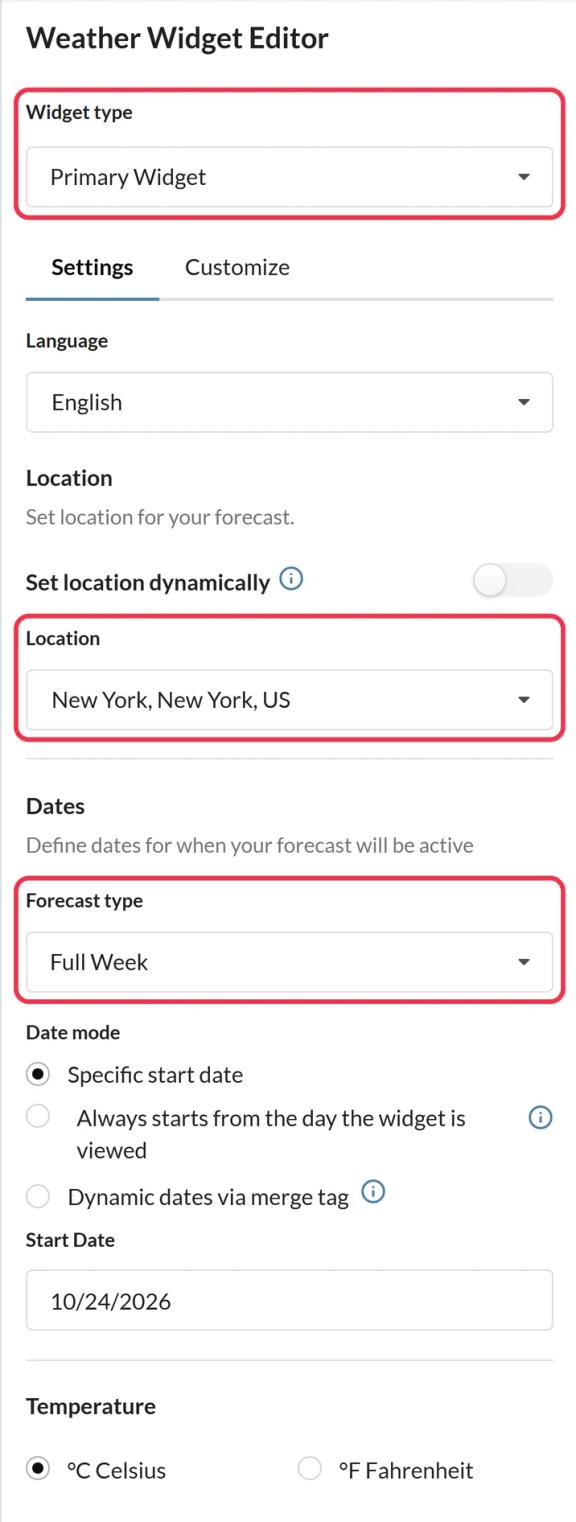
In Sendtric, open Weather widget and click Create New. Choose Primary Widget or Inline Widget, the language, the temperature unit and the number of days.
Step 2: Turn on dynamic location
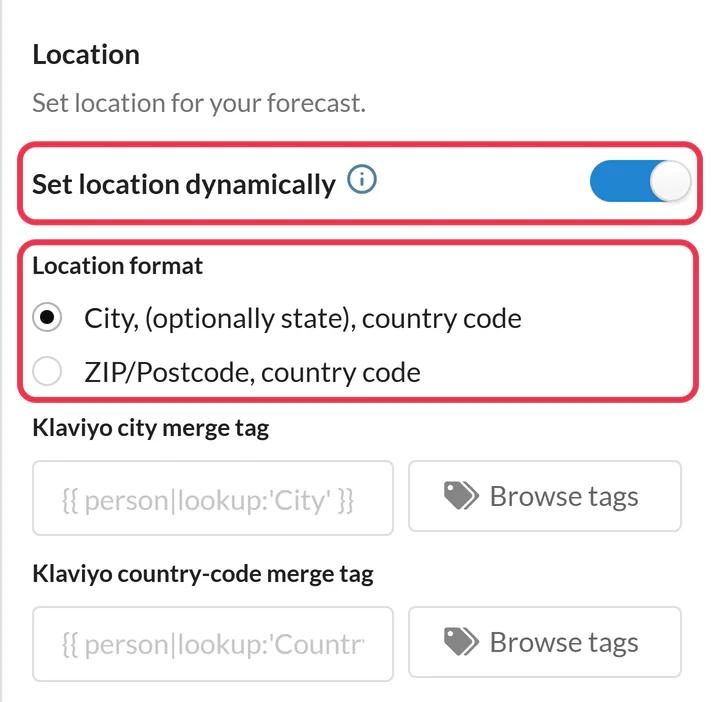
Switch on Set location dynamically and choose a location format: city and two-letter country code, or postcode and country code. Add a fallback image if you'd rather not hide the widget when a location can't be found.
Step 3: Copy the code and add personalization strings
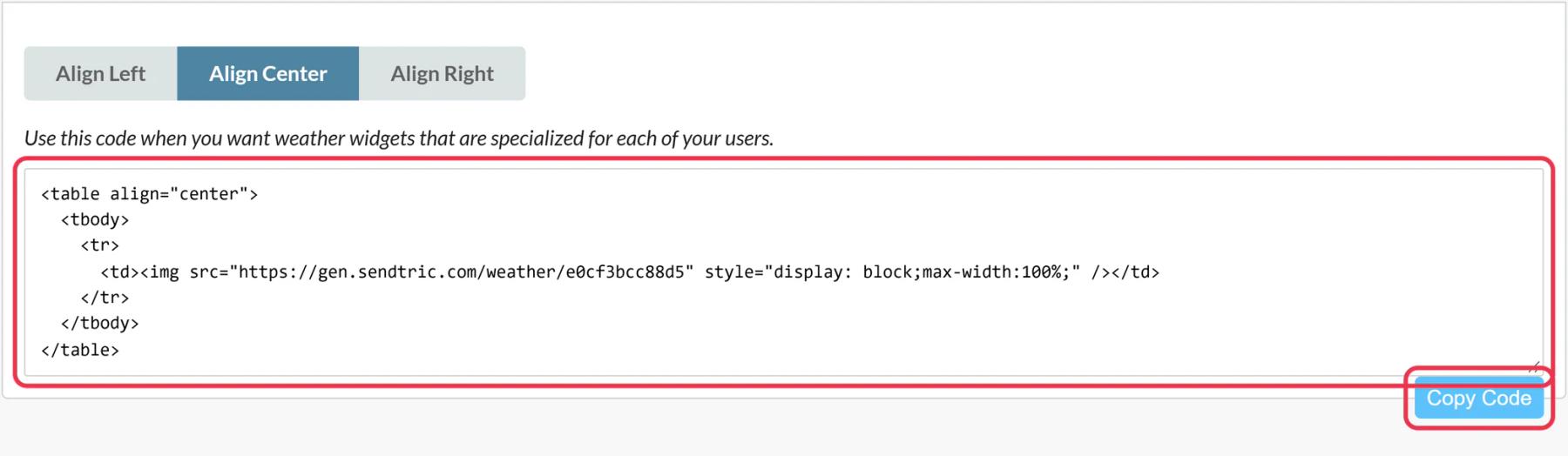
Click Save, then Copy Code. Replace city,countryCode in the code with your field names, for example location=%%City%%,%%CountryCode%%. For travel dates, replace YYYY-MM-DD with a field that holds the date in that format.
Step 4: Paste into an HTML block
In Content Builder, drag an HTML content block into the email, paste the code into its HTML editor and save.
Step 5: Preview a few subscribers
In Preview and Test, check subscribers from different countries and one with an empty city, then send a test to yourself.
Getting dates into the right format
The date has to be YYYY-MM-DD. If your data extension stores a full date and time, format it with AMPscript in the code, for example %%=FormatDate(AttributeValue("CheckInDate"),"yyyy-MM-dd")=%%, using your own field name. Forecasts reach about 10 days ahead, and dates outside that range show the fallback.
Country codes, not country names
The location needs a two-letter ISO country code like US, GB or DE. If your data extension holds full country names, add a code field or convert it before the send. Sendtric never uses the reader's IP address to guess a location. More in how to show each subscriber their local weather.
Salesforce Marketing Cloud Weather Widget FAQ
What personalization strings do I need?
One for the city and one for the country code, using your own field names, for example %%City%%,%%CountryCode%%. A postcode field works too on Standard and above.
When is the forecast fetched?
When the email is opened. Each forecast image is cached for up to an hour, so it's always close to current.
What happens if a subscriber's city isn't found?
The fallback shows: by default the widget is hidden, or you can upload a fallback image on Micro and above.
Can I show the forecast for a trip date instead of today?
Yes, on Standard and above, by passing the date in YYYY-MM-DD format from a data extension field.
Which languages are supported?
47, including English, Spanish, French, German and Japanese. Pick one in the widget settings.
Read more about dynamic weather and how it all fits into a wider email personalization strategy.
More Salesforce Marketing Cloud guides
- Countdown Timers - How to Add Countdown Timers to Salesforce Marketing Cloud
- Live Polls - How to Add Live Polls to Salesforce Marketing Cloud
- Personalized Images - How to Add Personalized Images to Salesforce Marketing Cloud
- Rule-Based Images - How to Add Rule-Based Images to Salesforce Marketing Cloud
- Critical Alerts - How to Add Critical Alerts to Salesforce Marketing Cloud
- Social Proof Counters - How to Add Social Proof Counters to Salesforce Marketing Cloud
Using a different platform? See all Sendtric integrations.
