
How to Add Rule-Based Images to Salesforce Marketing Cloud
Let Sendtric choose which image each Marketing Cloud subscriber sees when they open the email, based on a field value, the date, the time or their device.
 First Publish Date:
Pick the right image for each Marketing Cloud subscriber when they open, not when you send.
With rule-based images you upload several images and set the conditions for each. Every time the email is opened, Sendtric runs through the list from the top and shows the first image whose conditions match.
Content Builder's Dynamic Content block already varies content by subscriber attributes, chosen when each email is built for the send. A rule-based image adds the moment of opening: the date and time, the day of the week, the device or the email app, so a single email can change after it lands in the inbox.
What you can do with rule-based images in Salesforce Marketing Cloud
- Before and after a launch: show a "Coming Tuesday" teaser until launch day, then the product image from that date on.
- Tier-based creative: compare a
Tierfield against Gold, Silver and Bronze and show each tier its own banner, using Merge Tag: Text conditions. - Business-hours messaging: a "Call us now" image during opening hours and a "Chat with us online" image after hours, using Time and Day Of Week conditions.
- App download prompts: point smartphone readers to the app store and desktop readers to the website, with a Device condition (Power).
| Rule-based images | Free | Micro | Standard | Power and Enterprise |
|---|---|---|---|---|
| Images per widget | 2 | 4 | 10 | Unlimited |
| Fallback image | No | Yes | Yes | Yes |
| Date, day and time conditions | No | No | Yes | Yes |
| Number and device conditions | No | No | No | Yes |
How to add a rule-based image to Salesforce Marketing Cloud
Step 1: Add the images in priority order
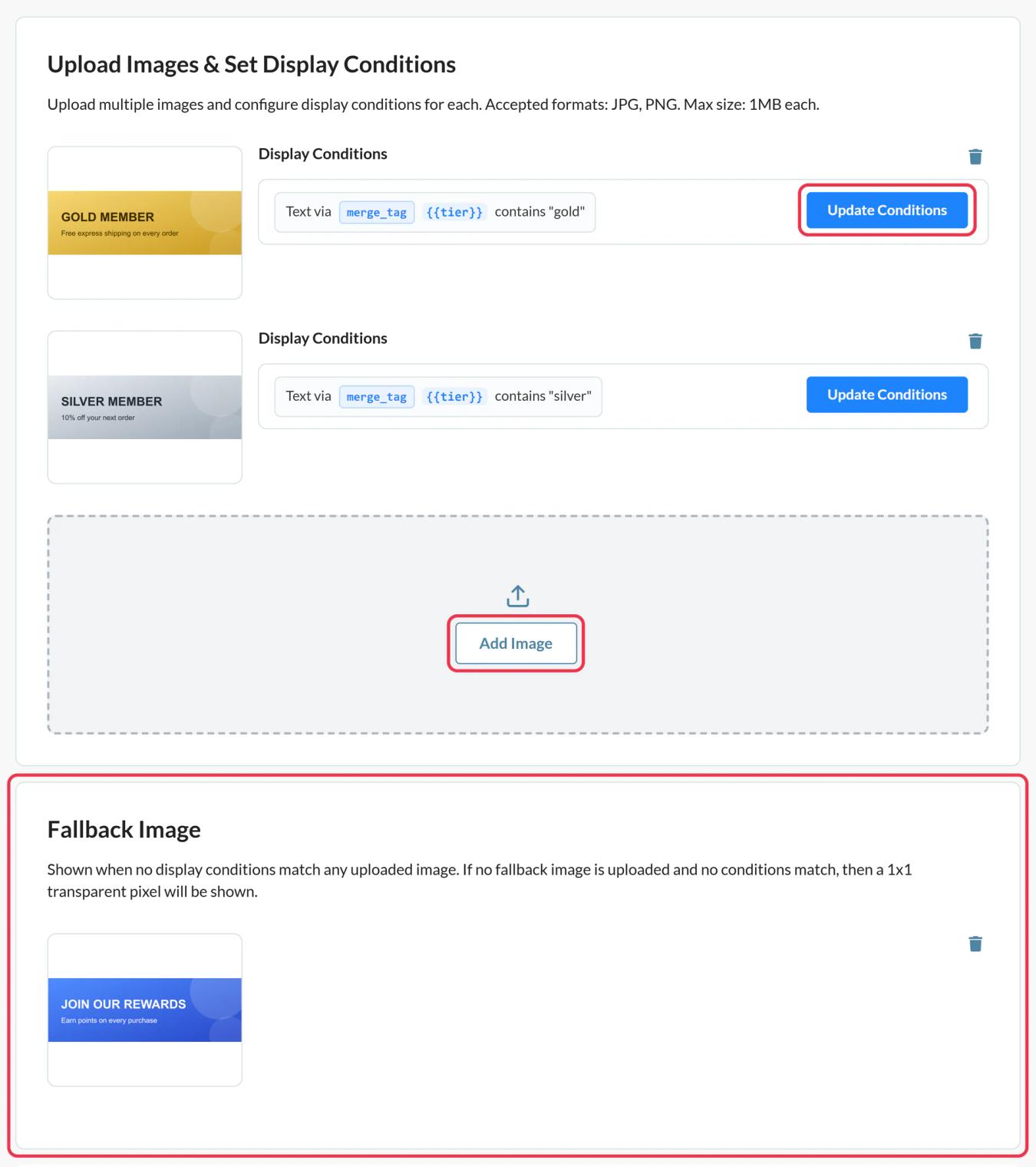
In Sendtric, go to Rule-based Images > Create New and click Add Image for each version. There's no reordering later, so add the most specific image first.
Step 2: Set conditions on each image
Click Update Conditions on each image card. Choose Match all conditions (AND) or Match any condition (OR) and add the conditions. Every image needs at least one, or it's never shown.
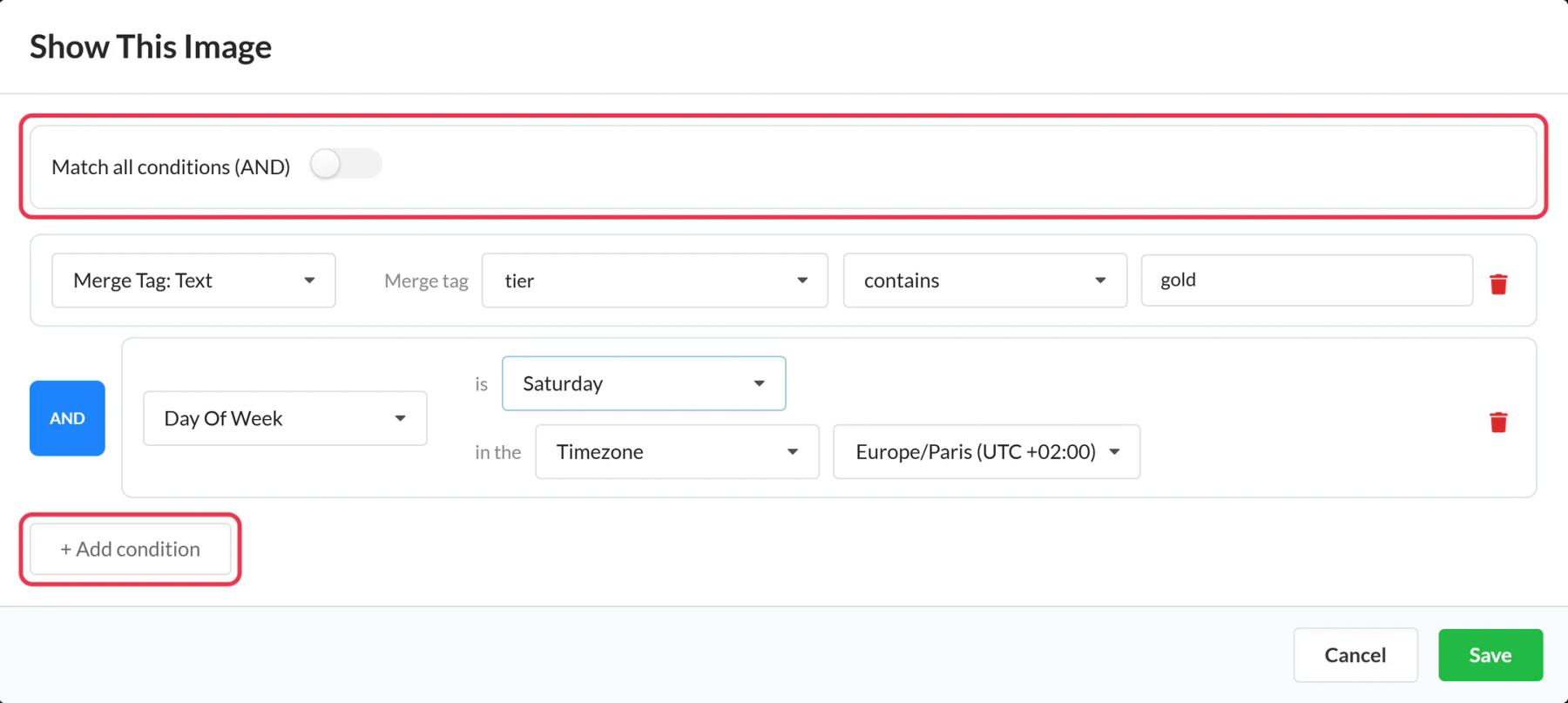
Step 3: Add a fallback and copy the code
Upload a Fallback Image for subscribers who don't match any rule, then Save and Copy code. Each merge-tag condition adds a parameter like tier={{tier}} to the URL.
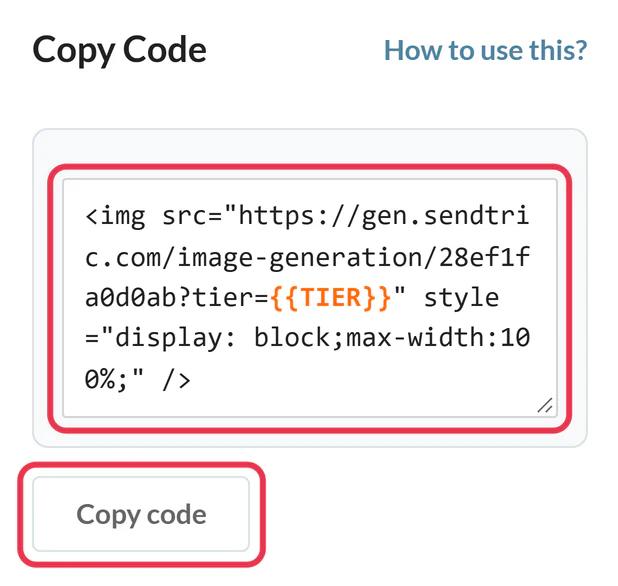
Step 4: Swap in the personalization string
Replace each {{...}} placeholder with the Marketing Cloud personalization string for that field, for example tier=%%Tier%%. Date, time and device conditions need nothing extra.
Step 5: Add it to Content Builder and test
Drag an HTML content block into the email, paste the code into its HTML editor and save. Use Sendtric's Simulate preview to check date, time and device rules, then Preview and Test with subscribers who have different field values.
Time zones for date and time rules
Each condition has its own time zone. For a global list, pass each subscriber's time zone with a merge tag (values like America/Chicago), so "after 9 am" means 9 am where they are. If that value is blank or invalid, Sendtric uses UTC.
Device detection has limits
Device, operating system and email app rules depend on what the email app reports. Apps that fetch images through a proxy, like Gmail, can make every open look like desktop. More in how to set display conditions for rule-based images.
Salesforce Marketing Cloud Rule-Based Images FAQ
Should I use this or a Dynamic Content block?
Use Dynamic Content when the choice only depends on subscriber data and is fine to fix at send time. Use a rule-based image when it should depend on the time, day or device at the moment of opening, or should change after sending.
Are text conditions case sensitive?
No. "gold" matches "Gold". Personalization strings in Marketing Cloud aren't case sensitive either.
What if no condition matches?
The fallback image shows. With no fallback, Sendtric returns an invisible 1x1 image.
Can I change the rules after sending?
Yes. Save the widget in Sendtric and the new rules apply on the next open, in emails already delivered.
Can an option be another Sendtric widget?
Yes. When adding an image you can choose a timer, a personalized image or a weather widget from your library.
Ready for more? The rule-based images overview covers every setting, and the email personalization page shows how to combine it with other Sendtric widgets.
More Salesforce Marketing Cloud guides
- Countdown Timers - How to Add Countdown Timers to Salesforce Marketing Cloud
- Live Polls - How to Add Live Polls to Salesforce Marketing Cloud
- Personalized Images - How to Add Personalized Images to Salesforce Marketing Cloud
- Dynamic Weather - How to Add Dynamic Weather to Salesforce Marketing Cloud
- Critical Alerts - How to Add Critical Alerts to Salesforce Marketing Cloud
- Social Proof Counters - How to Add Social Proof Counters to Salesforce Marketing Cloud
Using a different platform? See all Sendtric integrations.
