
How to Add Critical Alerts to Salesforce Marketing Cloud
Keep a hidden Sendtric banner in your Marketing Cloud templates and switch it on when something changes: outages, delays, cancellations. Enterprise plans only.
 First Publish Date:
Update the message in Marketing Cloud emails that have already been delivered.
A Sendtric critical alert is a banner you can switch on and off at any time, including after the email is sent. While it's off, the email shows nothing in its place. When you switch it on, everyone who opens the email from then on sees it.
Critical alerts are a Sendtric Enterprise feature. They aren't available on Free, Micro, Standard or Power.
What you can do with critical alerts in Salesforce Marketing Cloud
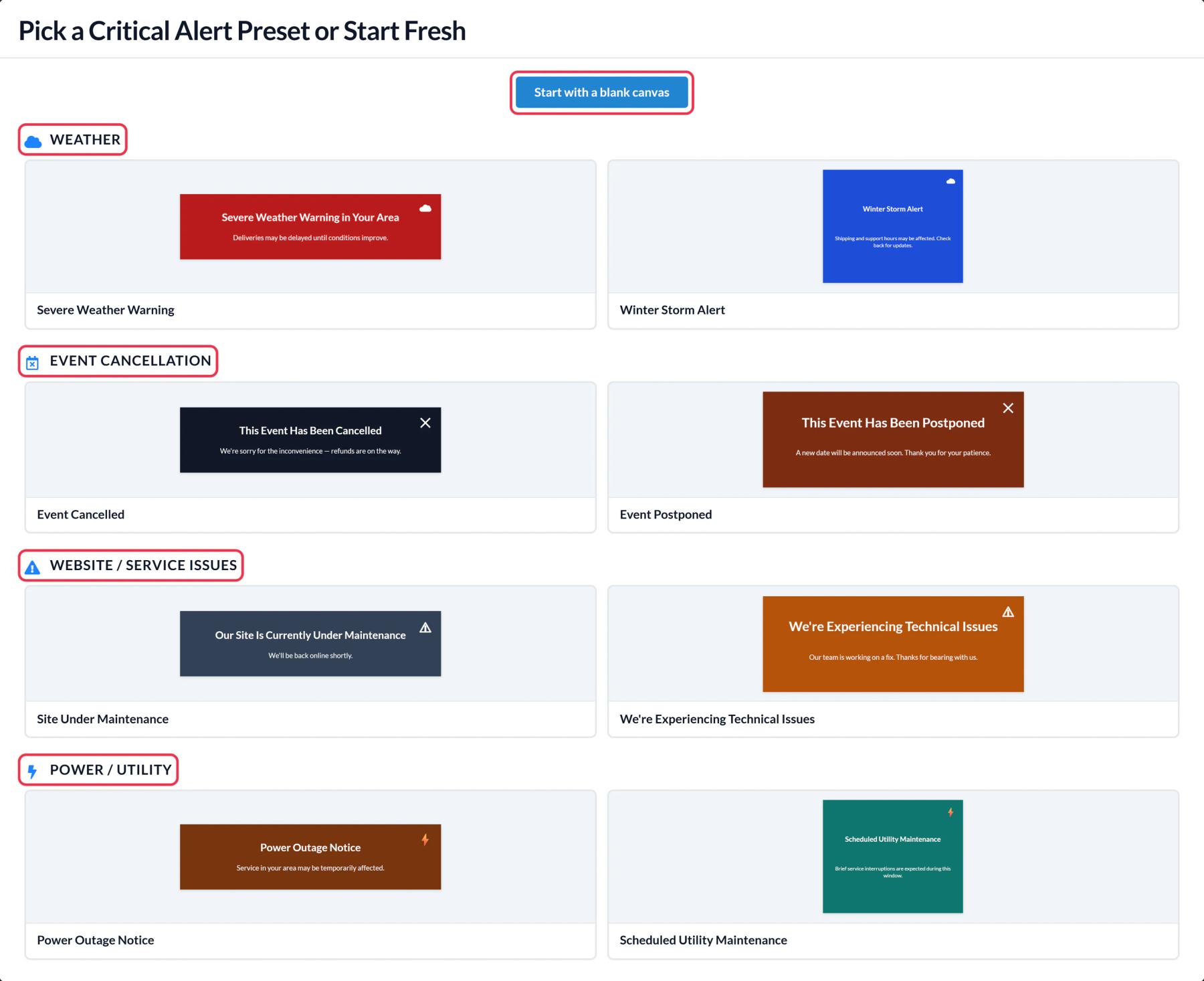
- Service status for subscribers: a "We're experiencing technical issues" banner in account and billing emails during an outage, off again once it's fixed.
- Utility and power notices: a scheduled maintenance banner that appears only during the planned window.
- Travel disruption: a severe weather warning added to booking confirmations already sitting in inboxes.
- Event changes: a postponement notice in every reminder from a Journey Builder event sequence.
How to add a critical alert to Salesforce Marketing Cloud
Step 1: Create the alert
In Sendtric, go to Critical alerts > Create New and pick a preset, like Site Under Maintenance, or a blank canvas. Adjust the wording and colors to fit your template.
Step 2: Decide when it's on
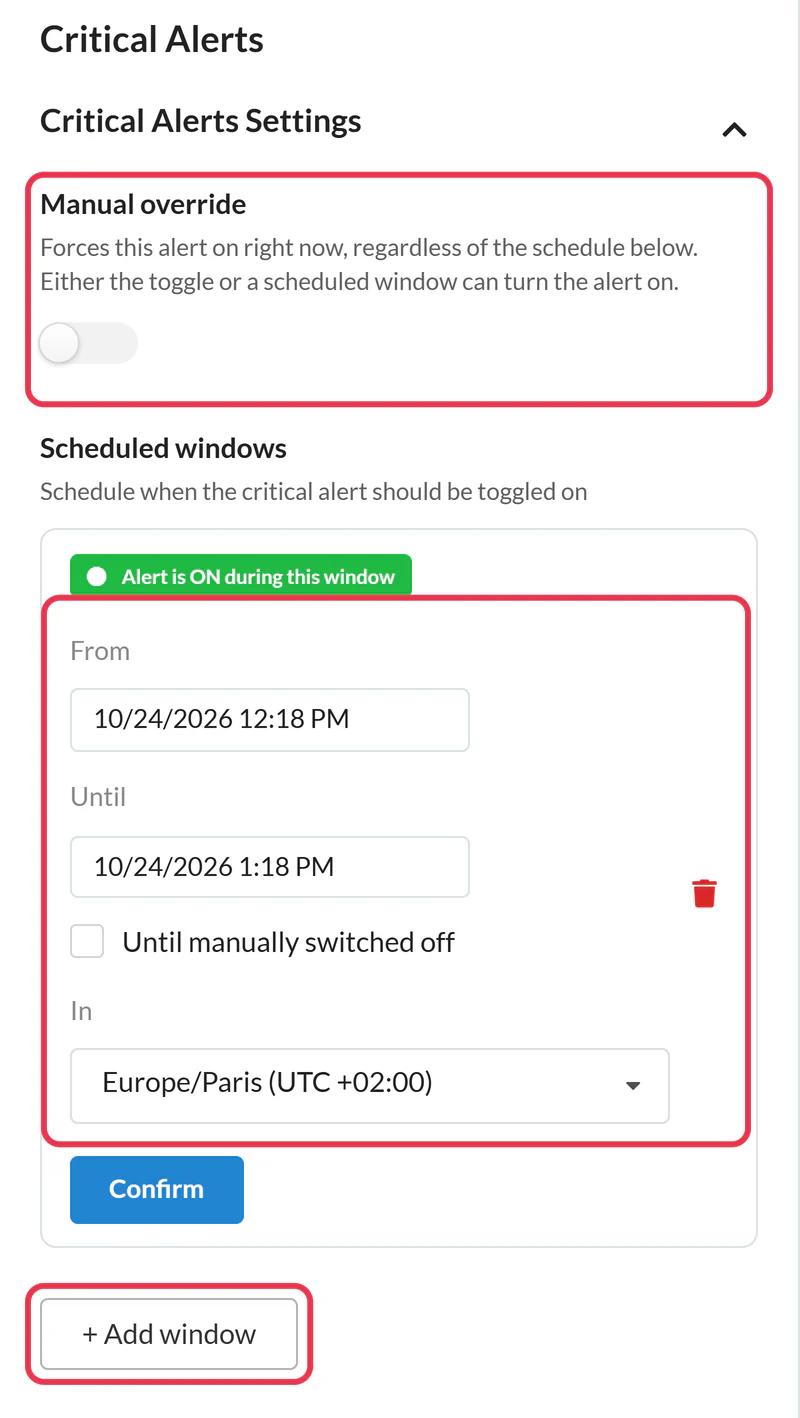
Use Manual override to turn the alert on immediately, or add up to 5 scheduled windows with + Add window, each with a From, an Until and a time zone. With no windows and the override off, the alert stays hidden.
Step 3: Copy the code
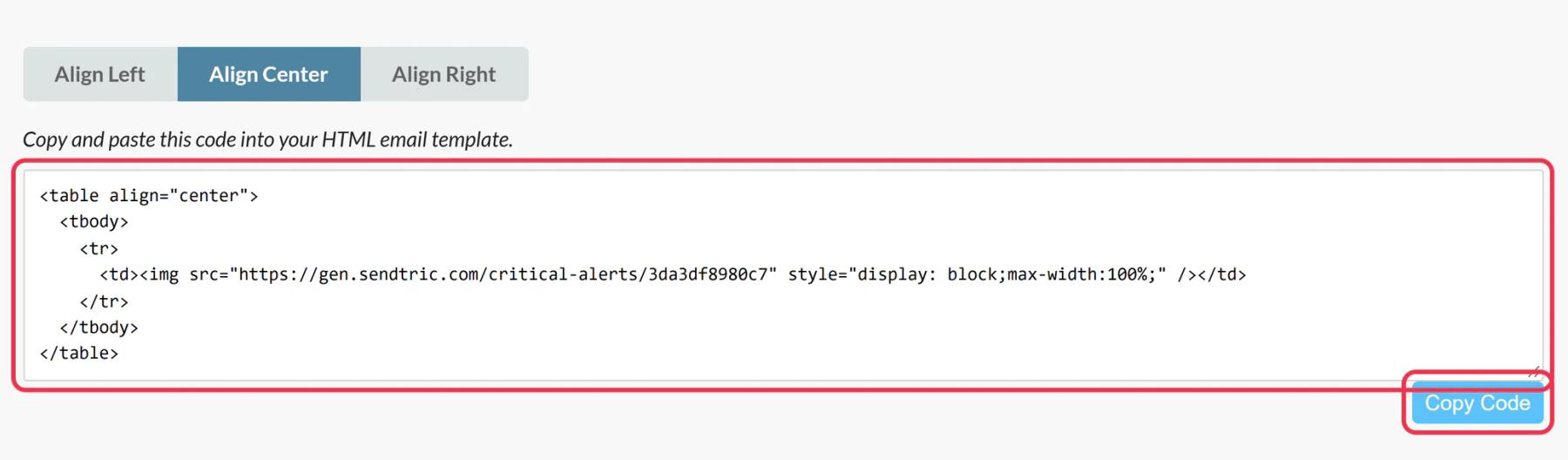
Click Save, choose an alignment and click Copy Code. This code stays the same however often you change the alert.
Step 4: Add it to your Content Builder emails
Drag an HTML content block near the top of the email, paste the code into its HTML editor and save. To use the same alert across many emails, you can save the block in Content Builder and drop it into each template.
Step 5: Test it switched off and on
Send a test with the alert off and check that nothing shows. Turn on the manual override, reopen the test and the banner should appear. Turn it off again if it isn't needed yet.
Put it in the emails that keep sending
Transactional and journey emails, like order confirmations and appointment reminders, are where an alert pays off most. Adding the alert while it's off costs nothing in views, since views only count while it's on.
Personalize the alert if you need to
Alerts use the same canvas as personalized images, so a Dynamic Text layer can include a Marketing Cloud personalization string such as %%FirstName%%. See how to create a critical alert for the full editor.
Salesforce Marketing Cloud Critical Alerts FAQ
Do I have to resend the email to show the alert?
No. Turn the alert on in Sendtric and it shows on the next open of every email that contains it.
What do subscribers see while it's off?
Nothing. Sendtric returns an invisible 1x1 image, so the email looks normal.
Can I schedule it ahead of time?
Yes. Add up to 5 windows with start and end times. The alert is on during any window, or whenever the manual override is on.
Will a subscriber who already opened the email see the alert?
If they open it again after you switch it on, yes, as long as their email app loads the image again rather than using a stored copy.
Which plan includes critical alerts?
Sendtric Enterprise. See pricing for plan details.
Ready for more? The critical alerts overview covers every setting, and the email personalization page shows how to combine it with other Sendtric widgets.
More Salesforce Marketing Cloud guides
- Countdown Timers - How to Add Countdown Timers to Salesforce Marketing Cloud
- Live Polls - How to Add Live Polls to Salesforce Marketing Cloud
- Personalized Images - How to Add Personalized Images to Salesforce Marketing Cloud
- Rule-Based Images - How to Add Rule-Based Images to Salesforce Marketing Cloud
- Dynamic Weather - How to Add Dynamic Weather to Salesforce Marketing Cloud
- Social Proof Counters - How to Add Social Proof Counters to Salesforce Marketing Cloud
Using a different platform? See all Sendtric integrations.
