
How to Add Personalized Images to Salesforce Marketing Cloud
Turn data extension fields into text on an image: Sendtric draws each subscriber's name, city or points onto your design when the Marketing Cloud email is opened.
 First Publish Date:
Turn your data extension fields into personalized images, one per subscriber.
Sendtric personalized images let you lay text from your subscriber data over a photo or graphic. Marketing Cloud fills in the values at send time, and Sendtric draws the finished image when the email is opened.
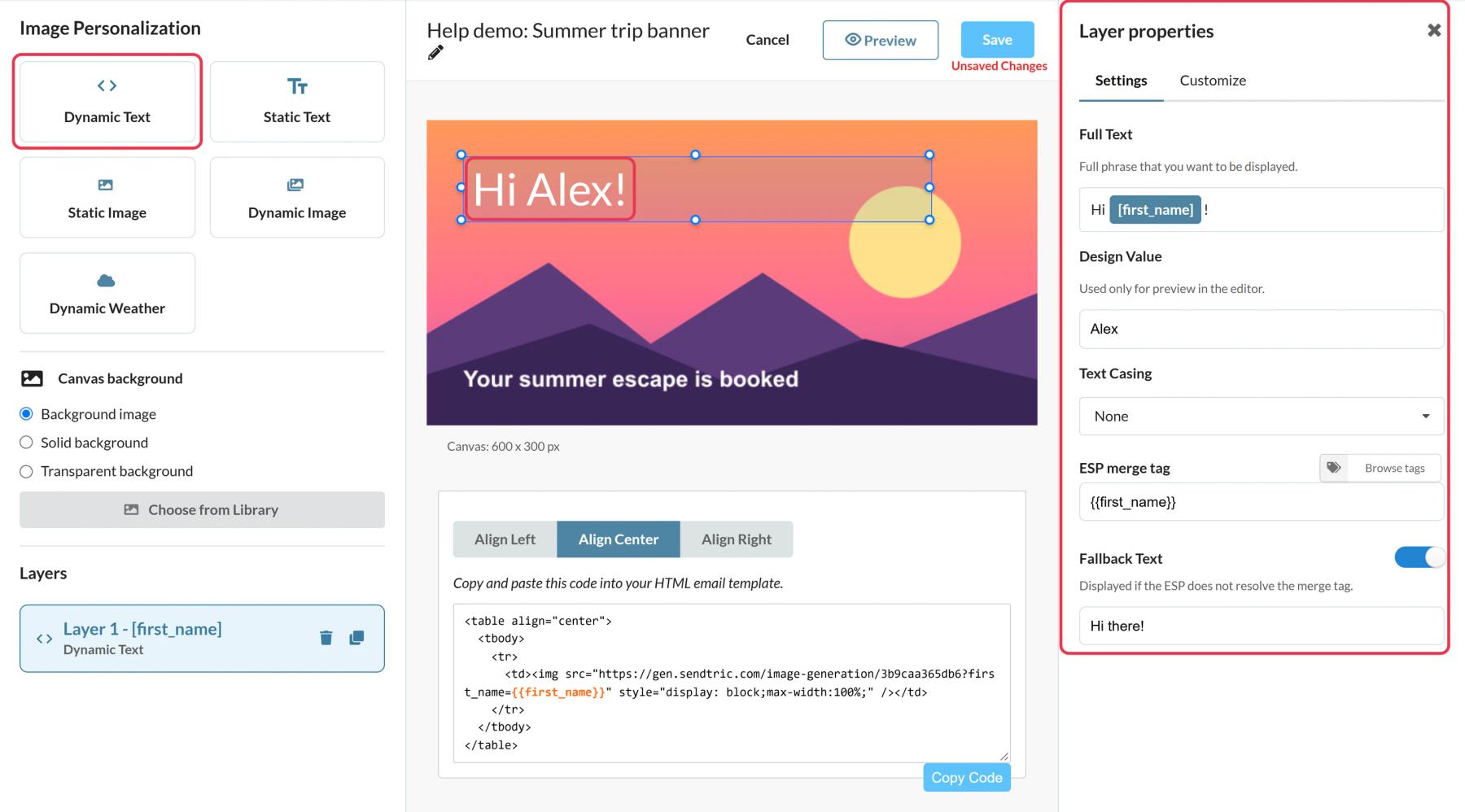
Marketing Cloud already personalizes text with personalization strings and AMPscript, and Enhanced Dynamic Content can swap whole images from an import file. A Sendtric personalized image is different: you design one image and the subscriber's own values are written into it, in your brand font, without building a version per value.
What you can do with personalized images in Salesforce Marketing Cloud
- Account and loyalty summaries: points balance, tier and member-since year on one branded card in a monthly statement email.
- Booking confirmations: route, travel date and seat or room details on an itinerary image, filled in per subscriber from the booking data extension.
- Named welcome banners: a first-name greeting across the hero image of a welcome journey.
- Year-in-review emails: a subscriber's own stats written onto a single background. Set fallbacks, and consider leaving out subscribers with too little data.
Free plans get 1 dynamic text layer, Micro 2, Standard 4 and Power and Enterprise 20. Static image layers need Standard. Details on the pricing page.
How to add a personalized image to Salesforce Marketing Cloud
Step 1: Design the image
In Sendtric, go to Image Personalization > Create New. Choose a background, then add a Dynamic Text layer where the personalized text should go.
Step 2: Enter the Marketing Cloud personalization string
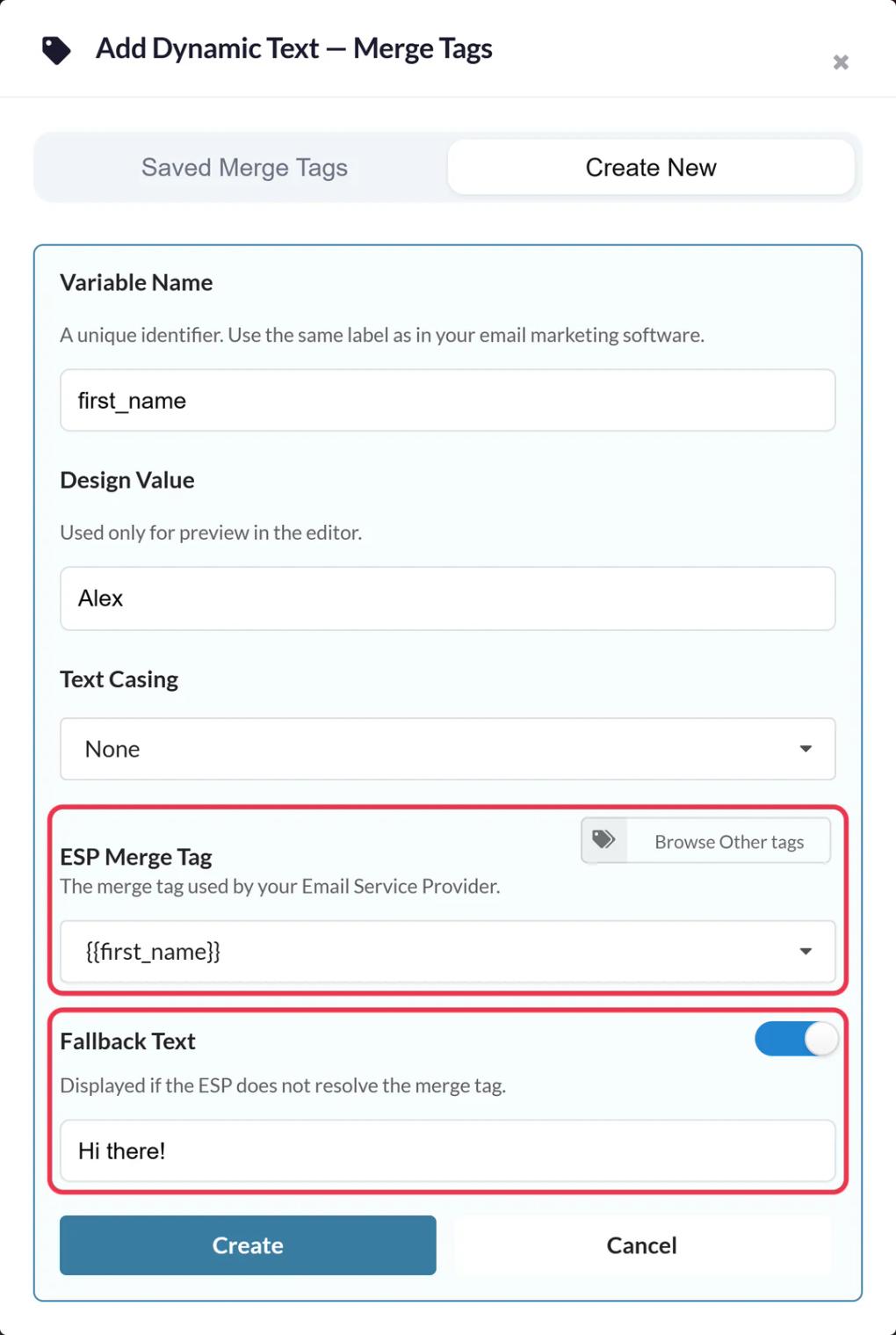
In Add Dynamic Text, name the variable (for example first_name) and enter the personalization string in ESP Merge Tag. It's the name of your attribute or data extension field between double percent signs, so a field called FirstName becomes %%FirstName%%. Add Fallback Text for subscribers without a value.
Step 3: Save and copy the code
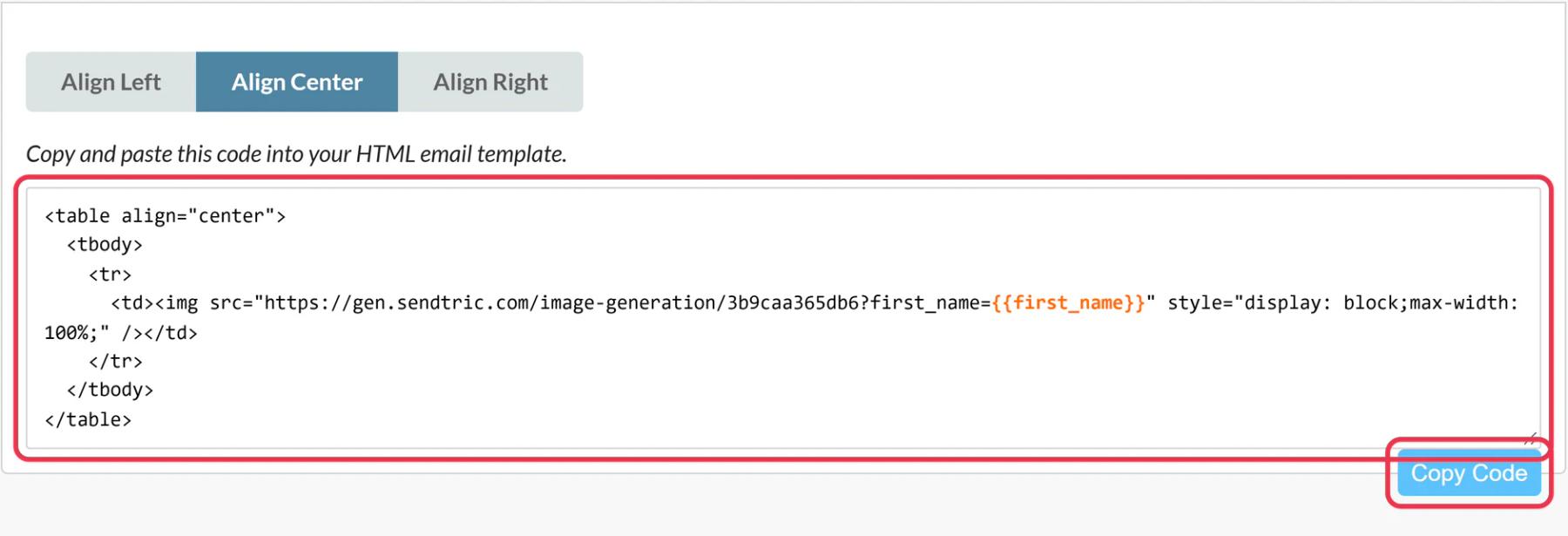
Click Save, choose an alignment and click Copy Code. The personalization string sits in the image URL as a parameter.
Step 4: Paste into a Content Builder HTML block
Drag an HTML content block into your email and paste the code into its HTML editor. Save the email.
Step 5: Preview with real subscribers
In Preview and Test, preview a few subscribers from the sending data extension, including one with a long value and one with an empty field, then Send Test to yourself. Text wraps inside its box but never shrinks, so size the box for your longest realistic value.
Use the field name your send actually has
Personalization strings come from the attributes or data extension used for the send, and they aren't case sensitive. If every test shows your fallback text, check that the field name in ESP Merge Tag matches a field in the data extension you send to. How to use merge tags in Sendtric widgets covers the general setup.
Values with AMPscript
If a value needs reshaping first, such as a formatted date or a number with a currency sign, you can use inline AMPscript in the code instead of a plain personalization string. Inside AMPscript, refer to the field without the percent signs, for example %%=AttributeValue("FirstName")=%%.
Salesforce Marketing Cloud Personalized Images FAQ
Which personalization string do I use for first name?
Whatever your first-name field is called in the sending data extension or profile attributes, between double percent signs. For a field called FirstName that's %%FirstName%%.
What shows if the field is empty?
Your fallback text, on its own. Without a fallback the layer is hidden, including any text around the value, so write the fallback as a full phrase like "Hi there!".
Can I preview the personalized image in Content Builder?
Use Preview and Test with a real subscriber so the personalization string is filled in.
Is the image generated at send time or open time?
At open time. Marketing Cloud writes the value into the image link when it sends, and Sendtric draws the image when the email is opened, caching it for an hour for the same values.
Can I update the design after the email is sent?
Yes. The email links to the image, so saving a new design in Sendtric changes it on the next open.
Ready for more? The personalized images overview covers every setting, and the email personalization page shows how to combine it with other Sendtric widgets.
More Salesforce Marketing Cloud guides
- Countdown Timers - How to Add Countdown Timers to Salesforce Marketing Cloud
- Live Polls - How to Add Live Polls to Salesforce Marketing Cloud
- Rule-Based Images - How to Add Rule-Based Images to Salesforce Marketing Cloud
- Dynamic Weather - How to Add Dynamic Weather to Salesforce Marketing Cloud
- Critical Alerts - How to Add Critical Alerts to Salesforce Marketing Cloud
- Social Proof Counters - How to Add Social Proof Counters to Salesforce Marketing Cloud
Using a different platform? See all Sendtric integrations.
