
How to Add Rule-Based Images to Brevo
One HTML block in Brevo, many possible images: Sendtric picks the right one for each contact when the email is opened, based on Brevo attributes, date, time or device.
 First Publish Date:
Let one image slot in your Brevo email change with the contact and the moment.
A Sendtric rule-based image is a single image in your email that is chosen when the email is opened. You upload the versions and set the rules, for example "loyalty tier equals Gold" or "opened after 5 pm", and each contact sees the first image whose rules match.
Brevo's own Content visibility setting can show or hide a block based on device or contact attributes. A rule-based image goes a step further: it's chosen each time the email is opened, so it can also react to the date, the day of the week or the time someone actually reads the email.
What you can do with rule-based images in Brevo
- Store or region creative: one banner per city or country, picked from a Brevo attribute you already store.
- Loyalty tiers: a Gold, Silver or Bronze card image based on a tier attribute synced from your shop.
- Time-of-day offers: a lunch offer before 3 pm and a dinner offer after it, for restaurants and food delivery.
- Weekend vs weekday: different hero images depending on the day the email is opened, without sending two campaigns.
Which rules you can use depends on your Sendtric plan:
| Rule or limit | Sendtric plan |
|---|---|
| Text matches on a merge tag, email client, operating system | All plans (2 images on Free) |
| Fallback image, up to 4 images | Micro |
| Date, day of week, time of day, up to 10 images | Standard |
| Number comparisons, device type, unlimited images | Power and Enterprise |
How to add rule-based images to Brevo
Step 1: Upload the images in priority order
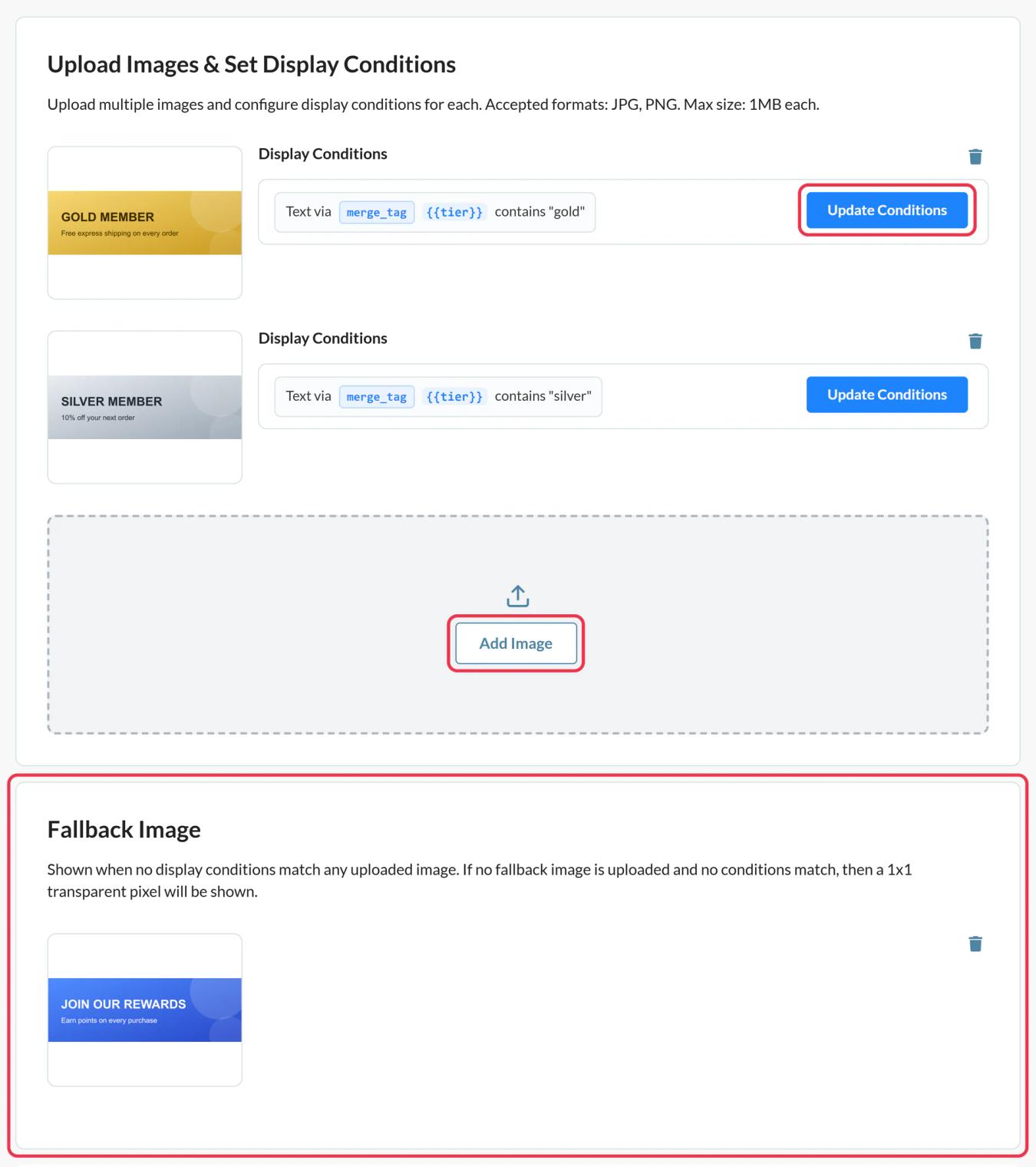
In Sendtric, open Rule-based Images, click Create New and use Add Image for each version. Images are checked from top to bottom and the first match wins, so add the most specific one first.
Step 2: Set the conditions
Click Update Conditions on each image card. Choose whether all or any conditions must match, add your conditions and click Save. An image without conditions is never shown, so give every image at least one.
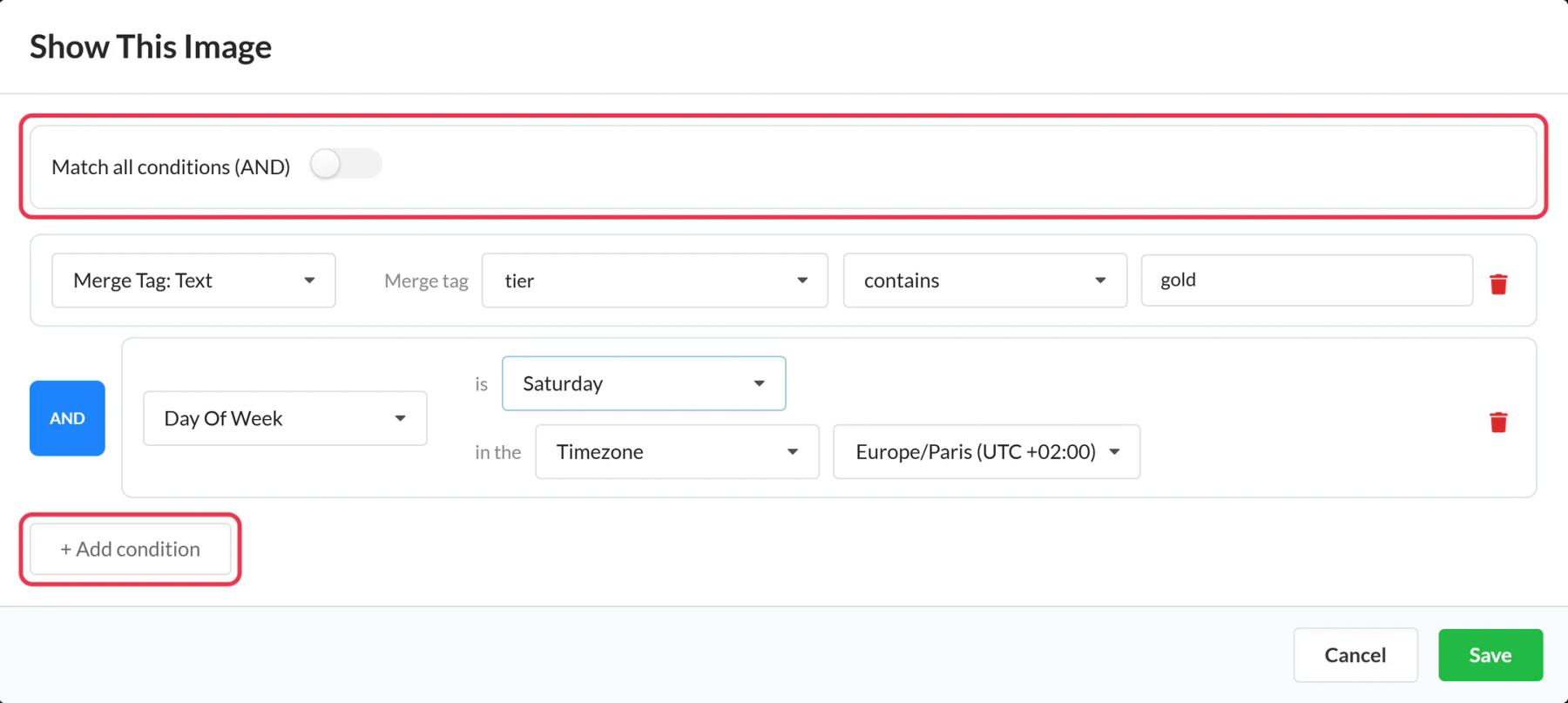
Add a Fallback Image for contacts who match none of the rules. Without one, they see nothing in that spot.
Step 3: Copy the code and swap in Brevo placeholders
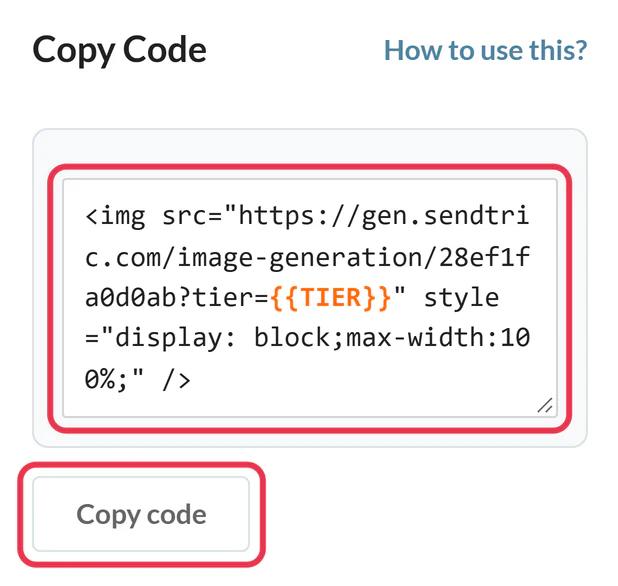
Save, then copy the code. Every merge tag condition adds a parameter such as tier={{TIER}} to the image address. Replace each {{TIER}}-style placeholder with the Brevo one, for example {{ contact.TIER }}, using your attribute's exact name.
Step 4: Paste it into Brevo
In Brevo's drag and drop editor, drag an HTML block from Content > Blocks into your design, click it and replace the placeholder text with your code. Save the block.

Step 5: Simulate, then test
Before you send, use Preview in the Sendtric editor to simulate a date, device or attribute value and check the right image comes up. Then send a Brevo test email to contacts with different attribute values.
Use attribute values exactly as Brevo stores them
Text conditions aren't case sensitive, but spelling still matters. Check how the value looks on a few contacts in Brevo ("Gold", "gold-tier", "GOLD") and write the condition to match. Number conditions, such as points above 500, need a number attribute.
Time rules and time zones
Date and time conditions use the time zone you choose in the condition. If your contacts are spread across time zones, you can set a dynamic time zone from a merge tag, with values such as America/New_York.
Brevo Rule-Based Image FAQ
How is this different from Brevo's Content visibility?
Content visibility shows or hides whole Brevo blocks by device or contact attributes. A rule-based image is one image chosen each time the email is opened, so it can also follow the date and time of the open, and you can change the images after sending.
Do I need a separate HTML block for each image?
No. One HTML block holds the whole widget. Sendtric decides which image to show.
What does a contact see if no rule matches?
Your fallback image (Micro and above). Without a fallback, the spot stays empty.
Can I change the images after the campaign has gone out?
Yes. Upload new images or change the rules in Sendtric and save. Sent emails pick up the change on the next open.
Can a rule-based image show a countdown timer?
Yes. You can add timers, personalized images or weather widgets as options, for example a different timer design for each segment.
Ready for more? The rule-based images overview covers every setting, and the email personalization page shows how to combine it with other Sendtric widgets.
More Brevo guides
- Countdown Timers - How to Add Countdown Timers to Brevo
- Live Polls - How to Add Live Polls to Brevo
- Personalized Images - How to Add Personalized Images to Brevo
- Dynamic Weather - How to Add Dynamic Weather to Brevo
- Critical Alerts - How to Add Critical Alerts to Brevo
- Social Proof Counters - How to Add Social Proof Counters to Brevo
Using a different platform? See all Sendtric integrations.
