
How to Add Critical Alerts to Klaviyo
Place a hidden alert banner in your Klaviyo emails and switch it on, by hand or on a schedule, after the emails have already been delivered.
 First Publish Date:
Change what an already-sent Klaviyo email says, without sending another one.
A Sendtric critical alert is a banner you place in your Klaviyo email that stays invisible until you switch it on. Turn it on and everyone who opens the email from then on sees the message, even if the campaign went out last week. Critical alerts are available on Sendtric Enterprise plans only.
Once Klaviyo has sent an email, its content is fixed. The banner gets around that because it's an image Sendtric serves on every open, so what it shows is decided at the moment of opening.
What you can do with critical alerts in Klaviyo
- Shipping delays: add an off-by-default banner to your order confirmation and shipping flows, and switch it on the day a carrier falls behind.
- Sell-outs: when a featured product sells out after a campaign lands, show "More stock arrives Thursday" in that campaign.
- Store or event changes: flag a closed location or a moved event time in emails people have already saved. See update event emails after sending.
- Planned maintenance: schedule a checkout maintenance notice to show only during the maintenance window.
How to add a critical alert to Klaviyo
Step 1: Design the banner
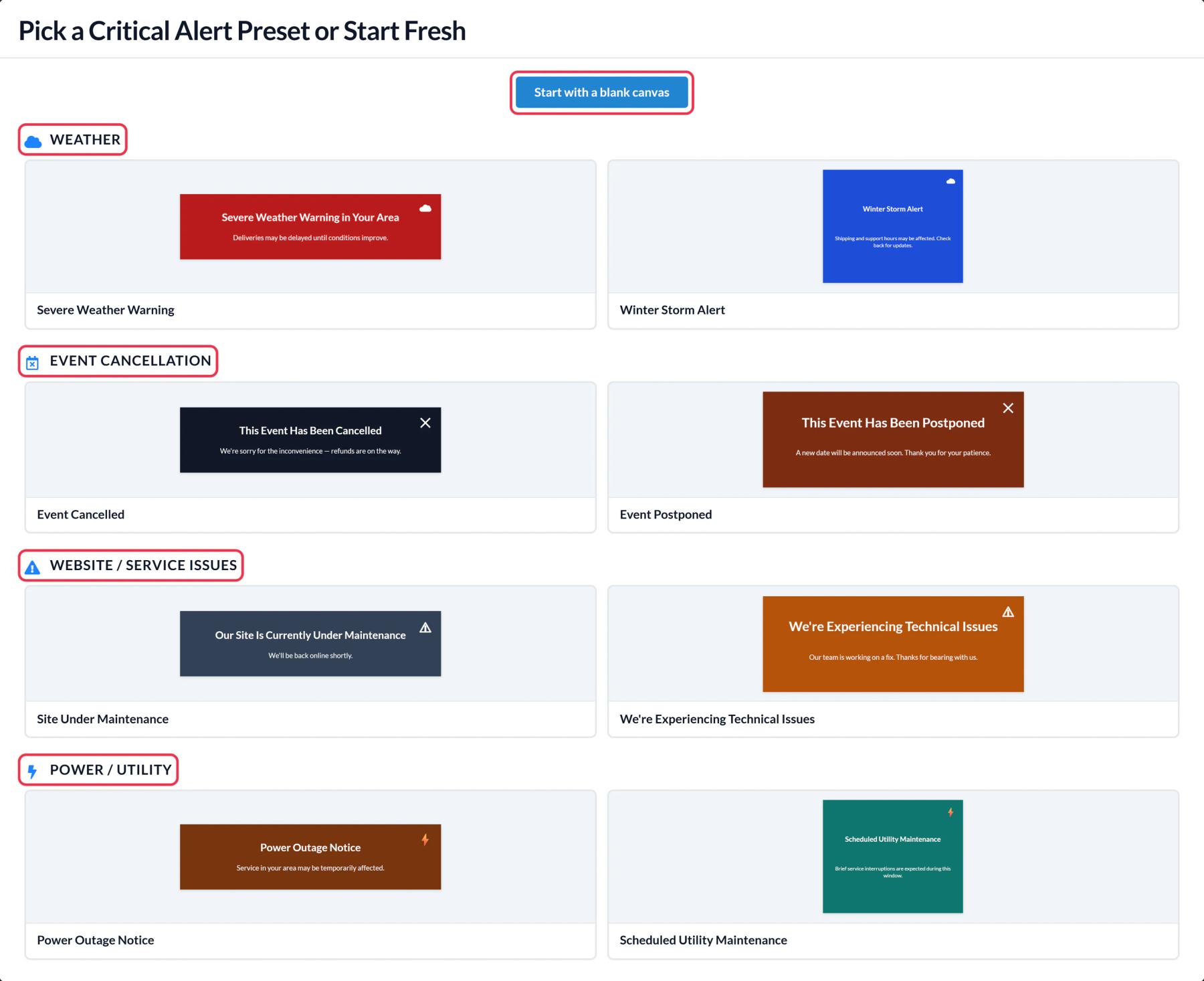
In Sendtric, open Critical alerts and click Create New. Start from a preset such as Site Under Maintenance or from a blank canvas, then add your text, images and brand colors. You can also add a Dynamic Text layer with a Klaviyo tag like {{ first_name }}.
Step 2: Decide when it is on
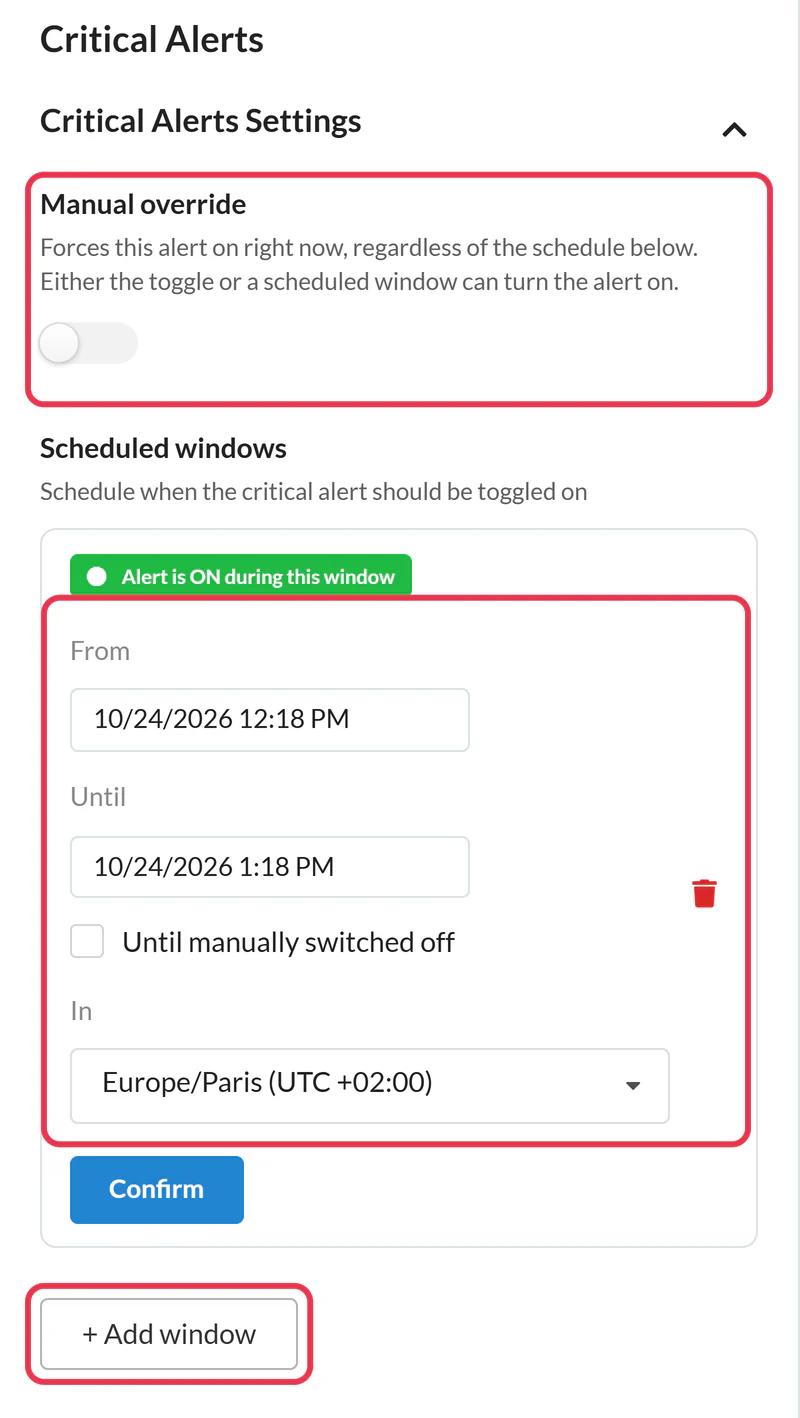
In Critical Alerts Settings, use Manual override to switch the alert on right away, or click + Add window to schedule up to five time windows with a time zone. The alert shows while the override is on or the current time is inside a window. Leave both off for now if you're placing it ahead of time.
Step 3: Save and get the code
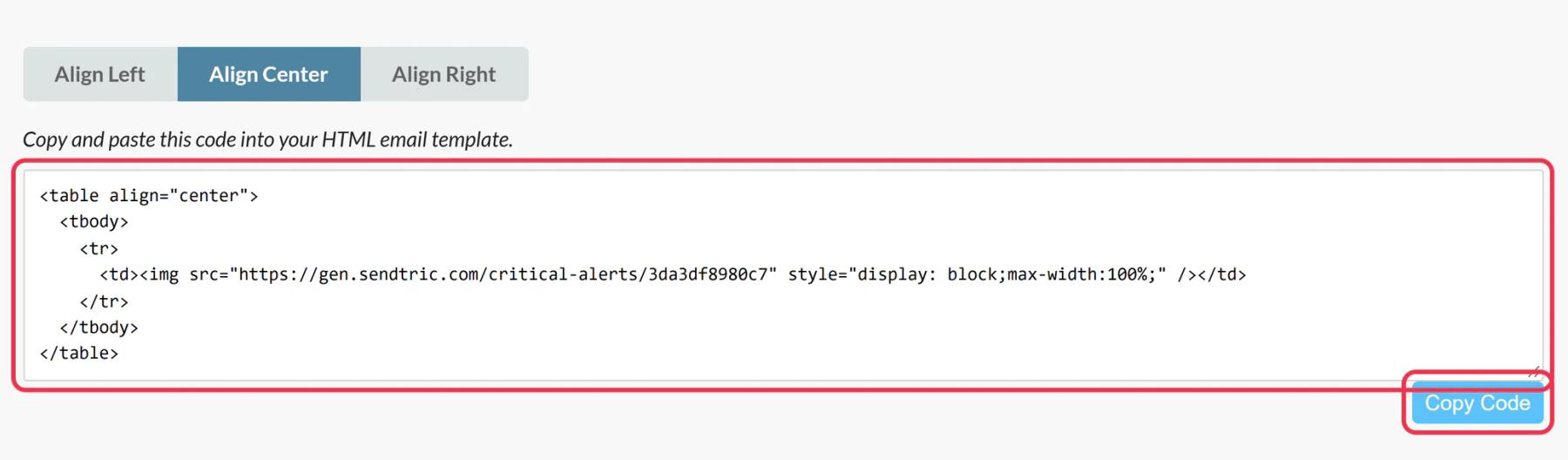
Click Save. Then click Push to Klaviyo to add it to Klaviyo as a universal content block, or Copy Code to paste it yourself.
Step 4: Place it at the top of your emails
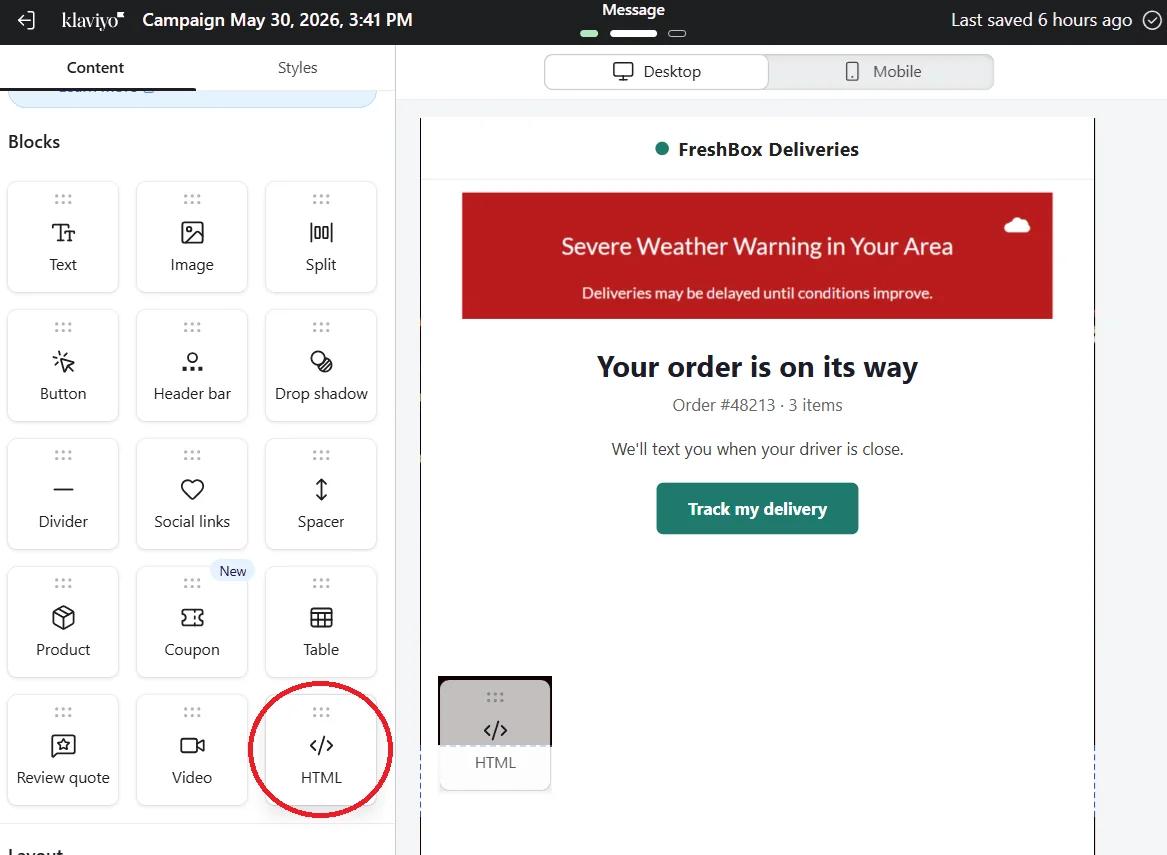
In Klaviyo's editor, drag the pushed block from the Universal tab, or an HTML block with the pasted code, into the spot where a notice would make sense, usually right under the header. Because it's a universal block, you can drop the same alert into several flows and campaigns and control all of them from Sendtric.
Step 5: Test both states
Send yourself a test with the alert off: nothing should show where it sits, apart from any padding on the block itself. Switch the Manual override on, reopen the same test email and check the banner appears. Then switch it off again until you need it.
Some inboxes keep an older copy
Most email apps fetch the image again on each open, but some keep their own copy for a while, so a reopen can briefly show the previous state. Switch the alert on as early as you can.
Step-by-step help: how to turn a critical alert on or off.
Klaviyo Critical Alerts FAQ
Which Sendtric plan includes critical alerts?
Enterprise only. Any Klaviyo plan works on the Klaviyo side.
Do I need to edit or resend the Klaviyo email?
No. The code in the email never changes. You switch the alert and edit the design in Sendtric, and the next open shows it.
Does a switched-off alert use views?
No. Views are only counted while the alert is on.
Can I add one alert to all my Klaviyo flows at once?
Klaviyo doesn't add a block to existing emails for you, so place it in each flow email once. After that, a single switch in Sendtric controls every email that carries it.
Can I show the alert only to some profiles?
The on/off switch applies to everyone. To target a group, put the block in the emails sent to that segment, or wrap it in Klaviyo show/hide logic.
Want to see what else you can do? Explore Sendtric's critical alerts in more detail, or browse the full email personalization toolkit.
More Klaviyo guides
- Countdown Timers - Add Countdown Timers in Klaviyo
- Countdown Timers - How to Add Dynamic Timers in Klaviyo
- Live Polls - How to Add Live Polls to Klaviyo
- Personalized Images - How to Add Personalized Images to Klaviyo
- Rule-Based Images - How to Add Rule-Based Images to Klaviyo
- Dynamic Weather - How to Add Dynamic Weather to Klaviyo
- Social Proof Counters - How to Add Social Proof Counters to Klaviyo
Using a different platform? See all Sendtric integrations.
