
How to Add Live Polls to Klaviyo
Ask your Klaviyo profiles a question inside the email, keep one vote per profile with the KlaviyoID tag, and push the poll to Klaviyo as a universal content block.
 First Publish Date:
Turn a Klaviyo campaign or flow email into a one-click vote.
A Sendtric email poll is a row of answer images you drop into a Klaviyo email. Each click counts as a vote for that profile, and the answer images can redraw with the current results the next time someone opens the email.
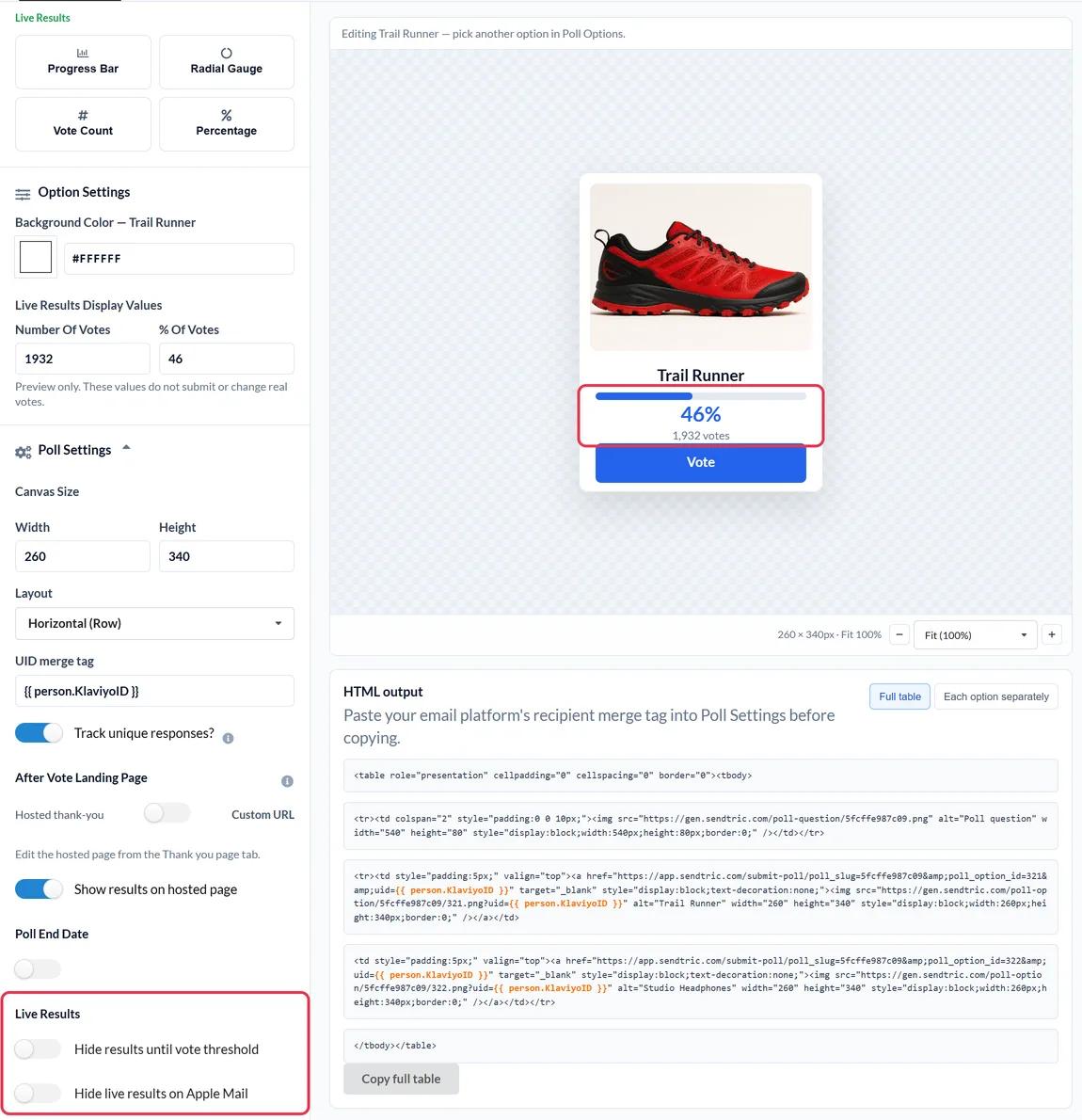
Klaviyo's email editor has no poll block of its own. Its HTML block is meant for exactly this kind of third-party content, so the poll goes in there, or you push it to Klaviyo and drag it in from the Universal tab.
What you can do with a live poll in Klaviyo
- Pick the next drop: show two or three product images in a campaign and let shoppers vote on which one comes back first.
- Rate the order: add a 1 to 5 star rating to your post-purchase flow so every new customer can score their delivery in one click.
- Learn what people want to hear about: ask a preference question in your welcome series, then download each profile's answer and add it to Klaviyo as a profile property for segmentation.
- Route people by answer: on Power and above, each answer can open its own page, so a vote for "Running" lands on your running collection.
| If you want to... | Sendtric plan |
|---|---|
| Run a two-answer text or Yes / No poll | Free |
| Use product vote, star rating or feedback presets | Standard and above |
| Show live percentages or result bars in the email | Power and above |
| Send each answer to its own landing page | Power and above |
Full plan details are on the pricing page.
How to add a live poll to Klaviyo
There are two ways in: push the poll from Sendtric if your Klaviyo account is connected, or copy the code into an HTML block. The steps below cover both.
Step 1: Create the poll in Sendtric
Open Polls in the Sendtric dashboard and click Create New. Choose a preset or Start with a blank canvas, then add your answers and match the colors and fonts to your Klaviyo template.
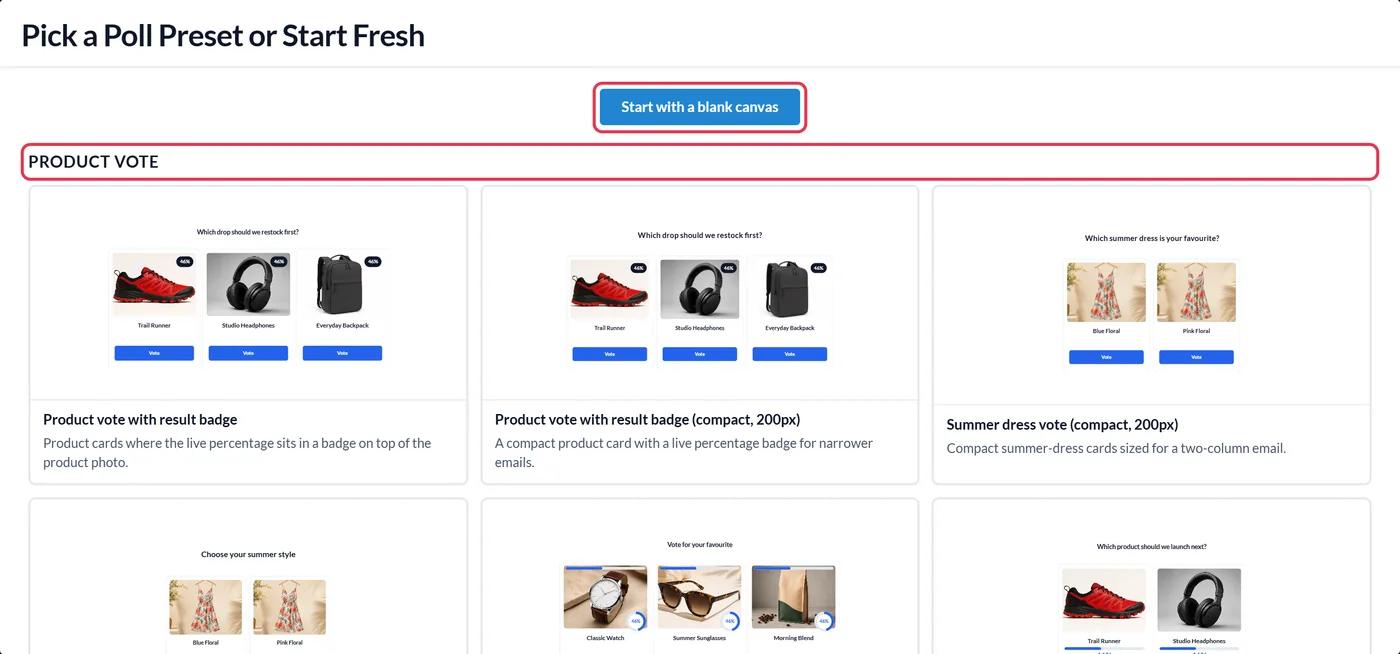
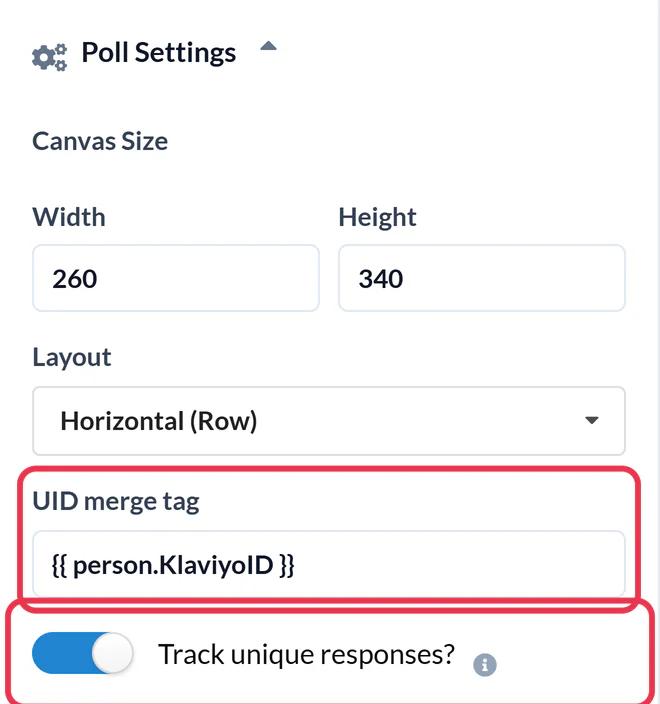
Step 2: Set the KlaviyoID merge tag
In Poll Settings, enter {{ person.KlaviyoID }} in the UID merge tag field. Klaviyo replaces it with each profile's own ID when the email goes out, so Sendtric can keep one vote per profile. If your Klaviyo account is connected, Browse Klaviyo tags lets you pick it instead of typing it. Switch on Track unique responses? if you want a per-profile export later, then click Save.
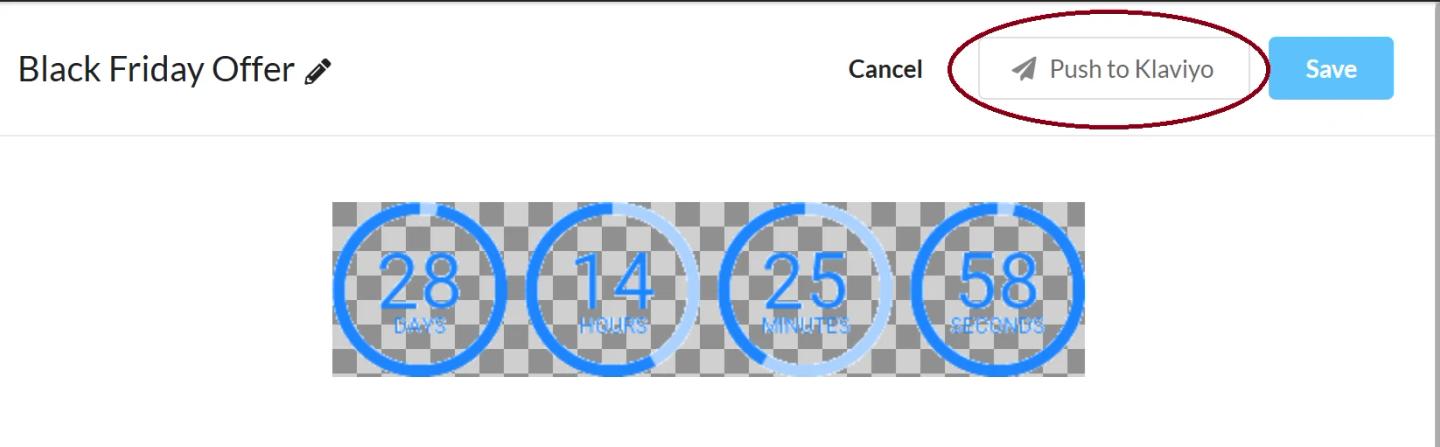
Step 3: Push the poll to Klaviyo, or copy the code
If you connected Klaviyo under Settings > Integrations, click Push to Klaviyo at the top of the editor. The poll arrives in Klaviyo as a universal content block named "Sendtric - " plus your poll's name, with the merge tag already in place. Pushing works on any Klaviyo plan.
Not connected? Under the canvas, open HTML output and click Copy full table.
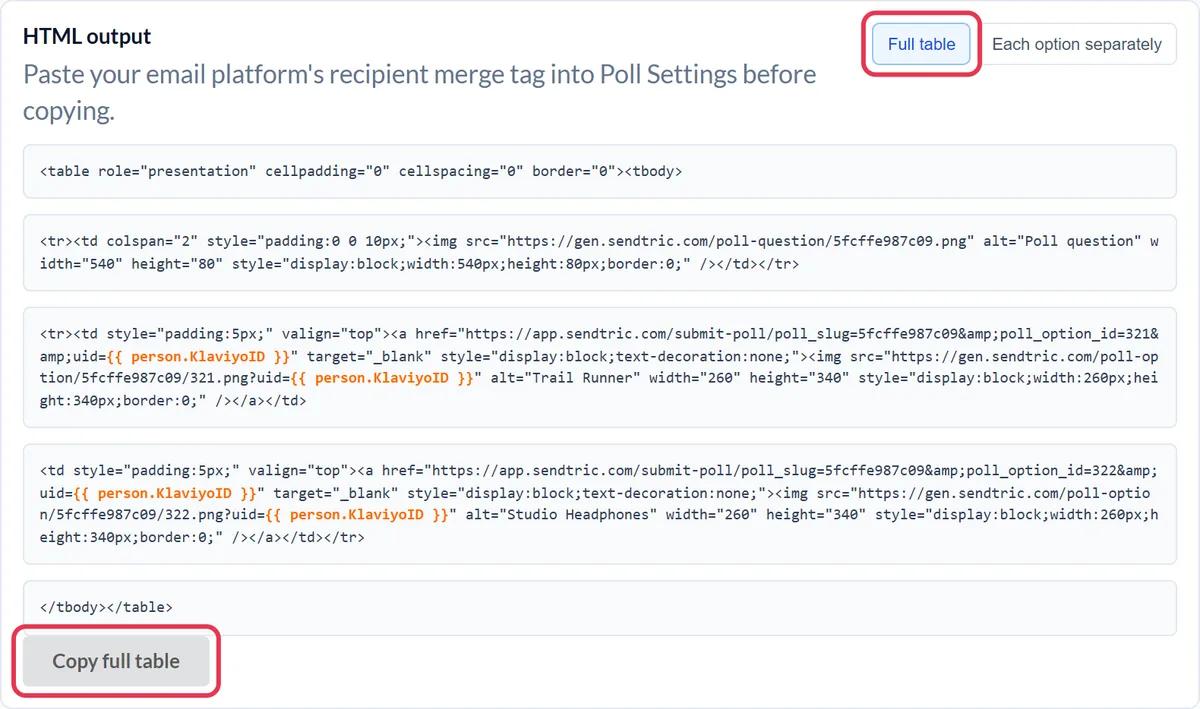
Step 4: Add it to your Klaviyo email
Open your campaign or flow email in Klaviyo's editor. For a pushed poll, go to the Universal tab in the Content panel and drag the Sendtric block into place. For copied code, drag an HTML block from Blocks into the email and paste the code into it.
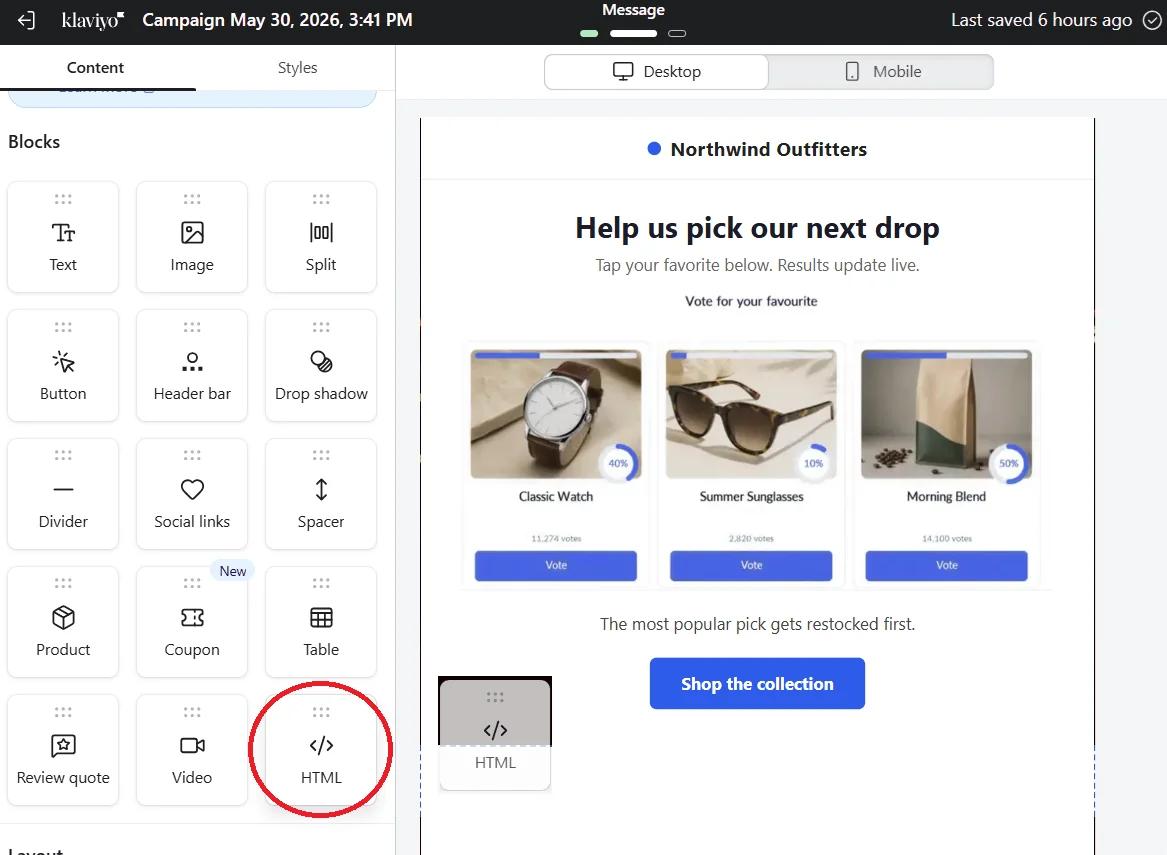
Step 5: Preview and send a test
Click Preview, enter your address in the preview sidebar and click Send test. Vote from the test email: a tab opens briefly to record the vote, then shows your thank-you page. Try a second answer from the same inbox. If it replaces your first vote, the KlaviyoID tag is working.
Use KlaviyoID, not person.id
Klaviyo has two ID-style tags. {{ person.id }} is an external ID that your store or another integration may or may not have set, and Klaviyo's own personalization reference recommends KlaviyoID for identifying a profile. Use {{ person.KlaviyoID }} so no voter ends up sharing an empty ID with everyone else.
Feeding answers back into Klaviyo
With Track unique responses? on, the poll report lets you download each KlaviyoID with its answer (see how to see poll results and download reports). Match that file to your profiles and import the answer as a custom property, then build a segment on it.
Klaviyo Live Poll FAQ
Do Sendtric polls work in Klaviyo flows?
Yes. The poll is plain HTML with linked images, so it works in flow emails the same way it works in campaigns. Results are live, so someone who reaches the flow email months later still sees today's numbers.
Which Klaviyo plan do I need?
Any Klaviyo plan can use the HTML block and the Push to Klaviyo button. What you can build in the poll depends on your Sendtric plan, see pricing.
If I edit the pushed block in Klaviyo, will Sendtric overwrite it?
Pushing the same poll again updates the Sendtric block in Klaviyo. Design changes don't need a new push at all: save the poll in Sendtric and every email that uses it shows the new version on its next open.
Does the vote happen inside the email?
The poll and its live results show in the email. Clicking an answer opens a browser tab for a moment to record the vote, then shows your thank-you page or the page you set for that answer.
Why do all my test votes count as one?
That is expected when you vote from the same profile: one vote per KlaviyoID, and a new vote replaces the old one. If votes from different profiles also replace each other, check that the UID merge tag is exactly {{ person.KlaviyoID }}.
Want to see what else you can do? Explore Sendtric's live polls in more detail, or browse the full email personalization toolkit.
More Klaviyo guides
- Countdown Timers - Add Countdown Timers in Klaviyo
- Countdown Timers - How to Add Dynamic Timers in Klaviyo
- Personalized Images - How to Add Personalized Images to Klaviyo
- Rule-Based Images - How to Add Rule-Based Images to Klaviyo
- Dynamic Weather - How to Add Dynamic Weather to Klaviyo
- Critical Alerts - How to Add Critical Alerts to Klaviyo
- Social Proof Counters - How to Add Social Proof Counters to Klaviyo
Using a different platform? See all Sendtric integrations.
