
How to Add Live Polls to HubSpot
Add a clickable poll to HubSpot marketing emails, count one vote per contact record, and export the answers by HubSpot record ID.
 First Publish Date:
Ask your HubSpot contacts one question and tie every answer to their record.
A Sendtric email poll puts clickable answer images straight into a HubSpot marketing email. Contacts vote with one click, Sendtric keeps one vote per HubSpot record ID, and the answer images can show live results each time the email is reopened.
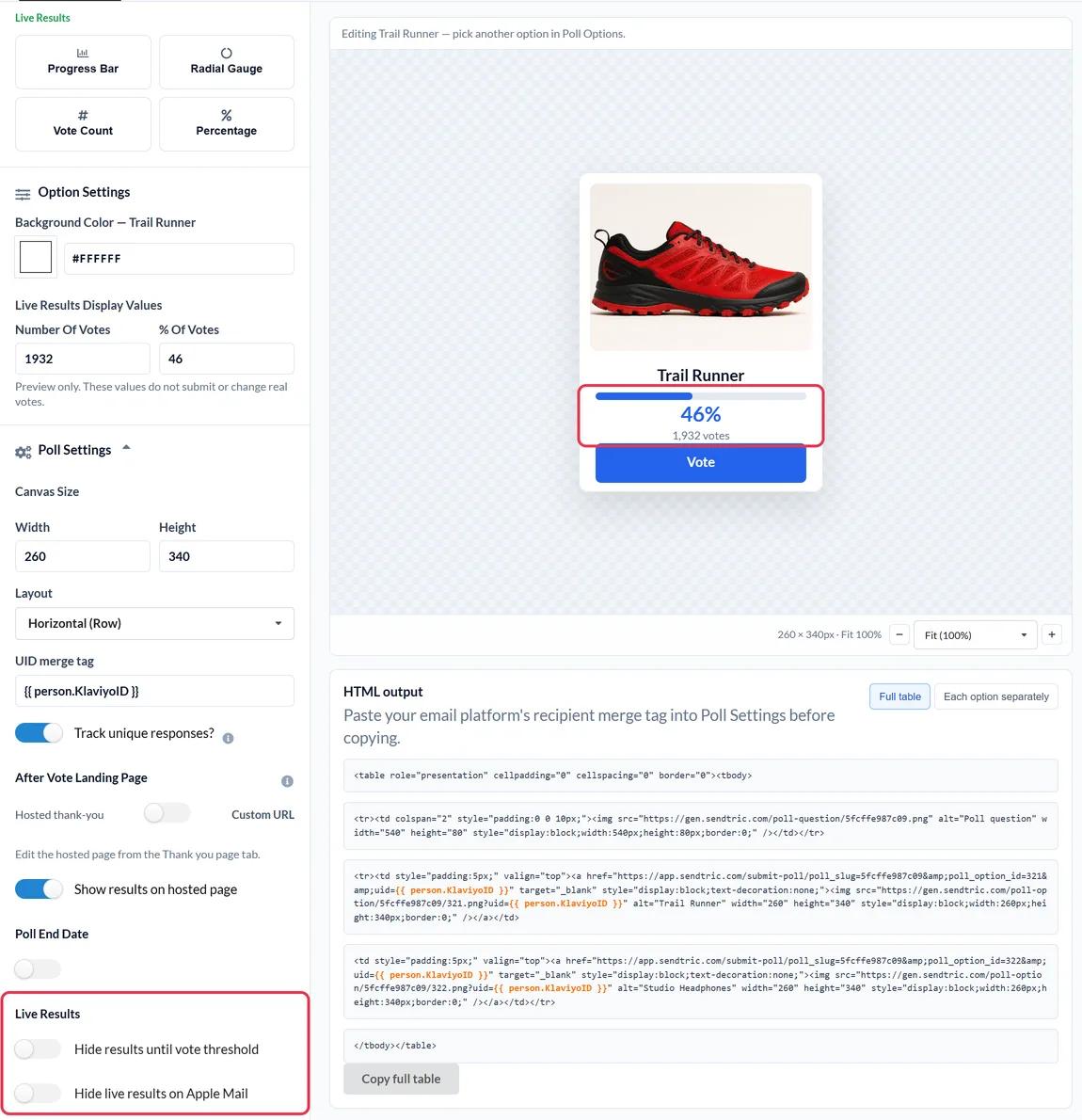
Because each vote is stored against {{ contact.hs_object_id }}, the record ID HubSpot gives every contact, the export lines up with your CRM without anyone having to fill in a form.
What you can do with a live poll in HubSpot
- Qualify leads in a newsletter: ask "What's your biggest priority this quarter?" and use the answers to update a contact property for sales.
- Webinar follow-up: a quick Yes / No on whether the session was useful, sent from the follow-up email.
- Customer health checks: an NPS question in your customer newsletter, scored 0 to 10 (Power and above). See collect NPS and customer satisfaction feedback with email polls.
- Content or roadmap votes: let customers choose the next guide or feature you build.
| Poll feature | Sendtric plan |
|---|---|
| Up to 2 answers, text presets | Free |
| Up to 3 answers | Micro |
| Up to 5 answers, image presets, results on the thank-you page | Standard |
| Up to 11 answers, NPS, live results in the email, a page per answer | Power and Enterprise |
How to add a live poll to HubSpot
Step 1: Build the poll
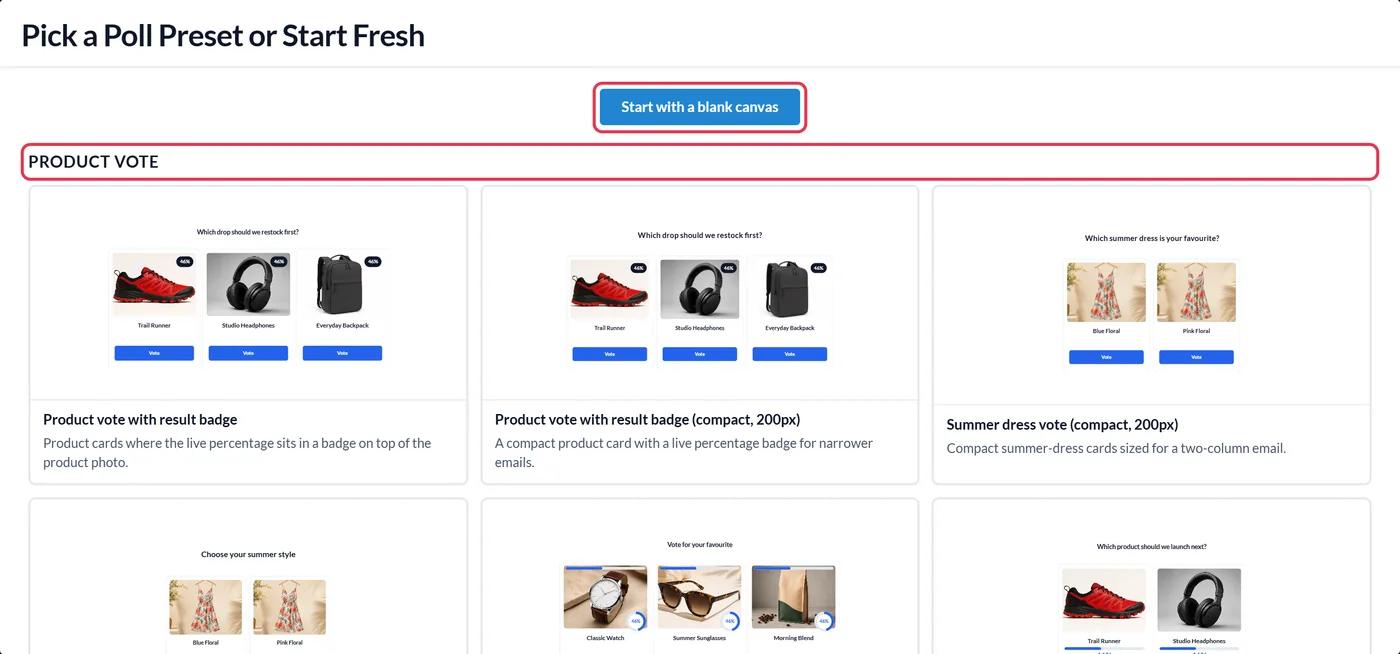
In Sendtric, go to Polls and click Create New. Choose a preset or a blank canvas, write your answers and style them to match your HubSpot email template.
Step 2: Add the HubSpot record ID token
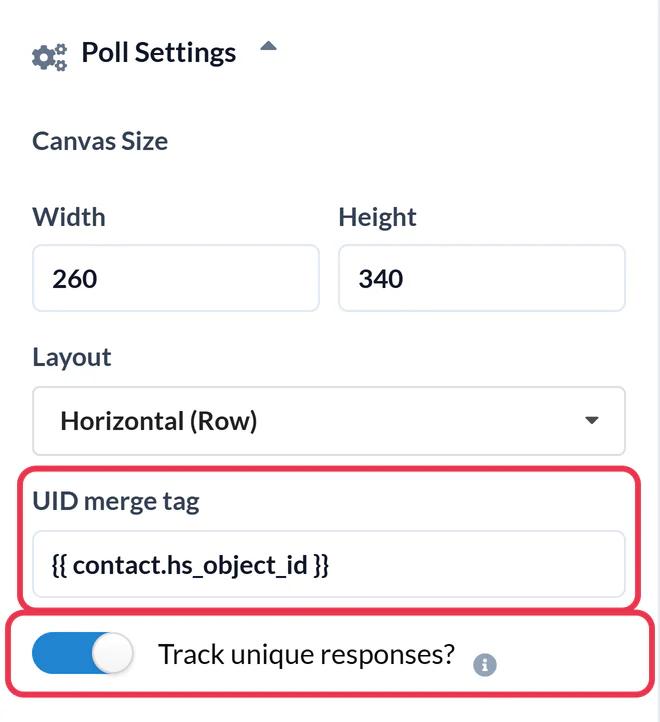
Open Poll Settings and enter {{ contact.hs_object_id }} as the UID merge tag. Turn on Track unique responses? so you can download each contact's answer later, then click Save.
Step 3: Push to HubSpot or copy the code
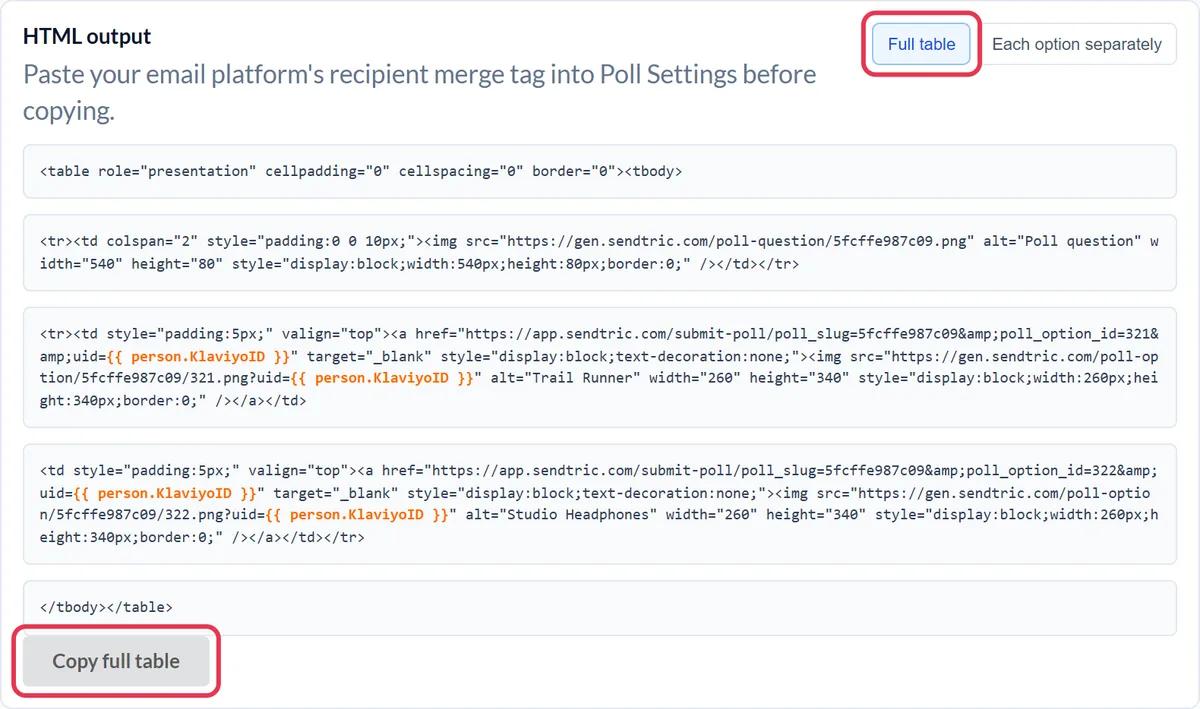
If HubSpot is connected under Settings > Integrations, click Push to HubSpot and the poll is added to your HubSpot account as a reusable email module, with the token already in place. Pushing needs a paid HubSpot plan. Otherwise open HTML output and click Copy full table.
Step 4: Add an HTML module to the email
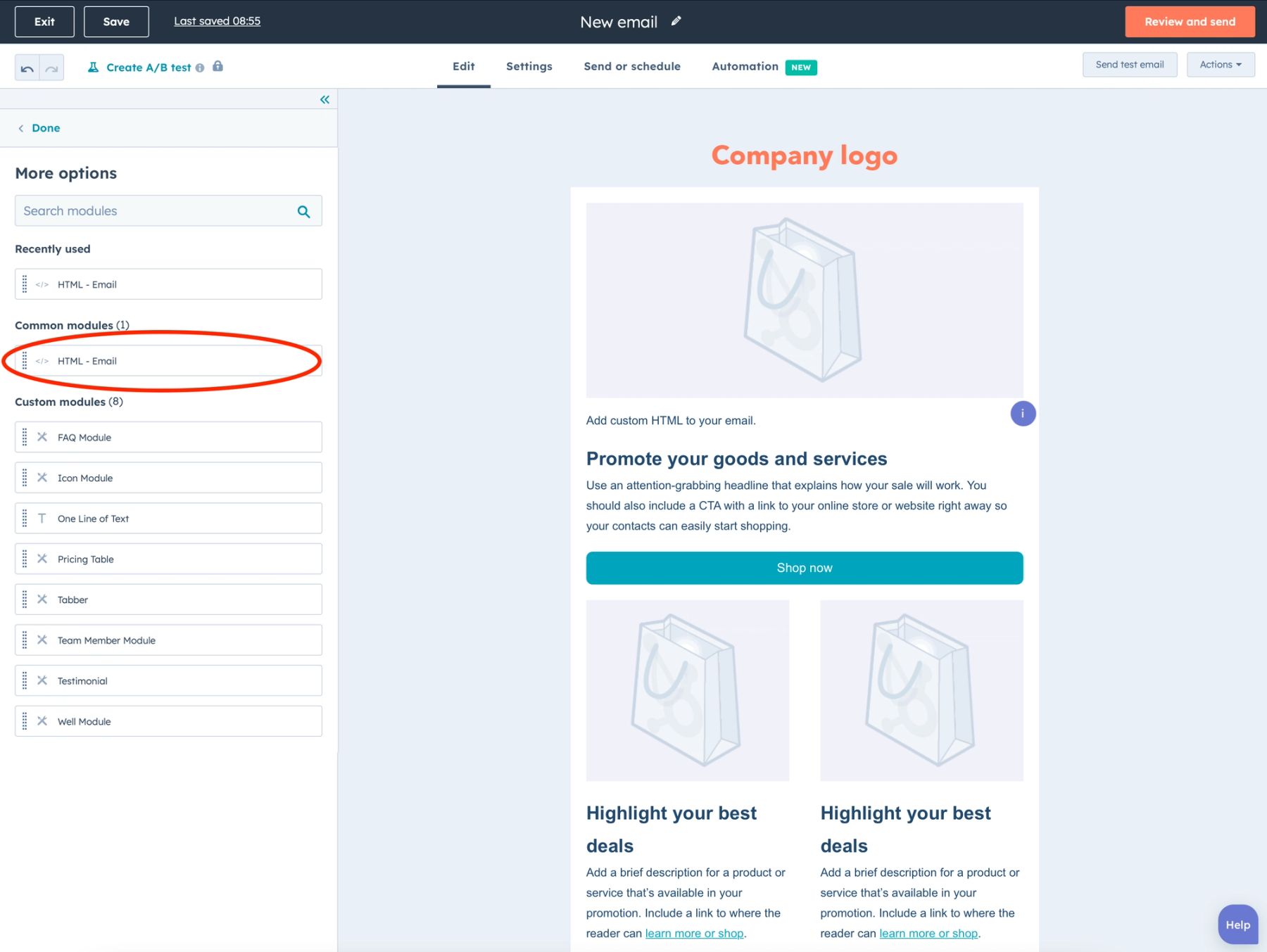
Open your marketing email in HubSpot. In the Content tab of the sidebar, click More, find the HTML - Email module (or type HTML into Search modules) and drag it where the poll should go. Paste the code into the HTML box in the sidebar.
Step 5: Test it as a real contact
Open the Preview and test menu, choose Send test email and send it to yourself. Vote from the inbox: a tab opens briefly to record the vote, then shows your thank-you page. A second vote from the same contact should replace the first.
Can't find the HTML - Email module?
It doesn't appear in every HubSpot account. HubSpot only lets Marketing Hub Professional and Enterprise accounts create custom email modules, and our earlier HubSpot guide found custom HTML in emails needed one of those tiers too. If the module isn't in your More list, check your subscription with HubSpot.
Getting answers back into HubSpot
In Sendtric's poll report, download User Unique Poll Results. Each row has the HubSpot record ID and the answer, so you can import it to update a contact property and filter on it in lists and workflows. See how to see poll results and download reports.
HubSpot Live Poll FAQ
Why use contact.hs_object_id instead of the email address?
The record ID identifies the contact without putting their email address into an image link, and it's the ID you can match against in HubSpot imports.
Do Sendtric polls work in automated emails sent from workflows?
Yes. The poll is ordinary HTML with linked images, so it works in automated emails as well as regular ones. A contact who reaches the email later still sees current results.
Does Sendtric write the vote into HubSpot automatically?
No. Votes are stored in Sendtric. You download them by record ID and import them into HubSpot when you're ready.
What happens if HubSpot doesn't fill in the token?
Every vote would share the same literal text as an ID and overwrite each other. That's why the test send matters: vote from two different contacts and check both votes appear in the report.
Can I edit the poll after the email goes out?
You can change colors, text and fonts, and the next open shows the update. Don't delete answers or switch the preset, or links in sent emails stop recording votes.
Read more about live polls and how it all fits into a wider email personalization strategy.
More HubSpot guides
- Countdown Timers - How to Add Countdown Timers to HubSpot
- Personalized Images - How to Add Personalized Images to HubSpot
- Rule-Based Images - How to Add Rule-Based Images to HubSpot
- Dynamic Weather - How to Add Dynamic Weather to HubSpot
- Critical Alerts - How to Add Critical Alerts to HubSpot
- Social Proof Counters - How to Add Social Proof Counters to HubSpot
Using a different platform? See all Sendtric integrations.