
How to Add Countdown Timers to HubSpot
Add a Sendtric countdown timer to HubSpot marketing emails with the HTML - Email module, including per-contact timers that use the HubSpot record ID.
 First Publish Date: .Last Updated:
Put a live countdown in your HubSpot marketing emails in a few minutes.
A Sendtric email countdown timer is an animated image that shows the exact time left whenever a contact opens your HubSpot email. Use it for a sale ending, an event starting or a registration deadline, and change the end time even after the email has gone out.
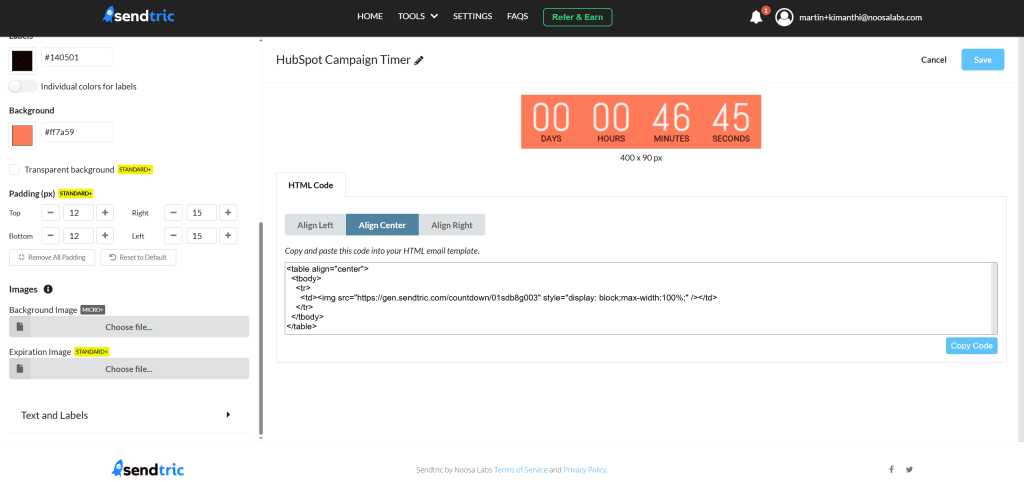
HubSpot has a countdown option for its web CTAs and pop-ups, but HubSpot's own announcement of that feature says countdown CTAs aren't supported in marketing emails. To show a timer in an email, you add it as an image through HubSpot's HTML module.
| Feature | Sendtric + HubSpot | Native HubSpot |
|---|---|---|
| Countdown timer in marketing emails | Yes | No |
| Start-on-Open (evergreen) timers | Yes | No |
| A separate timer for each contact | Yes | No |
| Start-on-Send timers | Partial | No |
| Different link before and after the deadline | Yes | No |
Which countdown timers does HubSpot support and what are they used for
- Fixed date (Standard timer): counts down to one date and time that is the same for every contact. Good for sale end dates, launches, event start times and early-bird deadlines. No HubSpot tokens needed: copy the code and paste it in. Available on every Sendtric plan.
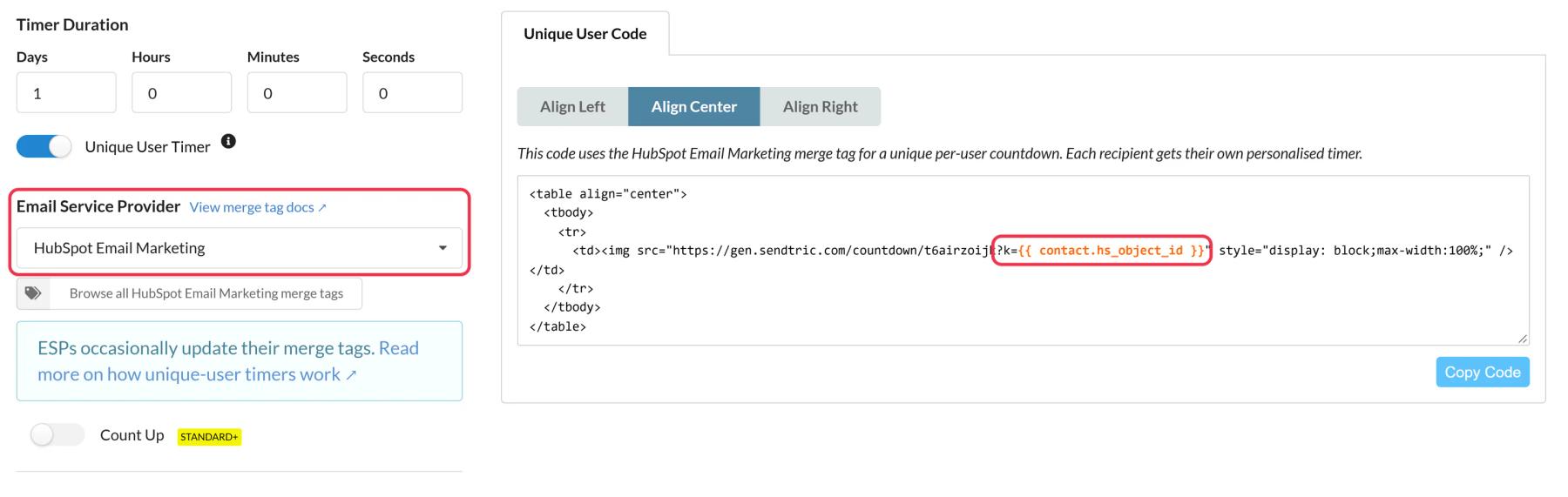
- Start-on-Open: starts counting a set duration, like 48 hours, from the moment the contact opens the email. Good for personal offers and follow-ups. Turn on Unique User Timer so each contact keeps their own countdown across reopens: Sendtric adds
?k={{ contact.hs_object_id }}to the code, using the record ID HubSpot gives every contact. Available on Micro and above. - Start-on-Send: counts from the moment HubSpot sends the email, which needs a send timestamp in the code. HubSpot's drag-and-drop editor can't output one, so Sendtric has no HubSpot tag for it. HubSpot's programmable emails (a beta for Marketing Hub Professional and Enterprise, built with HubL in coded templates) can format a timestamp, but that is an advanced setup to test carefully. For most HubSpot senders, a unique Start-on-Open timer is the practical choice.
Not sure which to pick? See which countdown timer type should I use.
How to add a countdown timer to HubSpot
Step 1: Create the timer in Sendtric
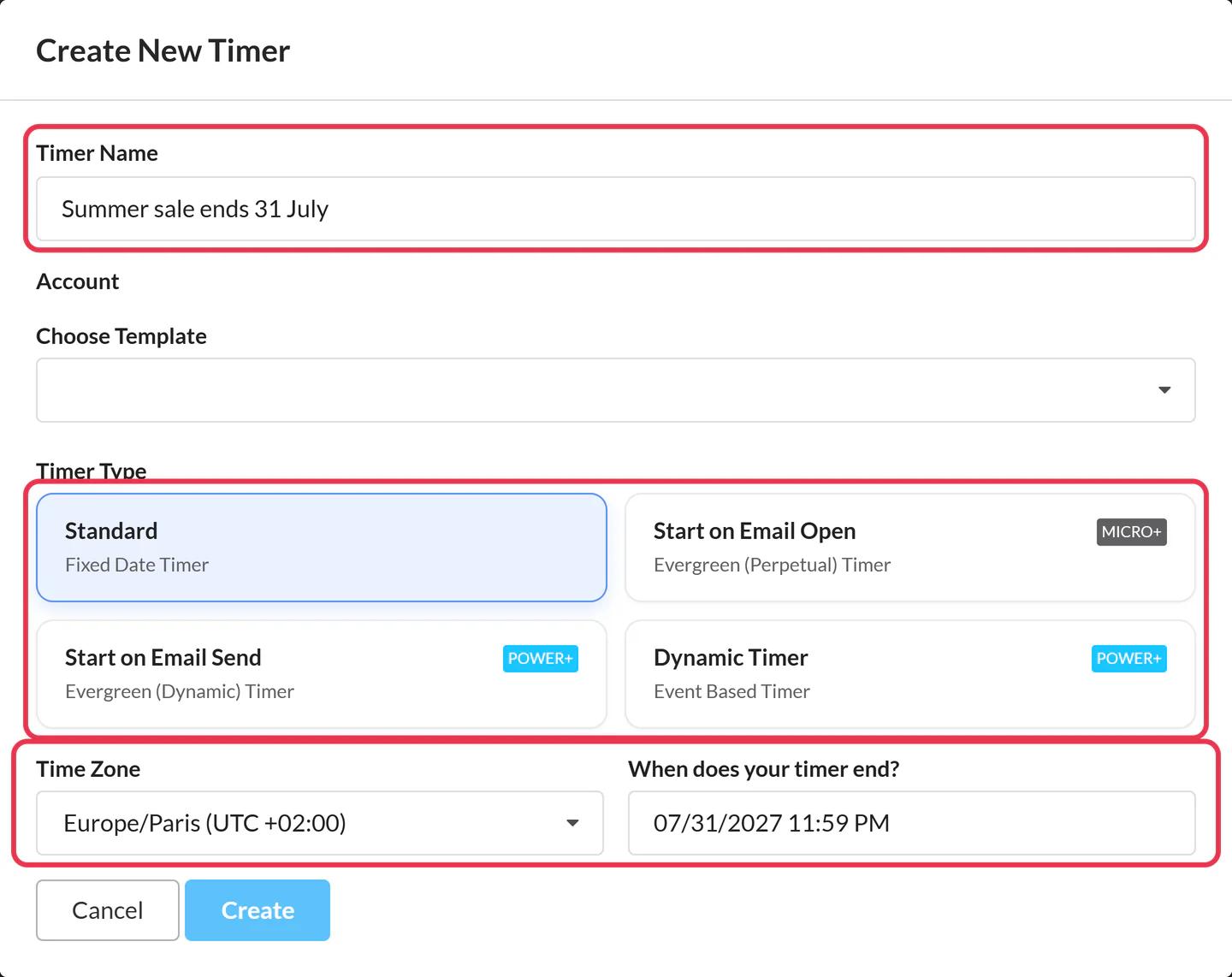
Go to Tools > Timers and click Create New. Name the timer, pick a template if you have one, choose the timer type and set the end date and time zone (or the duration for Start-on-Open). Click Create.
Step 2: Design it and set the HubSpot ID if needed
Style the timer in Visual Design and Text and Labels to match your HubSpot template. For a Start-on-Open timer, switch on Unique User Timer and choose HubSpot Email Marketing in the email platform picker so the code includes {{ contact.hs_object_id }}. Click Save.
Step 3: Copy the code or push it
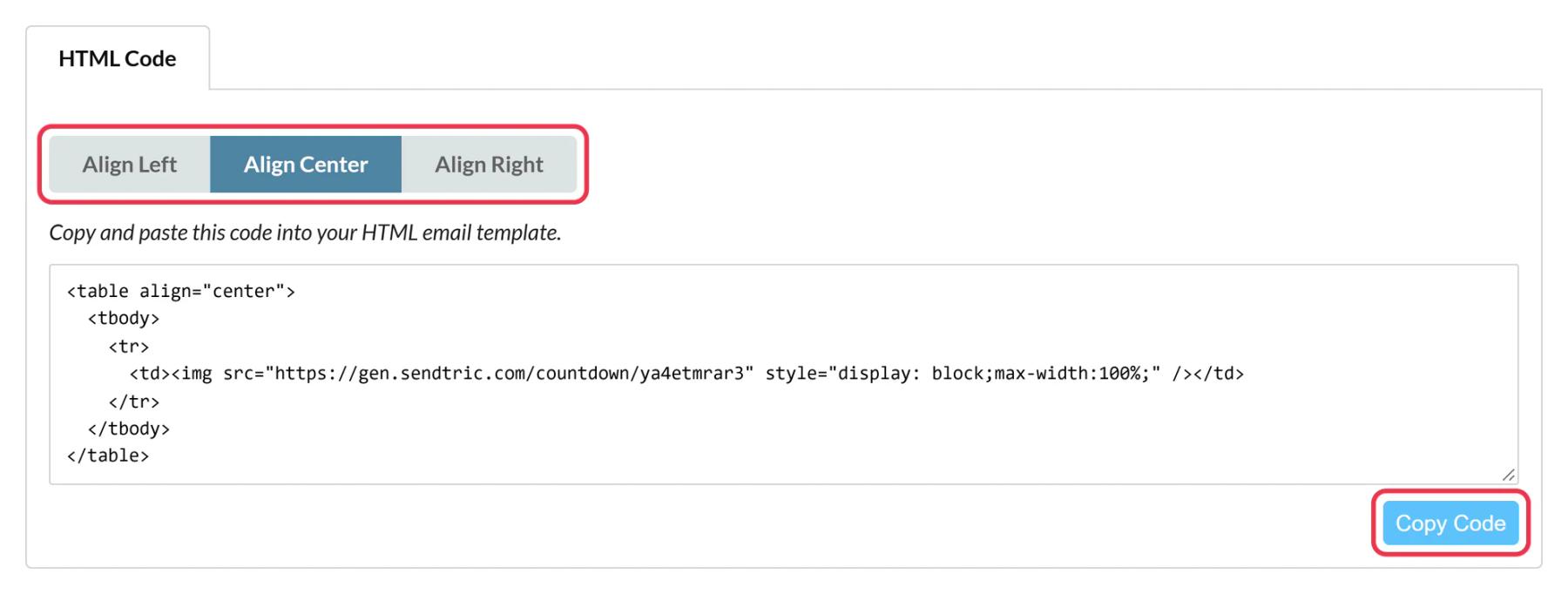
Choose the alignment and click Copy Code. If HubSpot is connected under Settings > Integrations and you're on a paid HubSpot plan, Push to HubSpot adds the timer to HubSpot as a reusable email module instead.
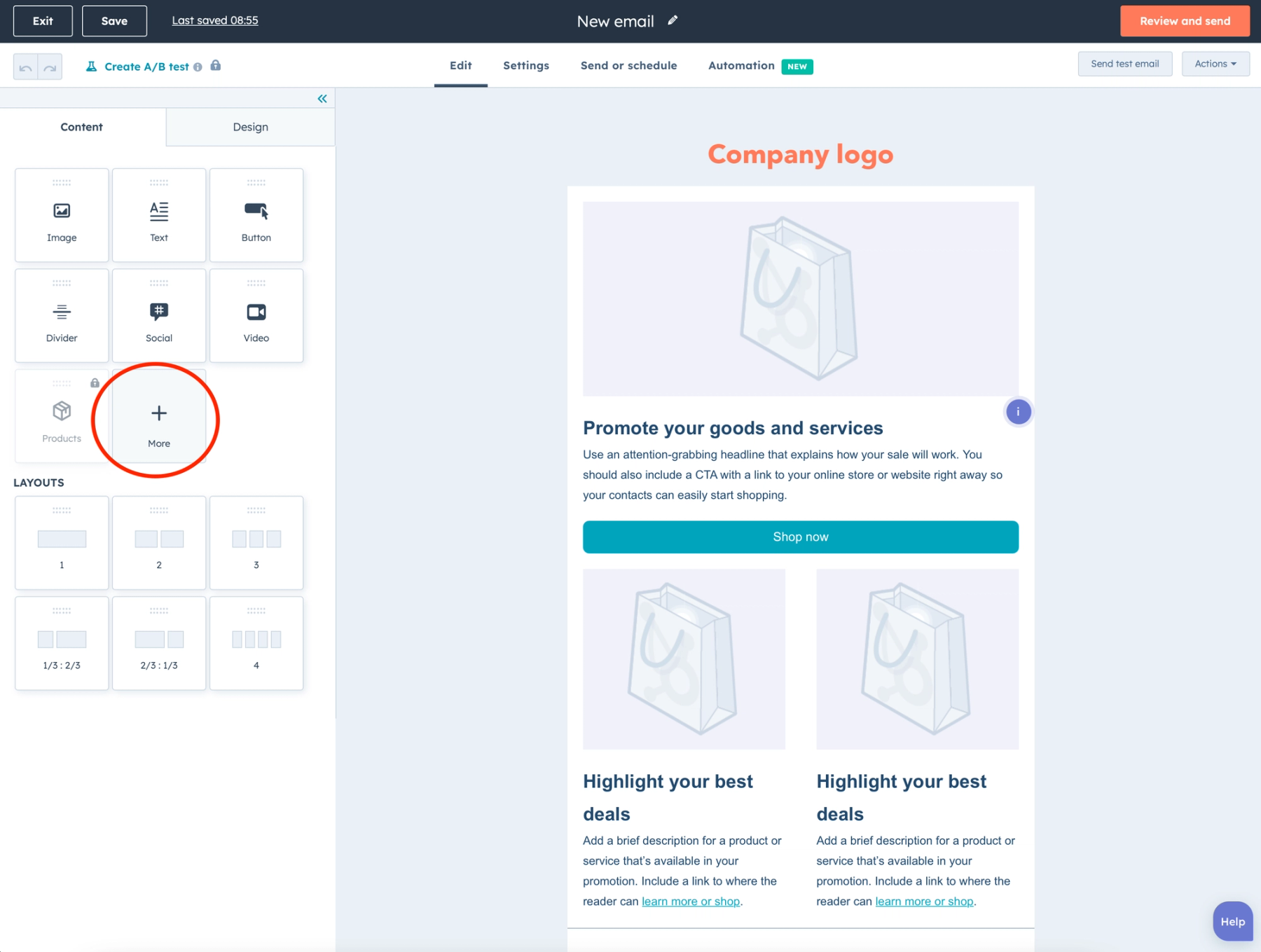
Step 4: Open the More panel in HubSpot
Open your marketing email in HubSpot. In the Content tab on the left, click More to see the full list of modules.
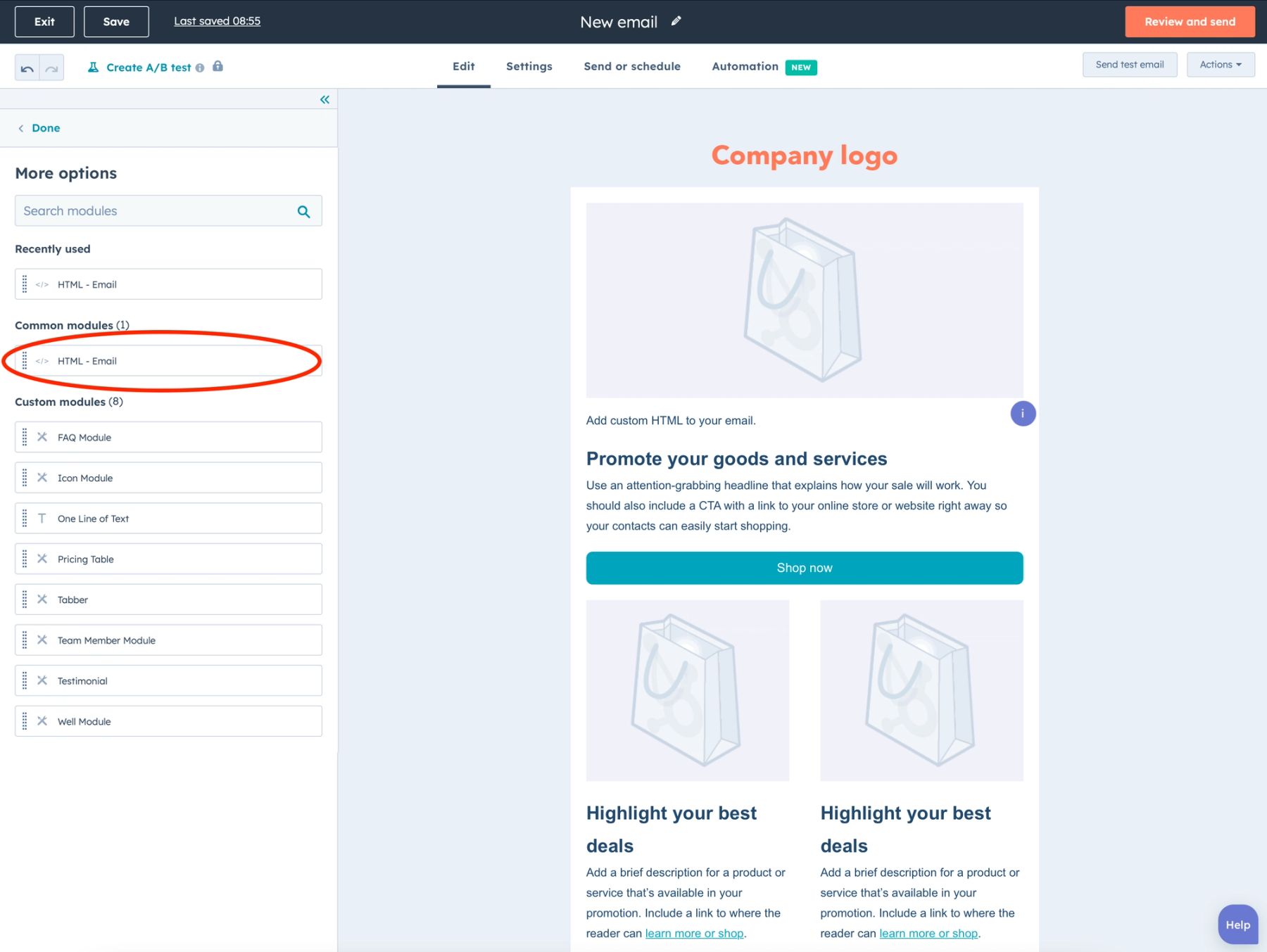
Step 5: Drag in the HTML - Email module
Find HTML - Email under Common modules (or type HTML into Search modules) and drag it to where the timer should sit, usually just above your main button.
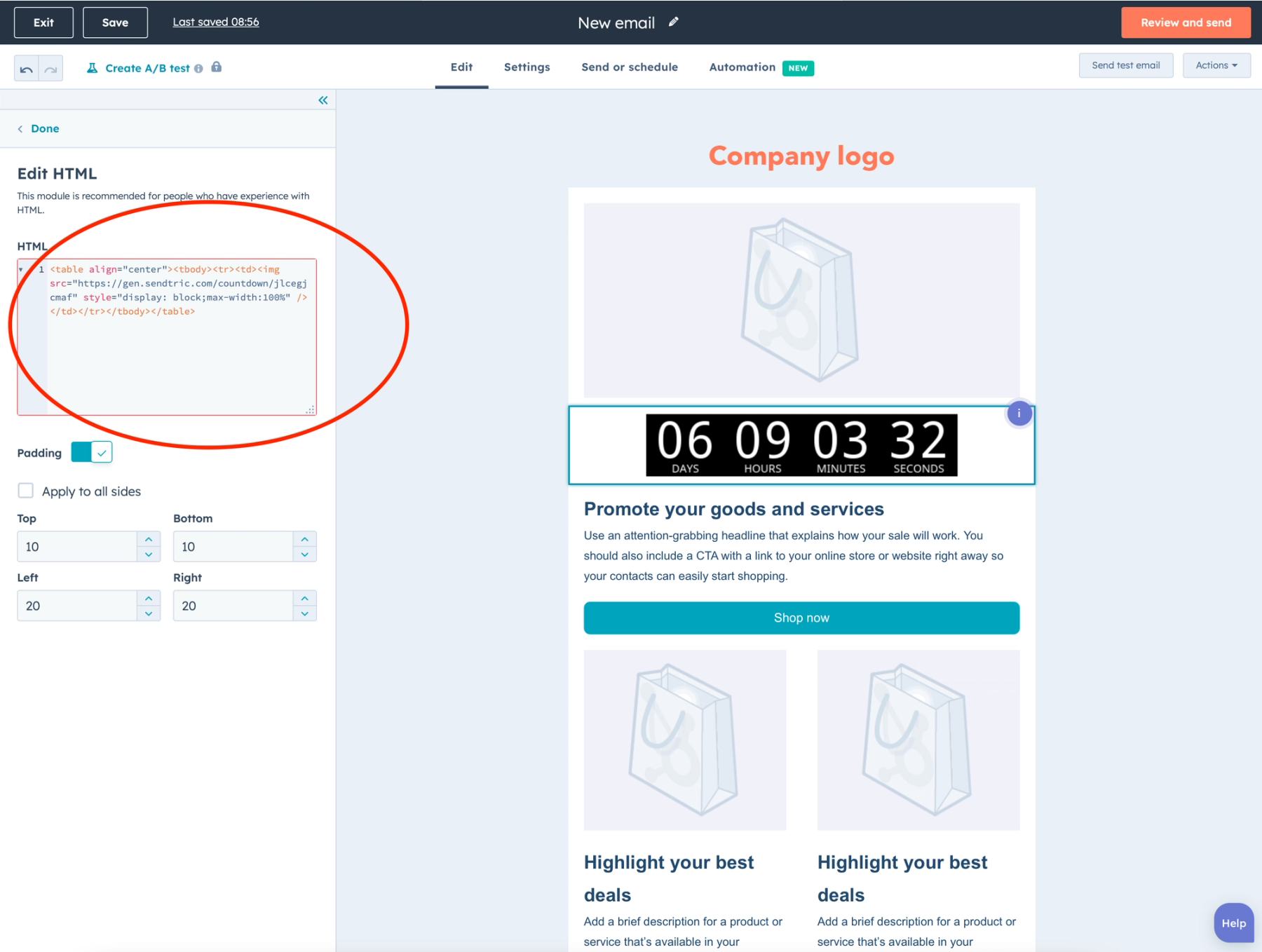
Step 6: Paste the code
Paste the Sendtric code into the HTML box in the Edit HTML panel. The timer appears in the email preview straight away. Adjust the module Padding if you need more or less space around it.
Step 7: Send a test email
Open Preview and test at the top right and choose Send test email. Check the timer in the inbox. For a unique timer, close and reopen the email a few minutes later: it should carry on from where it was, not restart.
Check your HubSpot subscription for custom HTML
Our earlier HubSpot guide found that adding custom HTML to emails needed Marketing Hub Professional or Enterprise, and HubSpot's current documentation still lists custom email modules as a Professional and Enterprise feature. If you don't see HTML - Email under More, check your tier with HubSpot before planning a timer campaign.
Make the timer clickable
Add a Timer Link URL in Sendtric to make the timer itself a link. On Power and above, a Dynamic Link can send clicks to your offer before the deadline and to a different page after it.
HubSpot Countdown Timer FAQ
Can I use HubSpot's CTA countdown in an email?
No. HubSpot's countdown is built for web CTAs and pop-ups and isn't supported in marketing emails. A Sendtric timer is an image, so it works in any HubSpot email that accepts HTML.
Does the timer keep counting after the email is sent?
Yes. It is drawn fresh every time the email is opened. Each open plays 60 seconds of countdown, and a reopen shows the correct time again.
Can I change the end time after the email has gone out?
Yes. Edit and save the timer in Sendtric and the new end time shows on the next open. You don't need to touch the HubSpot email.
Do timers work in dark mode?
Yes, with a little care over colors and backgrounds. See our dark mode tips for countdown timers.
Is there a free plan?
Yes. Sendtric's Free plan includes fixed-date timers and 10,000 views a month. Start-on-Open timers start on Micro. Compare plans on the pricing page.
What campaigns work best with a timer in HubSpot?
Webinar and event registrations, early-bird pricing, renewal deadlines and seasonal sales are common fits. Browse more ideas on our use cases page, or see how providers compare in the best email countdown timer provider.
This guide covers one piece of Sendtric's email personalization platform. For every countdown timers option and example, see the main page.
More HubSpot guides
- Live Polls - How to Add Live Polls to HubSpot
- Personalized Images - How to Add Personalized Images to HubSpot
- Rule-Based Images - How to Add Rule-Based Images to HubSpot
- Dynamic Weather - How to Add Dynamic Weather to HubSpot
- Critical Alerts - How to Add Critical Alerts to HubSpot
- Social Proof Counters - How to Add Social Proof Counters to HubSpot
Using a different platform? See all Sendtric integrations.