
How to Add Social Proof Counters to HubSpot
Add a live counter to HubSpot emails that shows how many times the email has been viewed or its main link clicked.
 First Publish Date:
Show HubSpot contacts how many others are already paying attention.
A Sendtric social proof counter is an image with a live number in it, such as "1,240 views" or "860 people opened this invite". The total is all-time and is drawn again each time the email is opened. You need a Sendtric Power or Enterprise plan to create counters.
What you can do with social proof counters in HubSpot
- Webinar and event invitations: count clicks on the registration button and show the total in the reminder emails.
- Content offers: show how often an ebook or report email has been viewed next to the download button.
- Product launches: a view count in the announcement email, so later openers see how much interest there is. See boost launch and sale emails with social proof counters.
- Customer newsletters: count clicks on a feature announcement link to show how many customers have checked it out.
Pick what the number counts. Views adds one every time the counter image loads, including repeat opens. Opens adds one for each click on a Sendtric Dynamic Link that you attach to a button. Neither is a count of unique people.
How to add a social proof counter to HubSpot
Step 1: Create the counter
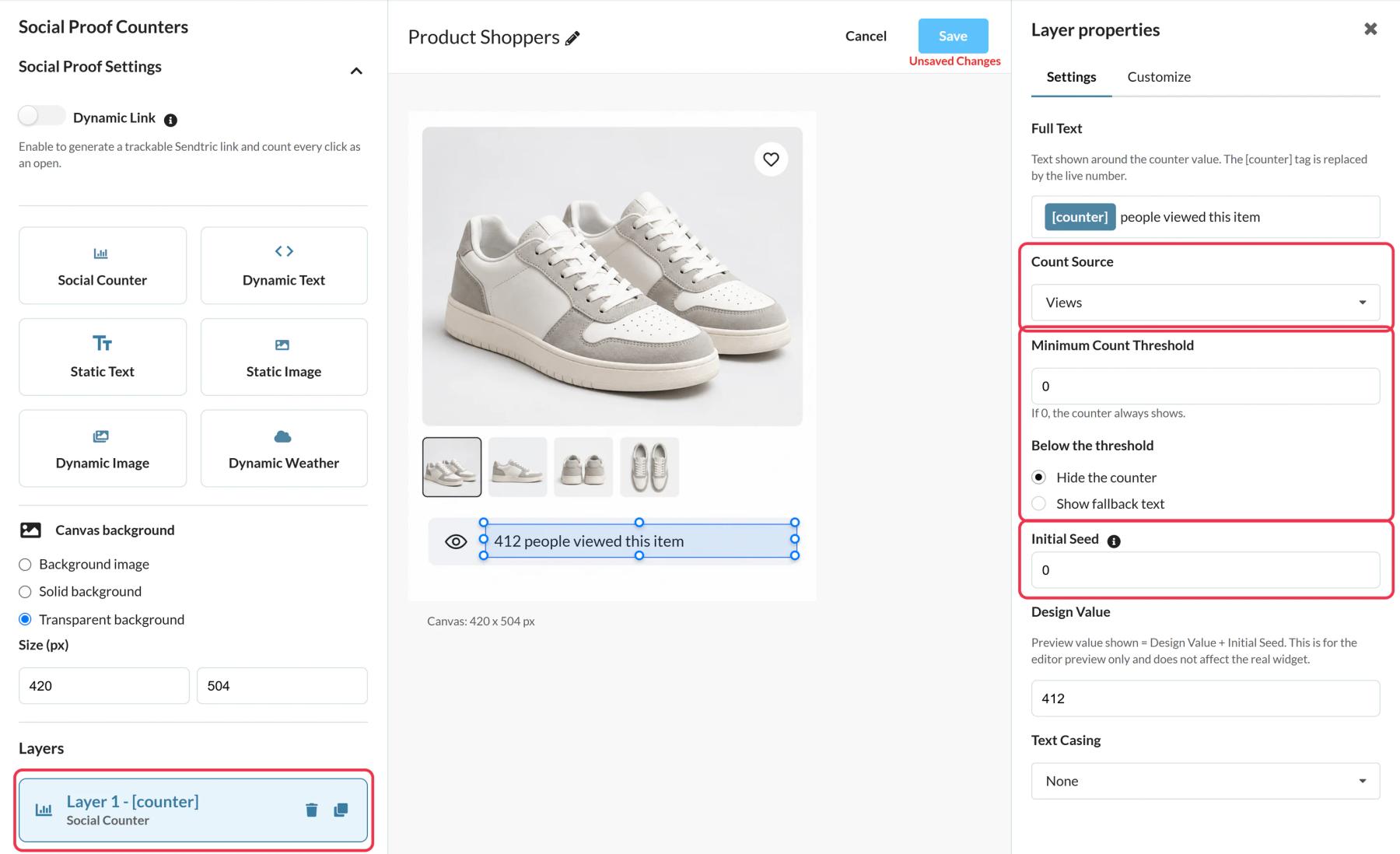
Open Social proof counters in Sendtric, click Create New and pick a preset or a blank canvas. Add a Social Counter layer and write the Full Text around the [counter] tag.
Step 2: Set the count source and threshold
Choose Views or Opens as the Count Source. For Opens, add a Dynamic Link in Social Proof Settings and enter the Destination URL starting with https://. Set a Minimum Count Threshold so the counter stays hidden until the number is worth showing.
Step 3: Save and copy
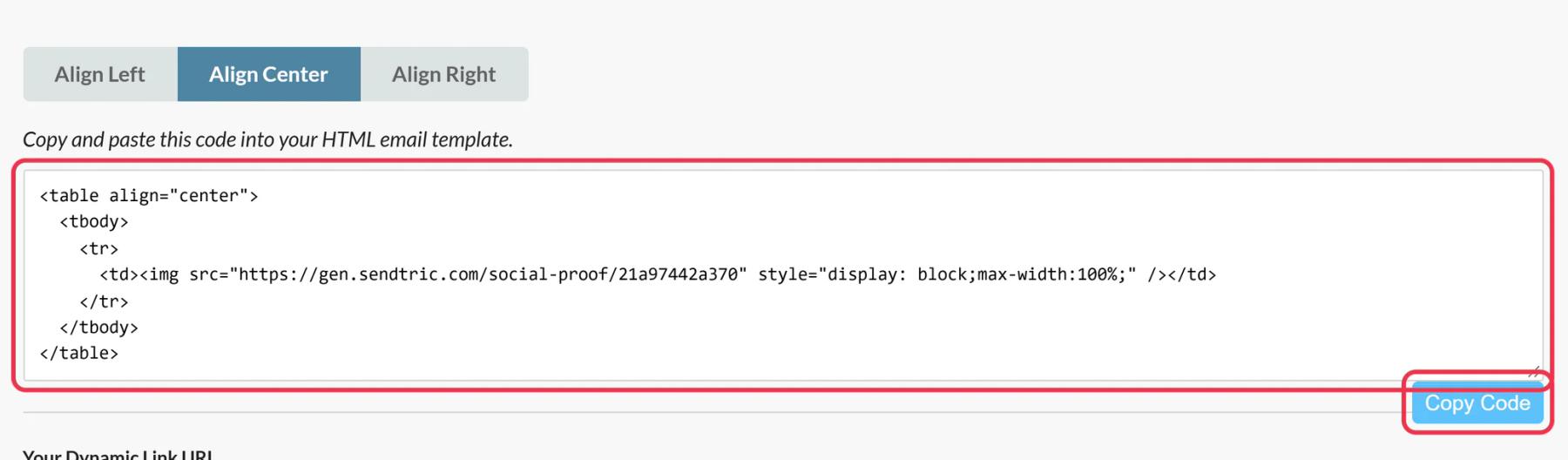
Click Save, then Copy Code for the image. If you use Opens, also click Copy URL in Your Dynamic Link URL. On a paid HubSpot plan with your account connected, Push to HubSpot adds the counter as a reusable email module.
Step 4: Add it to the HubSpot email
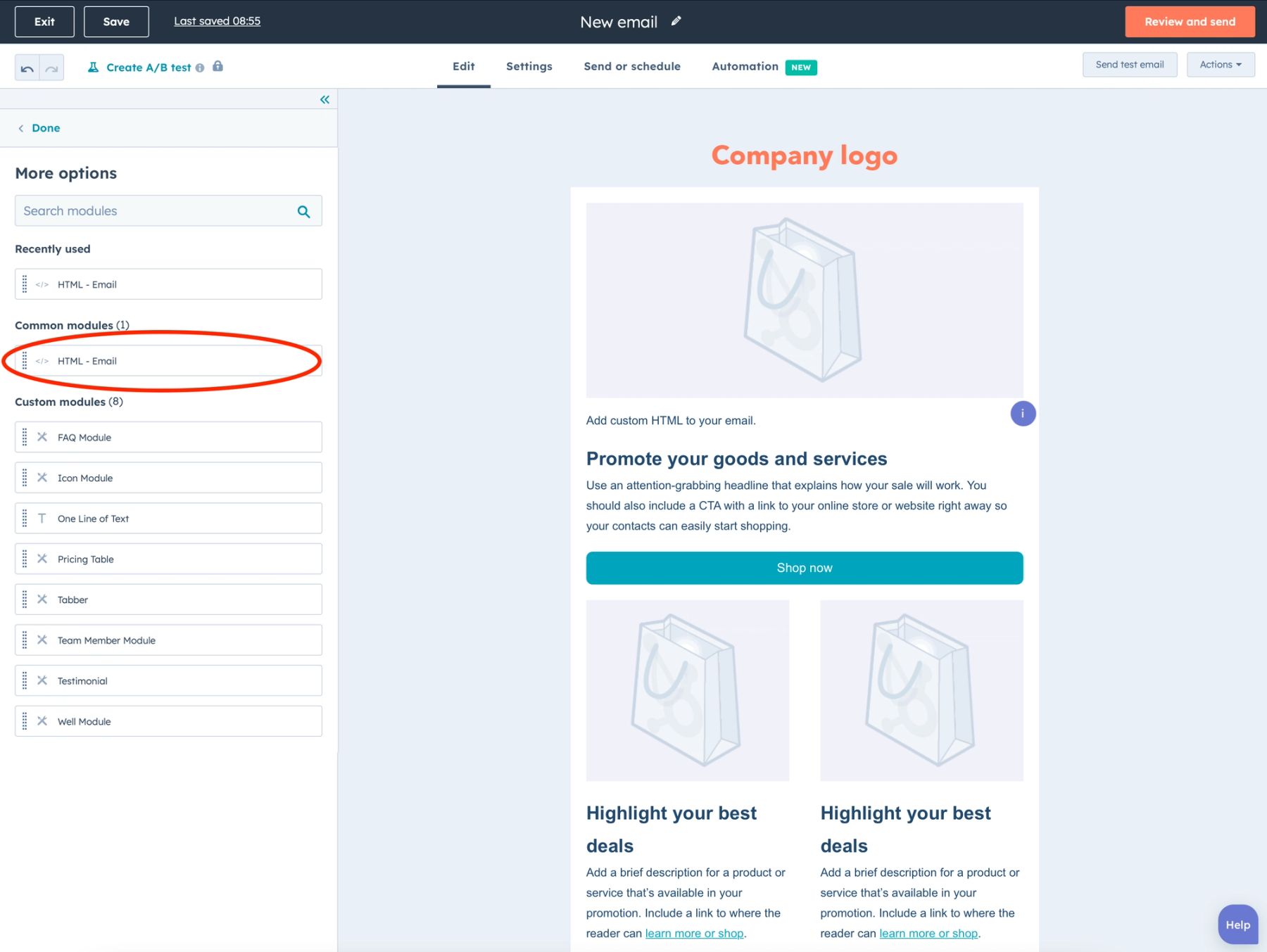
In the email editor's Content tab, click More and drag HTML - Email next to your call to action. Paste the image code into the HTML box.
Step 5: Link your button to the Dynamic Link
For an Opens counter, select your Button module and paste the Dynamic Link URL as its link. The counter image isn't clickable, so the button is what records each click.
Step 6: Send a test
Use Preview and test > Send test email, open it and click the button once. The new click shows in the number within a minute or two.
Your own test opens count too
Every load of the image in an inbox is a view, including your own test sends. If you want a clean number, create a fresh counter for the live send and do your testing on a copy.
No HTML - Email module in your account?
The module depends on your HubSpot tier. HubSpot's custom email modules are a Marketing Hub Professional and Enterprise feature, so check your subscription if More doesn't list it.
HubSpot Social Proof Counter FAQ
Will HubSpot's click tracking break the Dynamic Link?
It shouldn't. HubSpot's tracking forwards the click to the link you entered, which is the Dynamic Link, so Sendtric still counts it and then sends the contact on to your destination page. Click the button in a test send and check the number goes up to be sure.
Is "people viewing right now" an accurate description?
No. The number is a running total, not live viewers. Phrase it as views, opens or clicks so the claim stays true.
Can I start the counter above zero?
Yes, with Initial Seed, which is added to the real total. Only use a seed that reflects real numbers from elsewhere, like registrations from another channel.
Can I change the destination page after sending?
Yes. Update the Destination URL in Sendtric and clicks from emails already sent go to the new page.
Which Sendtric plan includes counters?
Power and Enterprise. See pricing.
This guide covers one piece of Sendtric's email personalization platform. For every social proof counters option and example, see the main page.
More HubSpot guides
- Countdown Timers - How to Add Countdown Timers to HubSpot
- Live Polls - How to Add Live Polls to HubSpot
- Personalized Images - How to Add Personalized Images to HubSpot
- Rule-Based Images - How to Add Rule-Based Images to HubSpot
- Dynamic Weather - How to Add Dynamic Weather to HubSpot
- Critical Alerts - How to Add Critical Alerts to HubSpot
Using a different platform? See all Sendtric integrations.