
How to Add Critical Alerts to HubSpot
Add a banner to HubSpot emails that stays hidden until you need it, then switch it on for everyone who opens the email from that moment.
 First Publish Date:
Correct or update a HubSpot email that's already in inboxes.
A Sendtric critical alert is a banner image you add to a HubSpot email in advance. While it's off, nothing shows. When something changes, you switch it on in Sendtric and the banner appears for anyone who opens the email after that. Critical alerts are part of Sendtric Enterprise plans only.
What you can do with critical alerts in HubSpot
- SaaS service notices: put an alert in onboarding and product update emails, and switch it on during an outage or planned downtime. See maintenance and outage notices.
- Event logistics: flag a room change, a new start time or a cancellation in every invitation and reminder already sent.
- Webinar fixes: if the join link or time changes, show the correction above the old details.
- Holiday hours: schedule a "Support is closed on Monday" banner to show only over the long weekend.
How to add a critical alert to HubSpot
Step 1: Create the alert
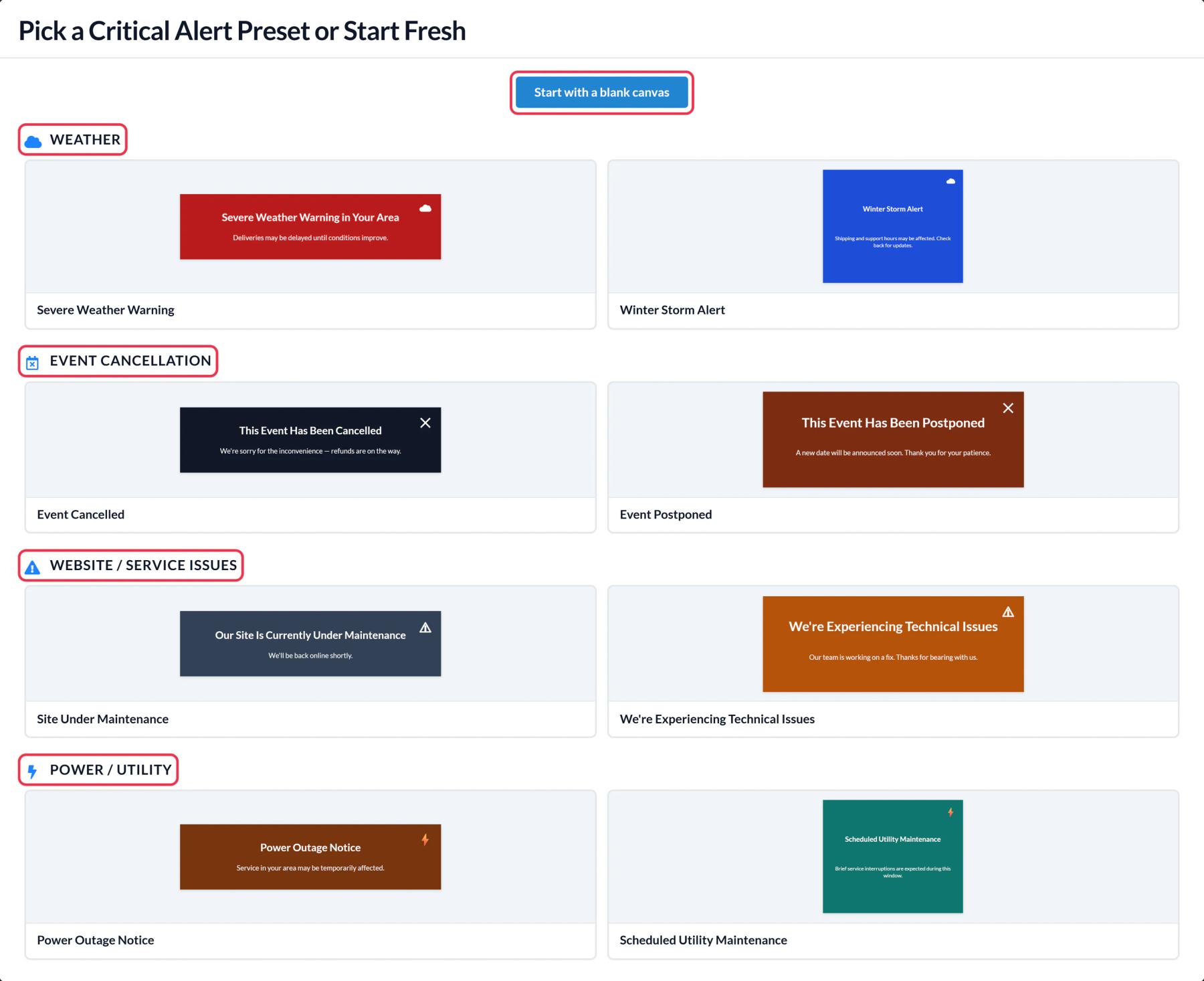
In Sendtric, open Critical alerts, click Create New and pick a preset, such as We're Experiencing Technical Issues or Event Postponed, or start blank. Write a short, clear message and keep it on brand. A Dynamic Text layer can use HubSpot tokens like {{ contact.firstname }}.
Step 2: Set the schedule or leave it off
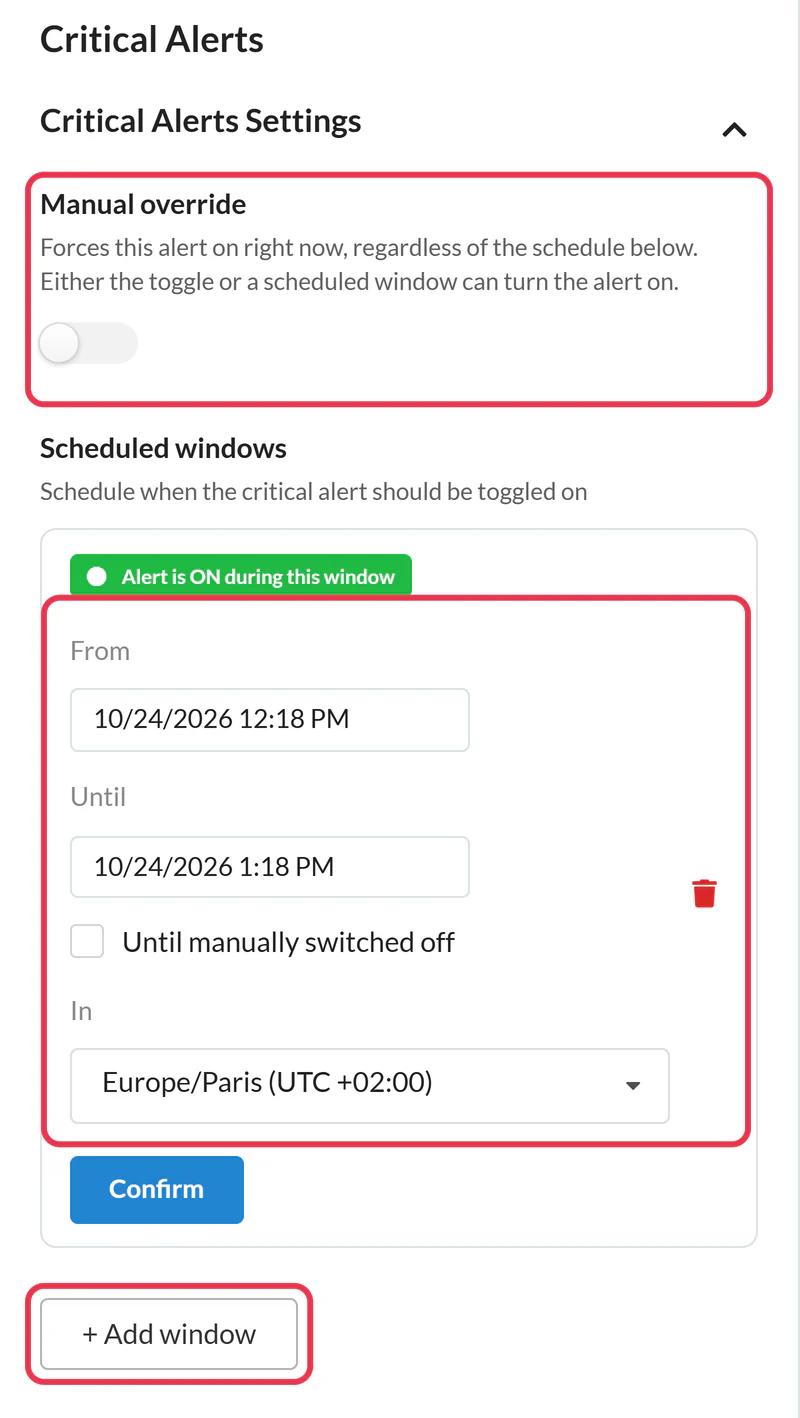
In Critical Alerts Settings, the Manual override switch turns the alert on immediately. + Add window schedules it, with a start, an end (or Until manually switched off) and a time zone, up to five windows. If you're adding the alert to emails just in case, leave everything off.
Step 3: Save and copy the code
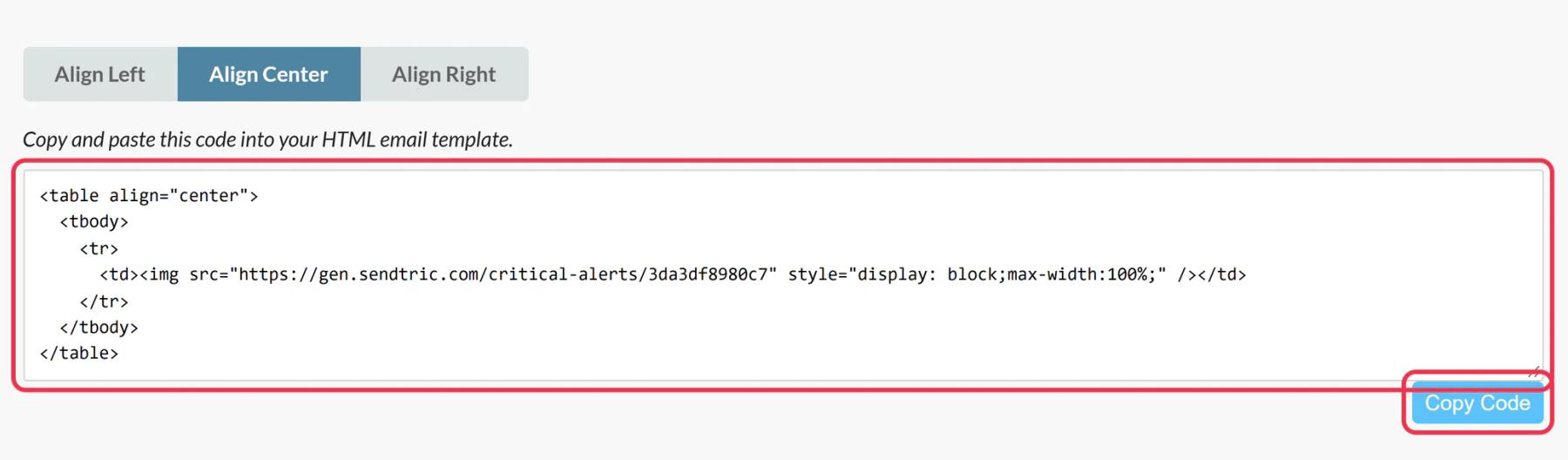
Click Save, then Copy Code. If HubSpot is connected and on a paid plan, Push to HubSpot adds the alert as a reusable email module instead.
Step 4: Add it near the top of the email
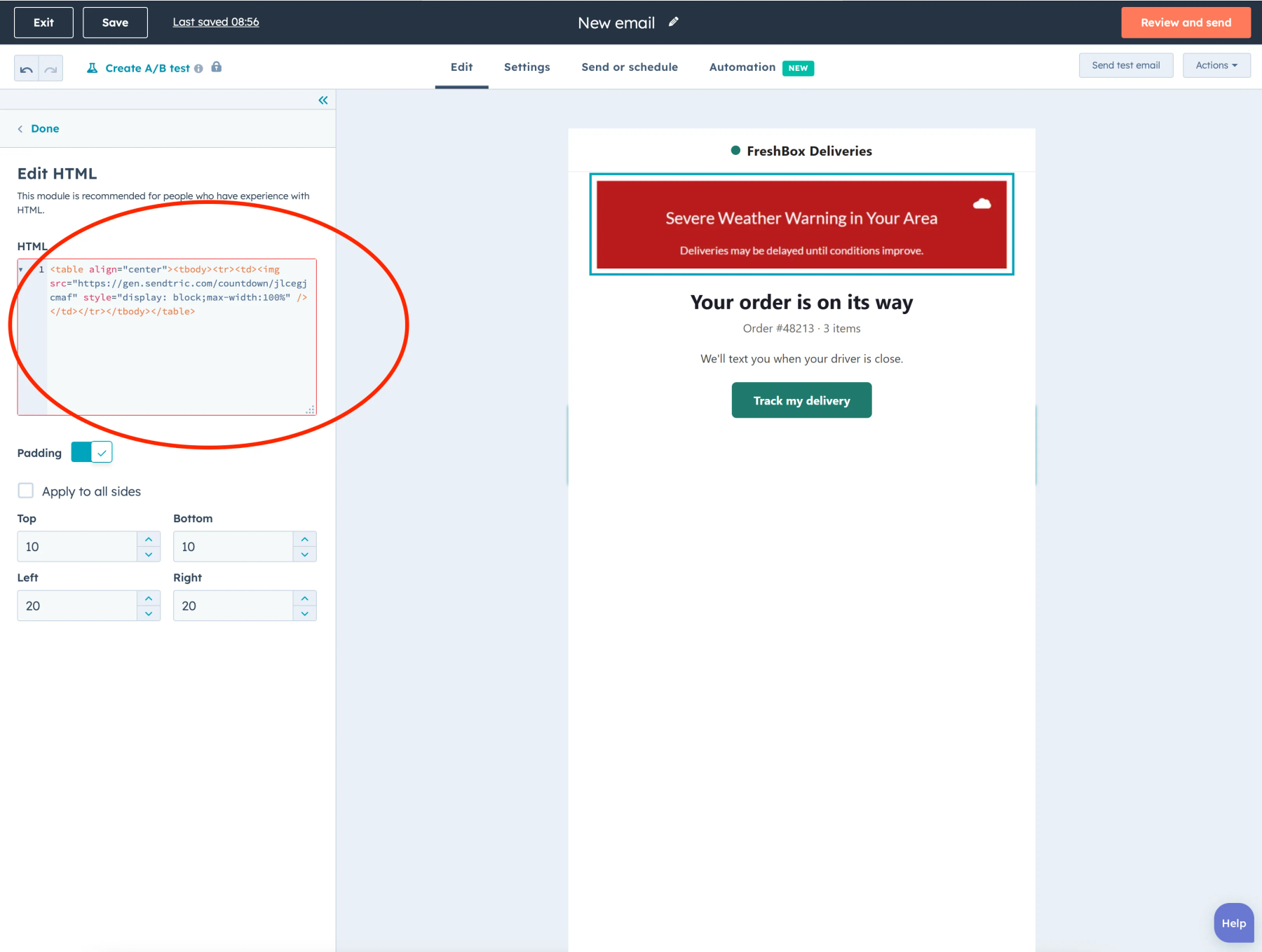
In the HubSpot email editor, open More in the Content tab and drag HTML - Email just under your logo or header. Paste the code into the HTML box. Do the same in each email you want covered, including automated emails in your workflows.
Step 5: Test it switched off and on
Send a test with Preview and test > Send test email while the alert is off and check nothing shows. Turn on Manual override, reopen the same test and the banner should be there. Switch it off again until it's needed.
Turn padding off on the module
HubSpot's Edit HTML panel has its own Padding switch and side values. With padding on, an alert that's switched off still leaves a small empty band in the email. Switch the module's Padding off, or set it to 0, and add spacing inside the alert design instead.
Check your HubSpot tier first
The HTML - Email module isn't available on every subscription, and HubSpot limits custom email modules to Marketing Hub Professional and Enterprise. Confirm you can see it under More before planning alerts across your emails.
How the switch and schedule work: how to turn a critical alert on or off.
HubSpot Critical Alerts FAQ
Do I have to unpublish or clone the HubSpot email to change it?
No. The alert's code stays the same in the sent email. Everything happens in Sendtric: switch it on, edit the text, switch it off.
Which Sendtric plan do I need?
Enterprise. Other plans can't create critical alerts.
Will contacts who opened the email earlier see the alert?
Only if they open the email again after you switch it on. Most email apps load the image fresh on each open, though some keep their own copy for a while.
Can one alert cover several emails?
Yes. Paste the same code into each email and one switch in Sendtric controls all of them.
Are views charged while the alert is off?
No. Views only count while the alert is on.
Read more about critical alerts and how it all fits into a wider email personalization strategy.
More HubSpot guides
- Countdown Timers - How to Add Countdown Timers to HubSpot
- Live Polls - How to Add Live Polls to HubSpot
- Personalized Images - How to Add Personalized Images to HubSpot
- Rule-Based Images - How to Add Rule-Based Images to HubSpot
- Dynamic Weather - How to Add Dynamic Weather to HubSpot
- Social Proof Counters - How to Add Social Proof Counters to HubSpot
Using a different platform? See all Sendtric integrations.