
How to Add Personalized Images to HubSpot
Turn HubSpot contact properties into text on an image, so one email design greets every contact by name, company or city.
 First Publish Date:
Write your HubSpot contact data onto the image, not just the text.
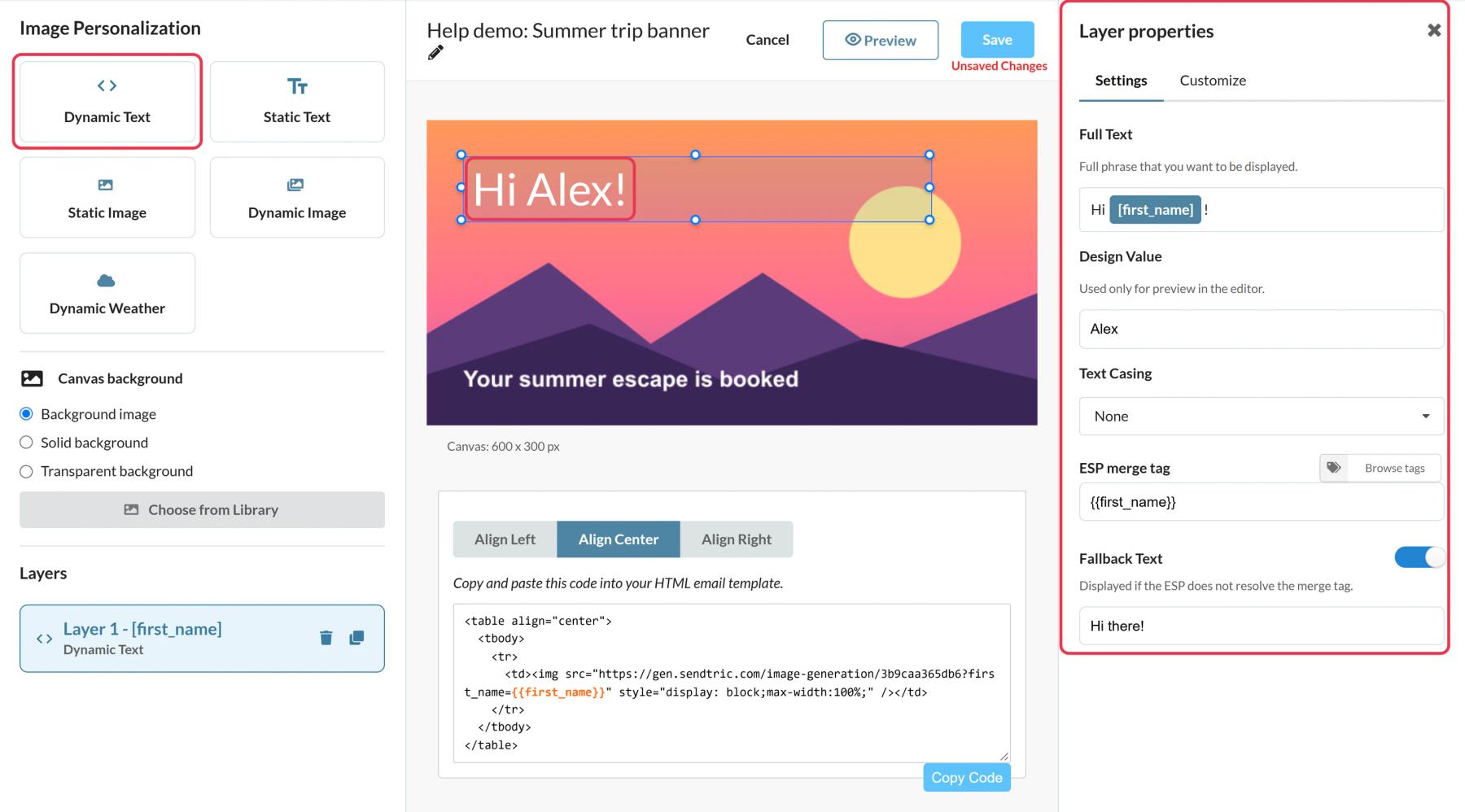
In HubSpot, personalization tokens go into rich text modules and subject lines. A Sendtric personalized image puts the same contact properties onto your artwork instead: a name on an invitation, a company name on a mock-up, a city on a map graphic. The image is created when the contact opens the email.
What you can do with personalized images in HubSpot
- Account-based outreach: show the contact's company name on a product screenshot or a branded welcome card.
- Event invitations: a ticket-style image with the contact's first name and the event city.
- Customer milestones: an anniversary graphic with the contact's name and a value from a custom property, like years as a customer.
- Renewal reminders: the plan or product name from a contact property, written on the renewal banner.
| Plan | Personalized text layers | Image layers |
|---|---|---|
| Free | 1 | No |
| Micro | 2 | No |
| Standard | 4 | Yes |
| Power and Enterprise | 20 | Yes |
How to add a personalized image to HubSpot
Step 1: Create the image and add Dynamic Text
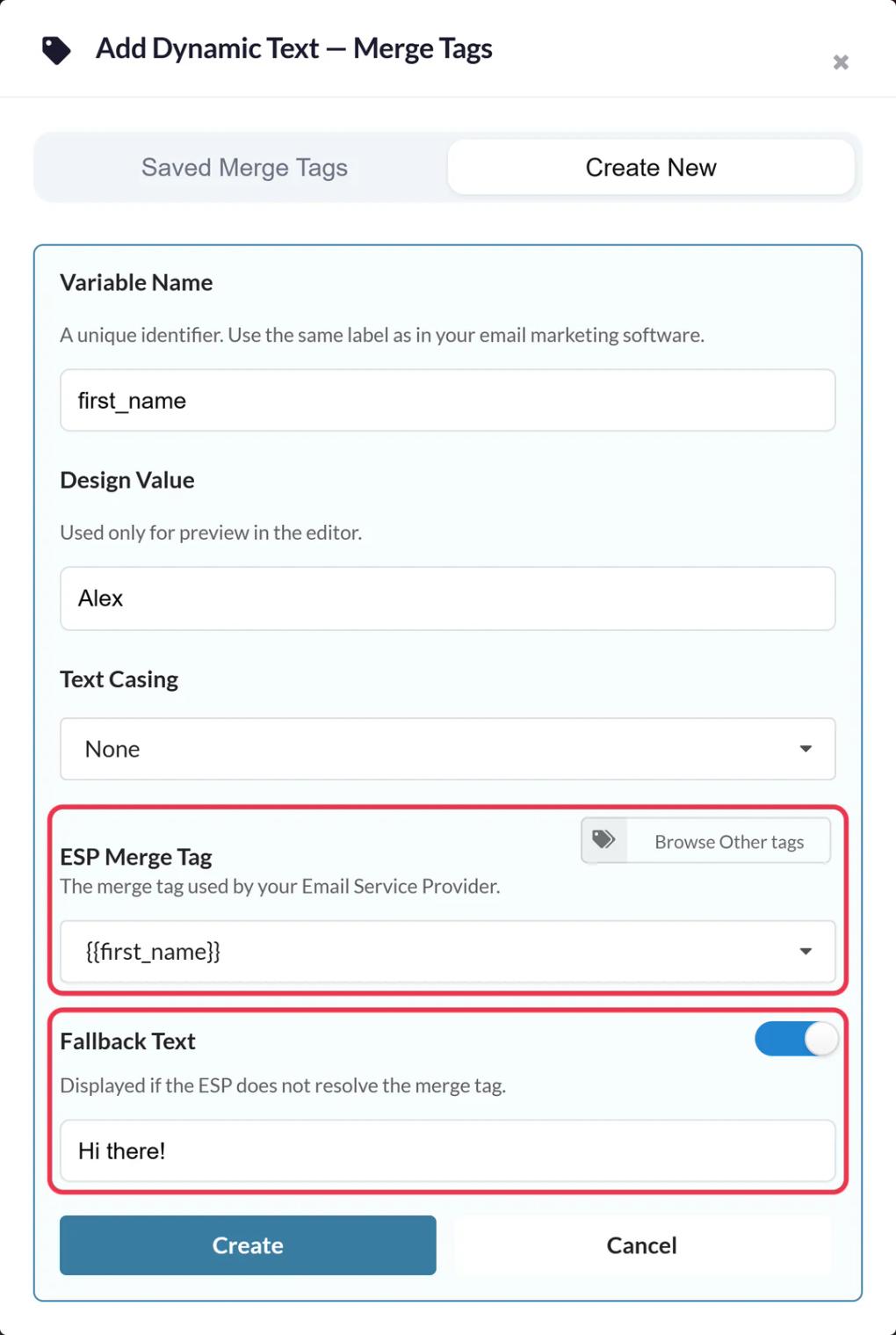
In Sendtric, open Image Personalization, click Create New and choose a background. Add a Dynamic Text layer, name the variable (for example company) and put the HubSpot token in ESP Merge Tag, for example {{ contact.company }} or {{ contact.firstname }}. With HubSpot connected, Browse HubSpot tags lists your real contact properties, including custom ones.
Step 2: Write a fallback that reads well
Set Fallback Text for contacts with an empty property. It replaces the whole text layer, so write a complete line, like "Welcome to the team" rather than just "team".
Step 3: Style, size and save
Pick the font and color and size the text box for the longest company name you expect, since long values wrap instead of shrinking. Click Save.
Step 4: Get the code into HubSpot
Click Push to HubSpot to add the image to your account as a reusable email module (paid HubSpot plans). Or click Copy Code: the code already includes your HubSpot tokens as URL parameters.
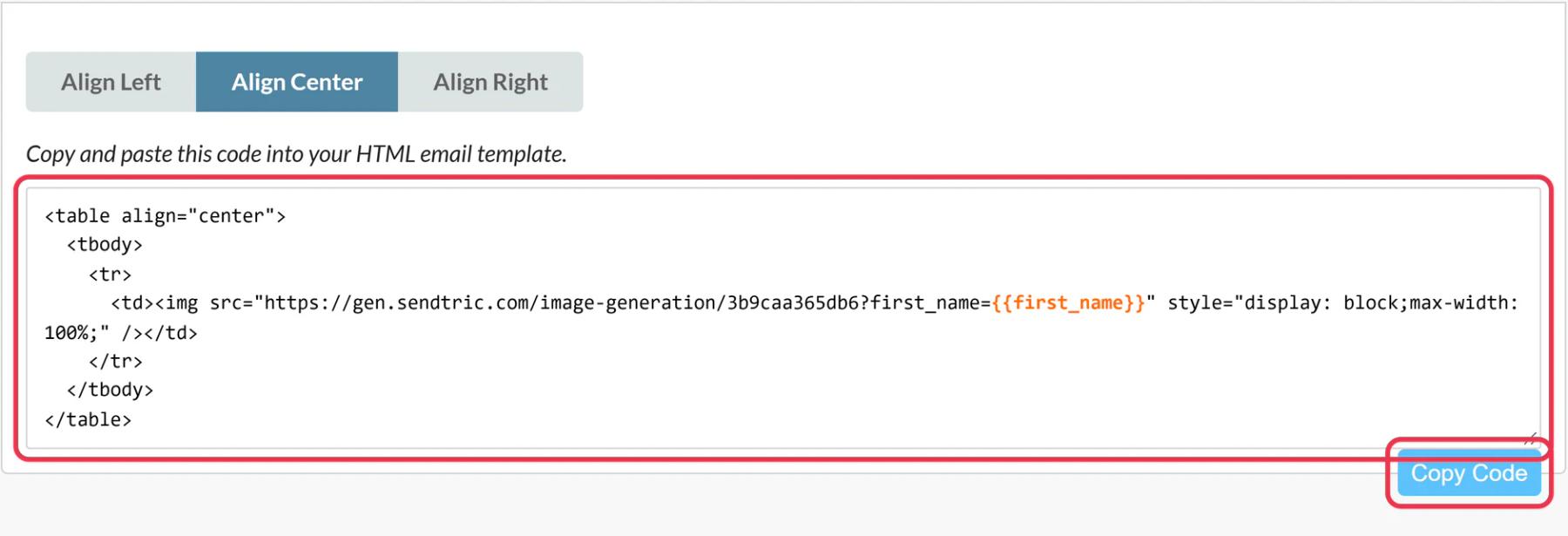
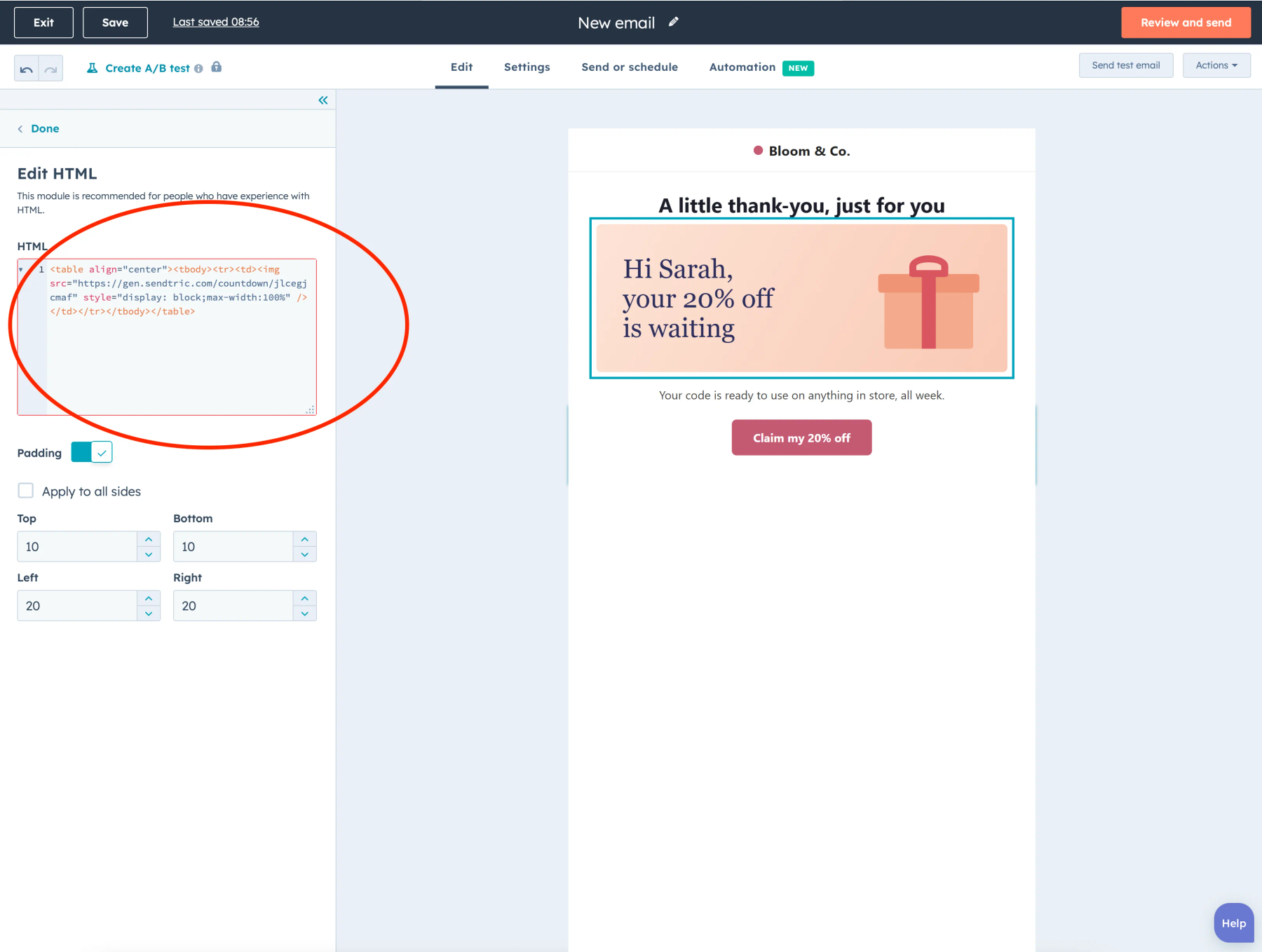
For copied code, open your marketing email, click More in the Content tab and drag the HTML - Email module into place. Paste the code into the HTML box.
Step 5: Preview as different contacts
Open Preview and test, choose Preview as contact and pick someone with the property filled in, then someone without it. Finish with Send test email to see the finished image in a real inbox.
Use the property's internal name
HubSpot tokens use a property's internal name, which can differ from its label. A custom property labelled "Customer Since" might be {{ contact.customer_since }}. Browse HubSpot tags shows the right name, or check it in your HubSpot property settings.
If the module isn't there
Not every HubSpot subscription shows the HTML - Email module. HubSpot reserves custom email modules for Marketing Hub Professional and Enterprise, so if you can't find it under More, ask HubSpot which of your tiers includes it.
More on tokens and fallbacks: how to use merge tags and fallback text in personalized images.
HubSpot Personalized Images FAQ
Which token gives me the contact's first name?
{{ contact.firstname }}. Last name is {{ contact.lastname }}, company {{ contact.company }} and city {{ contact.city }}.
Can I use company properties as well as contact properties?
Yes, tokens such as {{ company.name }} work the same way, as long as the contact has an associated company in HubSpot.
Should I set a default value in HubSpot or a fallback in Sendtric?
Use the fallback in Sendtric. You can see it on the image while designing, and it replaces the whole line cleanly when a property is empty.
Does it work in emails sent from workflows?
Yes. Contact tokens fill in for automated emails the same as for regular sends.
Can I change the design after sending?
Yes. Save the image in Sendtric and opens from then on show the new design. Keep the variable names the same so the code in sent emails still matches.
Read more about personalized images and how it all fits into a wider email personalization strategy.
More HubSpot guides
- Countdown Timers - How to Add Countdown Timers to HubSpot
- Live Polls - How to Add Live Polls to HubSpot
- Rule-Based Images - How to Add Rule-Based Images to HubSpot
- Dynamic Weather - How to Add Dynamic Weather to HubSpot
- Critical Alerts - How to Add Critical Alerts to HubSpot
- Social Proof Counters - How to Add Social Proof Counters to HubSpot
Using a different platform? See all Sendtric integrations.