
How to Add Dynamic Weather to HubSpot
Show HubSpot contacts a live forecast for their city or postal code, or for your event venue, inside a marketing email.
 First Publish Date:
Bring a live, local forecast into your HubSpot emails.
The Sendtric weather widget shows a forecast that is fetched when the email is opened. Set it to your venue or office, or pass in each contact's city or postal code from HubSpot so every contact sees their own forecast.
What you can do with dynamic weather in HubSpot
- Event reminders: a 5-day forecast for your conference or open day in the reminder emails, so attendees know what to wear and pack.
- Field service and trades: a local forecast in seasonal maintenance emails, like gutter cleaning before a rainy week.
- Travel and hospitality: the forecast for a booked destination in pre-arrival emails. See live weather forecasts in travel and event booking emails.
- Regional newsletters: each contact's own forecast at the top of a local newsletter.
| Weather feature | Free | Micro | Standard | Power and Enterprise |
|---|---|---|---|---|
| Location from the contact's city | No | Yes | Yes | Yes |
| Location from the contact's postal code | No | No | Yes | Yes |
| Forecast starts on the day the email is opened | No | No | No | Yes |
How to add dynamic weather to HubSpot
Step 1: Create the weather widget
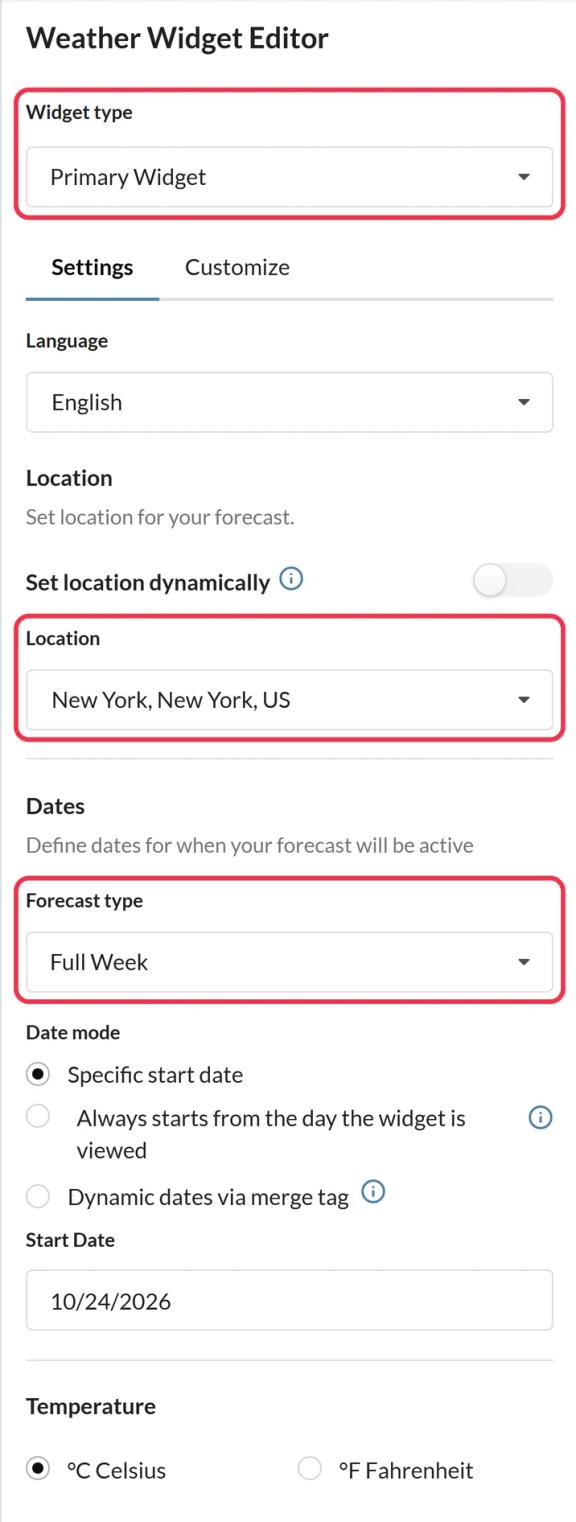
In Sendtric, open Weather widget, click Create New and choose Primary Widget or Inline Widget. Set the language, forecast length and temperature unit, and style it on the Customize tab.
Step 2: Choose the location
For one fixed place, search for it in Location. For contact-based weather, turn on Set location dynamically and pick a Location format: city plus country code, or postal code plus country code.
Step 3: Pick a fallback and save
Under Fallback image, choose Hide the widget or upload an image (Micro and above) for contacts with no usable location. Click Save.
Step 4: Copy the code and add HubSpot tokens
Click Copy Code. With dynamic location on, the code ends in location=city,countryCode or location=zipCode,countryCode. Replace those placeholders with HubSpot tokens, for example location={{ contact.city }},{{ contact.country }} or location={{ contact.zip }},{{ contact.country }}.
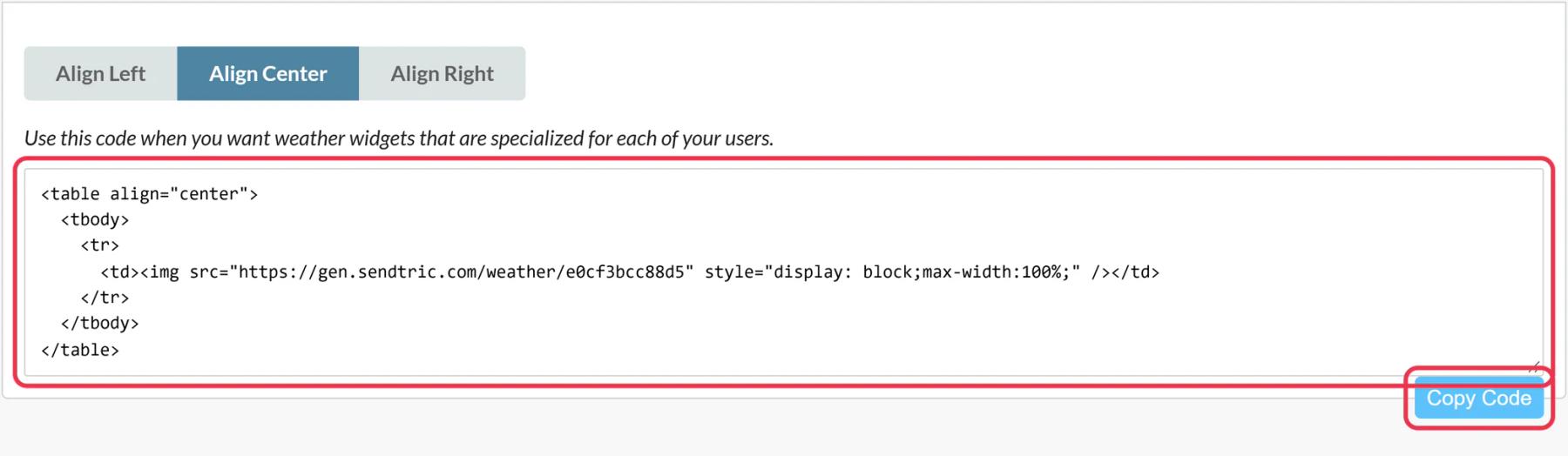
If HubSpot is connected and you're on a paid HubSpot plan, you can use Push to HubSpot instead. Check the pushed module's code for the location tokens before you send.
Step 5: Paste it into an HTML module
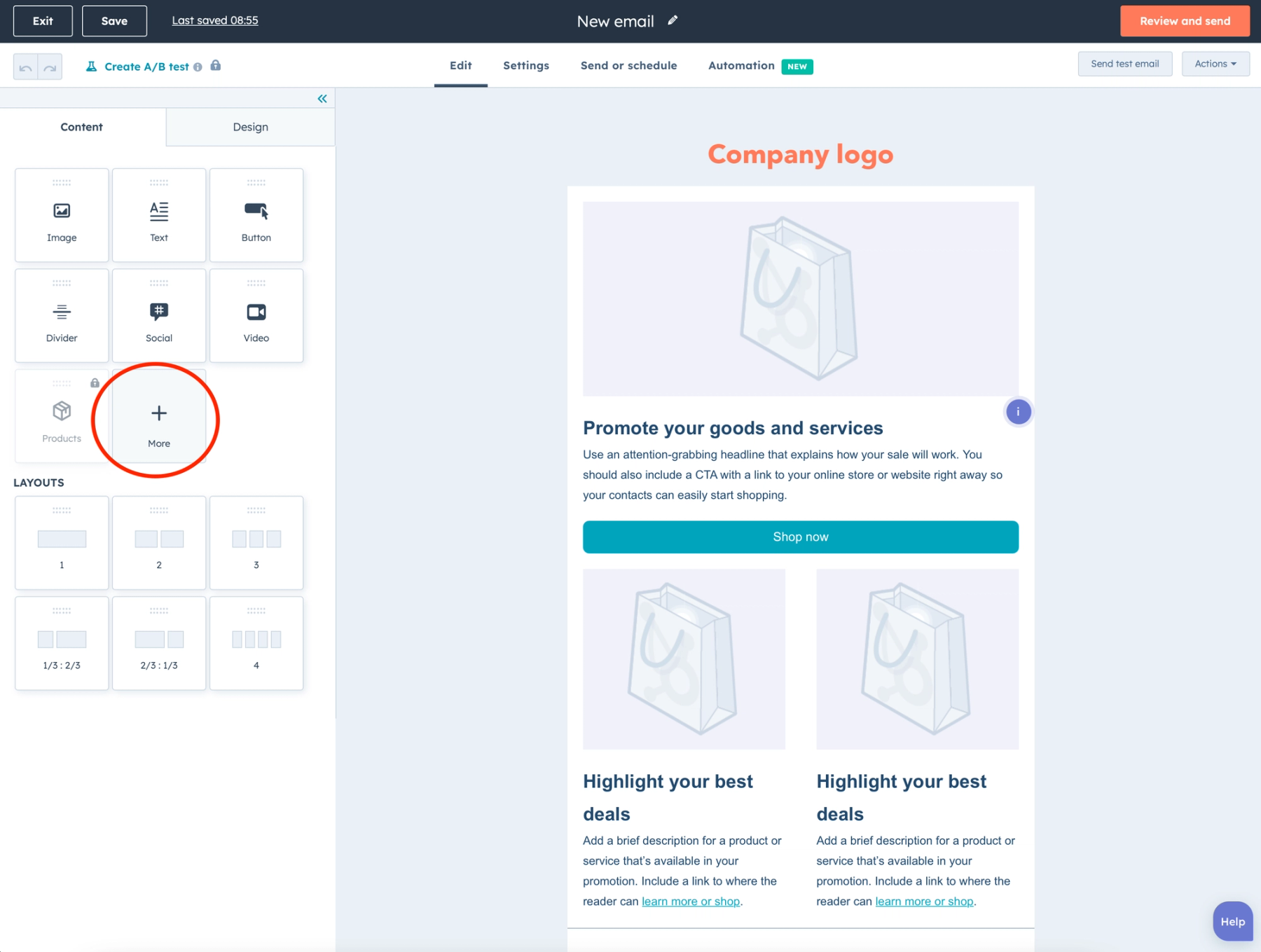
In your HubSpot marketing email, click More in the Content tab, drag HTML - Email where you want the forecast and paste the code into the HTML box.
Step 6: Test with real contact data
In Preview and test, use Preview as contact for a contact with a city and one without, then Send test email. You should see a local forecast for the first and your fallback for the second.
Country must be a two-letter code
Sendtric reads the country as a two-letter ISO code, such as US, GB or DE. Look at a few contacts: if your Country property holds full names like "United States", create a custom property with the code and use its token in the code instead.
When the HTML module isn't available
Some HubSpot accounts don't list HTML - Email under More. HubSpot limits custom email modules to Marketing Hub Professional and Enterprise, so a missing module usually points to your subscription tier.
Location formats and fallbacks are explained in how to show each subscriber their local weather.
HubSpot Weather Widget FAQ
Does the widget detect where the contact is?
No. It never uses the contact's IP address. The location comes from the HubSpot properties you put in the code, or the fixed place you chose.
How far ahead does the forecast go?
Plan for up to 10 days. Days with no data yet show a dash, so for an event further out, send the weather email closer to the date.
What do contacts with no city see?
Your fallback: nothing at all with Hide the widget, or your uploaded image.
Which HubSpot tokens should I use?
{{ contact.city }}, {{ contact.zip }} and {{ contact.country }} for contact data, or company tokens such as {{ company.city }} if your list is account based.
Does the forecast update if someone opens the email again?
Yes. Each forecast is kept for up to an hour, so a reopen later in the week shows newer weather.
This guide covers one piece of Sendtric's email personalization platform. For every dynamic weather option and example, see the main page.
More HubSpot guides
- Countdown Timers - How to Add Countdown Timers to HubSpot
- Live Polls - How to Add Live Polls to HubSpot
- Personalized Images - How to Add Personalized Images to HubSpot
- Rule-Based Images - How to Add Rule-Based Images to HubSpot
- Critical Alerts - How to Add Critical Alerts to HubSpot
- Social Proof Counters - How to Add Social Proof Counters to HubSpot
Using a different platform? See all Sendtric integrations.