
How to Add Live Polls to SendGrid
Run a one-click poll in your SendGrid emails, pick the right recipient ID when SendGrid has no contact ID tag, and see results in Sendtric.
 First Publish Date:
Ask one quick question in your next SendGrid email and count the answers by contact.
A Sendtric email poll is a small table of answer images that you paste into a SendGrid Code module. A recipient clicks an answer, a browser tab opens for a moment to record the vote, and then shows a thank-you page or a page you choose. On higher plans the answer images can show live percentages the next time the email is opened.
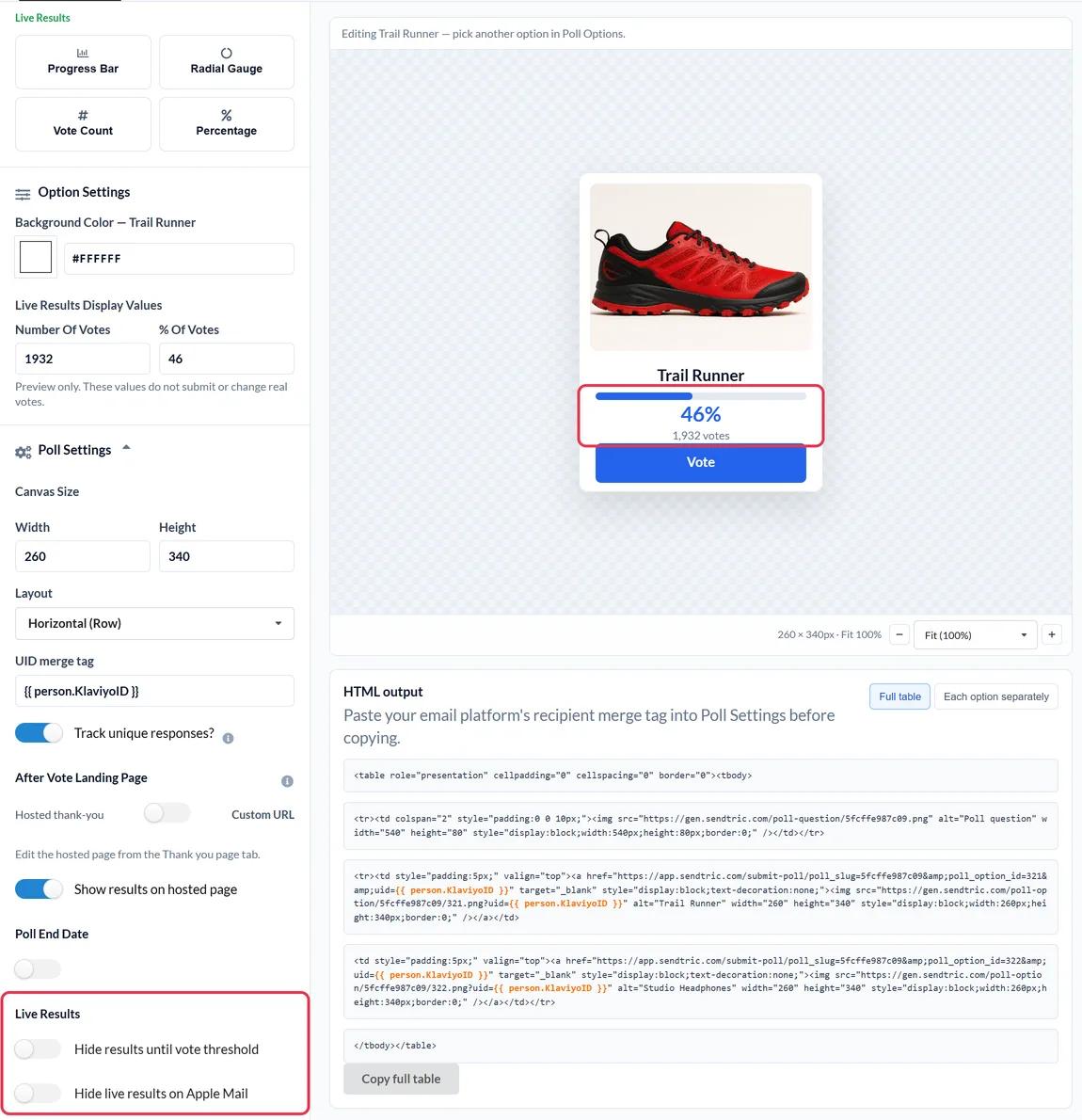
SendGrid's Design Editor has no poll or survey module, so the Code module is the way in. The one thing to sort out first is how to identify each recipient, because SendGrid doesn't expose a contact ID tag.
Choosing a recipient ID in SendGrid
Sendtric keeps one vote per recipient by reading a unique value from the poll's links. If the same value comes back twice, the newer answer replaces the older one. In SendGrid you have three practical choices:
- The email address,
{{email}}: every Marketing Campaigns contact has one, so nothing to set up. The downside is that the address travels in the poll's image and vote links, and it is what you will see in the per-recipient export. - Your own ID in a custom field, such as
{{customer_id}}: create a Text custom field and fill it from your store or CRM. This keeps addresses out of the links, but every contact on the list needs a value. Contacts without one would all share the same empty ID and overwrite each other's votes. - A key in
dynamic_template_datafor API sends: if the poll goes into a Dynamic Template, pass your user ID with each request and reference it, for example{{user_id}}.
Whichever you choose, copy the tag from the Tags tab in the editor so the spelling matches your field exactly.
What you can do with a live poll in SendGrid
- Rate a transactional moment: add a 1 to 5 star poll to a delivery or support follow-up email sent through a Dynamic Template.
- Pick the next feature or product: show three options as images in a product update Single Send and let customers vote.
- Build segments from answers: ask what topics people want, download the answers by recipient, and upload them back to SendGrid as a custom field you can segment on.
- Show the crowd's view: on the Power plan, live results let subscribers see how others voted when they reopen the email.
| What you need | Sendtric plan |
|---|---|
| A two-answer text poll | Free |
| Up to 3 answers and the full font library | Micro |
| Up to 5 answers, image answers, star and product vote presets | Standard |
| Up to 11 answers, NPS, live results in the email, a page per answer | Power |
How to add a live poll to SendGrid
Step 1: Build the poll in Sendtric
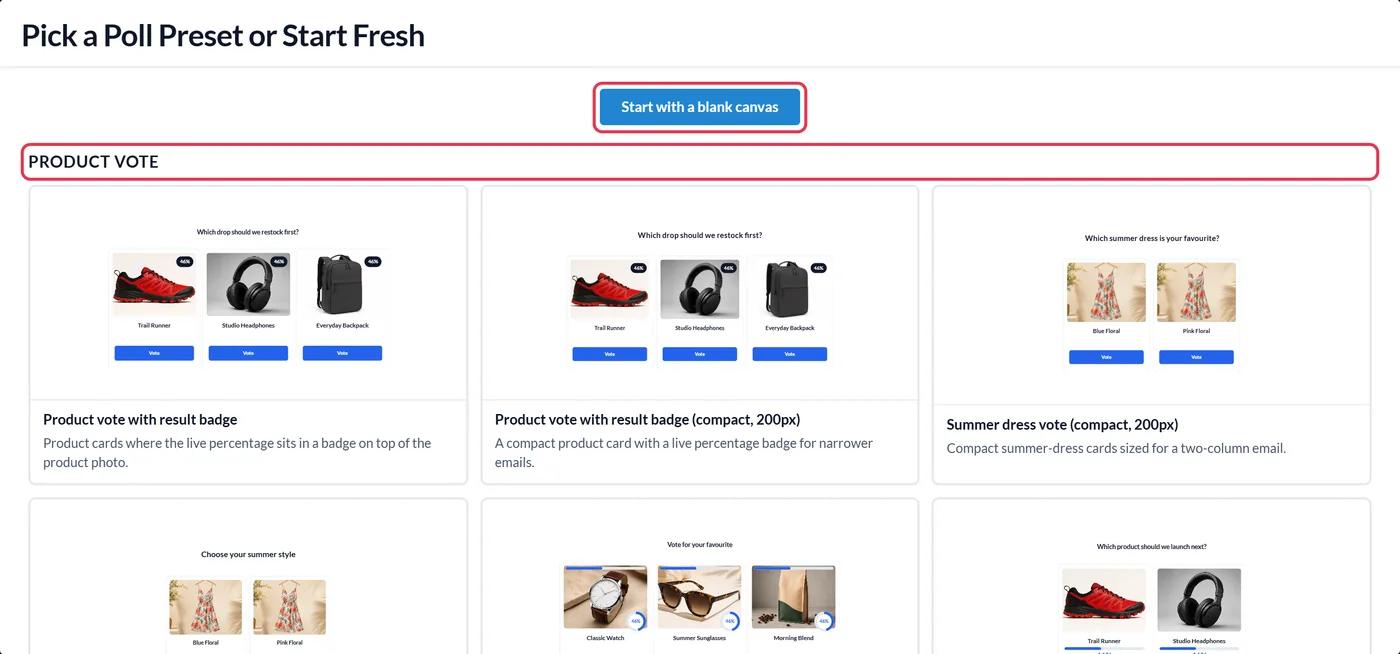
Open Polls, click Create New and choose a preset or Start with a blank canvas. Write your answer options, style them, and decide where people land after voting.
Step 2: Enter your SendGrid recipient tag
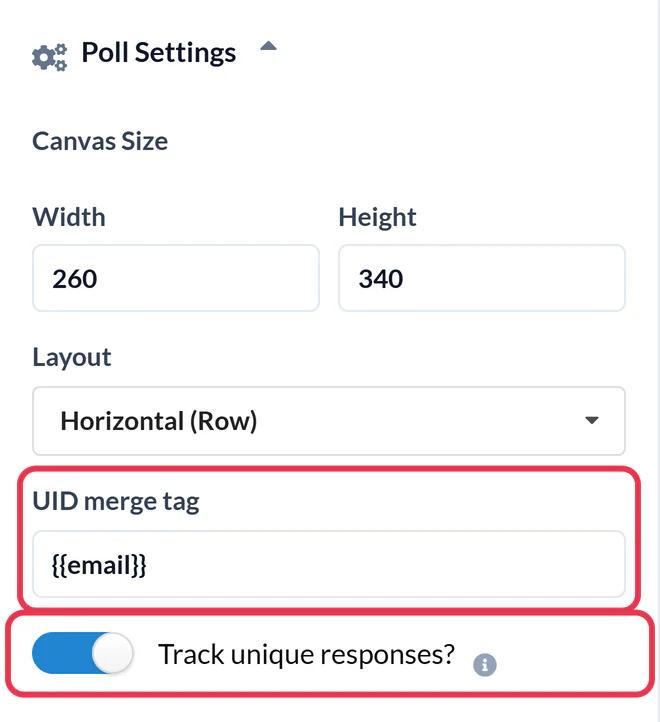
In Poll Settings, type the tag you chose into the UID merge tag field, for example {{email}} or {{customer_id}}. Switch on Track unique responses? if you want a download that lists each recipient's answer. Then click Save. Sendtric won't let you copy the code until this field is filled in.
Step 3: Copy the HTML
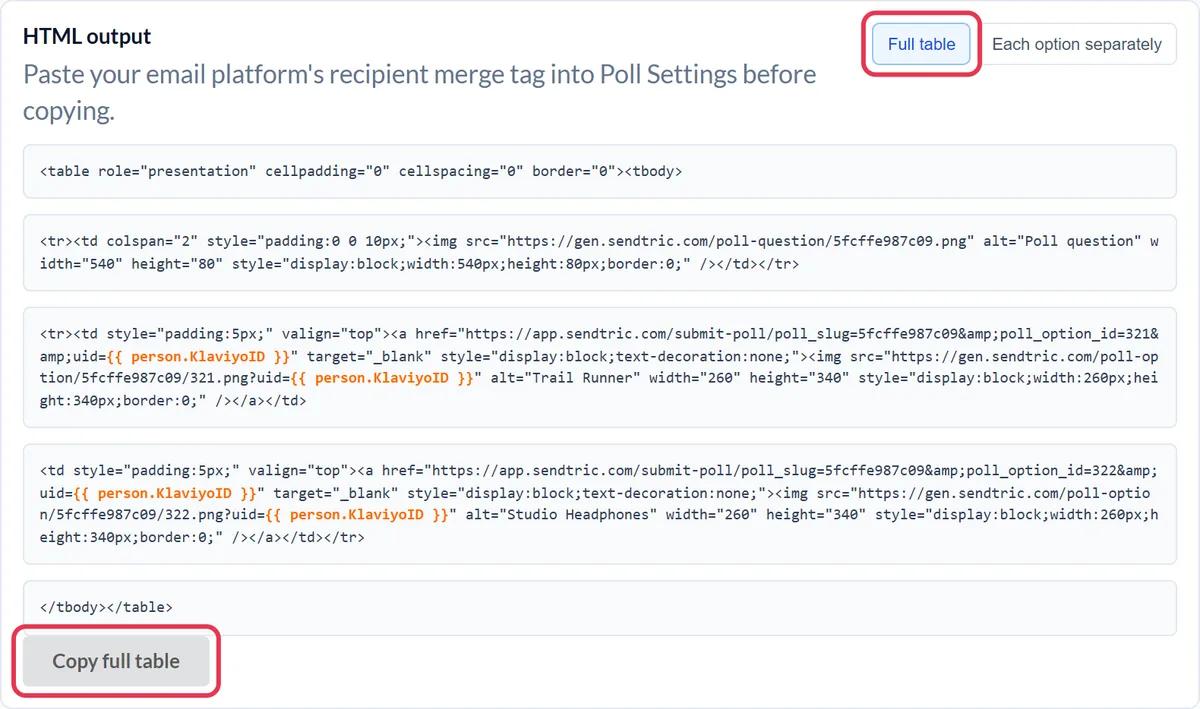
In the HTML output panel under the canvas, click Copy full table. Save the poll before copying, otherwise the code contains placeholders.
Step 4: Paste it into a Code module
In the SendGrid Design Editor, open the Build tab and drag a Code module to where the poll should sit. Paste the code into Edit Module HTML and click Update. In a Code Editor template, paste it straight into the HTML.
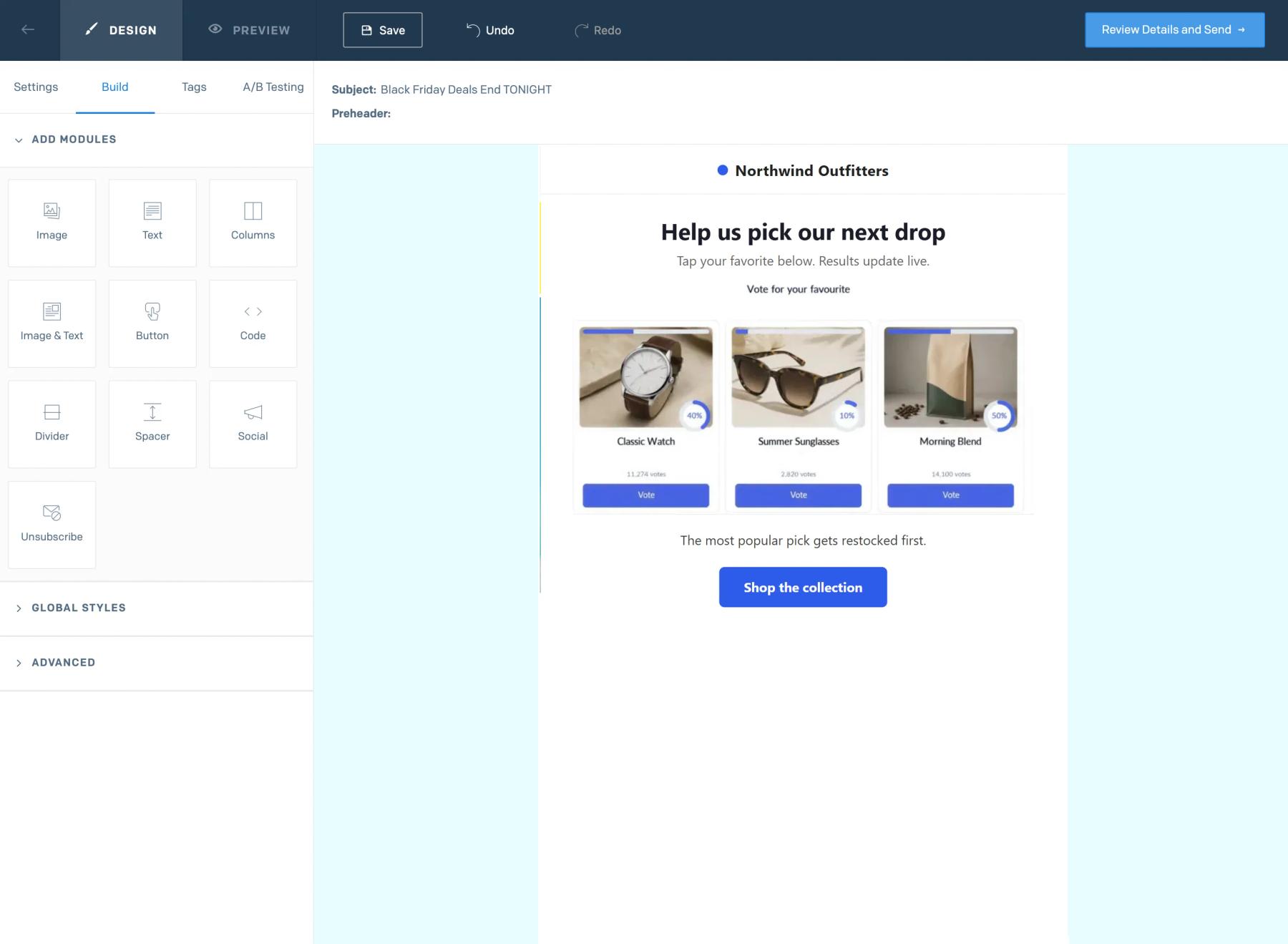
Step 5: Test a vote
Send a test and click one answer. You should see "Please wait while we submit your response..." and then your landing page. Vote again from a second test address: if the first answer gets replaced instead of counted separately, the tag wasn't filled in for one of the sends.
Matching answers back to SendGrid contacts
With {{email}} as the ID, the per-recipient export already lists email addresses, which is the key SendGrid uses to update contacts. Add a column for the answer and import the file to fill a custom field. With your own customer ID, match the export to your contact data first.
Keep the answers fixed once the email is out
You can restyle a poll after sending, but don't delete answers or switch presets. Links in emails already delivered would stop recording votes.
SendGrid Live Poll FAQ
Does SendGrid have a contact ID I can use for the poll?
Not as a tag you can place in an email. Use {{email}}, a custom field with your own ID, or a value you pass in dynamic_template_data for API sends.
Is it OK to put email addresses in the poll links?
It works, and it makes exporting answers easy. If your privacy policy or security team prefers not to have addresses in URLs, use a customer ID field instead.
Can I add a poll to a transactional email?
Yes. Paste the code into your Dynamic Template and pass a recipient ID in the template data. A satisfaction question in an order or support email is a common use.
Where do I see the results?
In Sendtric, open Polls and click the number in the Responses column. You can download totals per answer, and per-recipient answers if Track unique responses? is on. More in how to see poll results.
How fast do live results change?
Usually within a minute of a new vote. Some email apps keep their own copy of images, so a reopen can now and then show slightly older numbers.
This guide covers one piece of Sendtric's email personalization platform. For every live polls option and example, see the main page.
More SendGrid guides
- Countdown Timers - How to Add Countdown Timers to SendGrid
- Personalized Images - How to Add Personalized Images to SendGrid
- Rule-Based Images - How to Add Rule-Based Images to SendGrid
- Dynamic Weather - How to Add Dynamic Weather to SendGrid
- Critical Alerts - How to Add Critical Alerts to SendGrid
- Social Proof Counters - How to Add Social Proof Counters to SendGrid
Using a different platform? See all Sendtric integrations.
