
How to Add Dynamic Weather to SendGrid
Add a forecast that loads when the email is opened, either for one location or for each SendGrid contact's own city, using a Sendtric weather widget.
 First Publish Date:
A live forecast in your SendGrid email, for one place or for every contact's own city.
A Sendtric weather widget is an image that fetches the forecast when the email is opened, not when it is sent. Put it in a trip confirmation, an event reminder or a seasonal promotion, and recipients see the outlook for the days that matter to them.
SendGrid stores city, postal_code and country as reserved contact fields, which makes a per-contact forecast straightforward in Marketing Campaigns. In Dynamic Templates, pass the location with each request instead.
What you can do with dynamic weather in SendGrid
- Pre-arrival emails: send the destination forecast with a hotel or rental booking from your Dynamic Template, with the check-in date as the forecast start.
- Event reminders: show the weather for the venue on the event day so attendees can plan.
- Weather-aware promotions: feature rain gear or summer stock next to the contact's own local forecast.
- Outdoor services: let customers of a delivery, landscaping or fitness business see what the coming days hold.
| Weather option | Sendtric plan |
|---|---|
| A full-week forecast for one fixed place | Free |
| Location by city from a SendGrid field, 1, 3 or 5-day forecasts | Micro and above |
| Location by postcode, forecast dates from a field | Standard and above |
| Forecast that always starts on the day the email is opened | Power and above |
How to add dynamic weather to SendGrid
Step 1: Create the widget
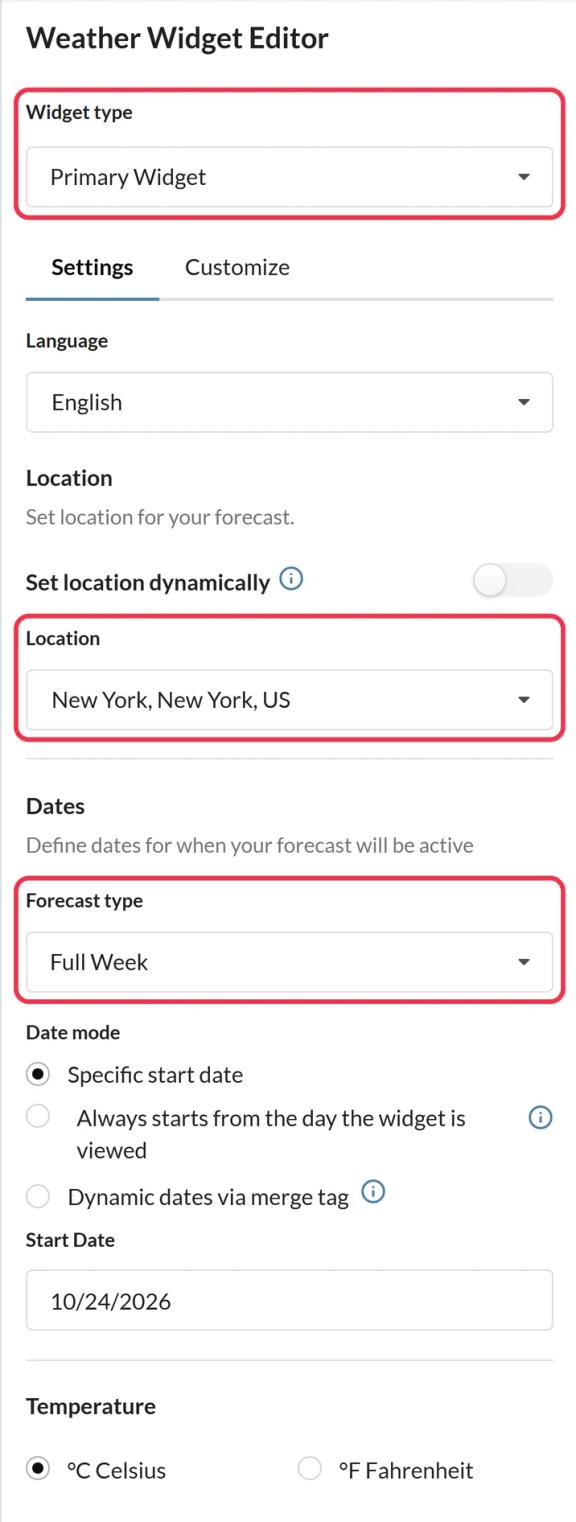
In Sendtric, open Weather widget and click Create New. Choose Primary Widget for a card or Inline Widget for a compact strip, then pick the forecast length and units.
Step 2: Choose a fixed or dynamic location
For one place, search for it under Location. For each contact's own city, turn on Set location dynamically and choose a Location format: city with a country code, or ZIP/postcode with a country code. Add a Fallback image or leave it set to hide the widget when a location can't be found, then click Save.
Step 3: Copy the code and add SendGrid's fields
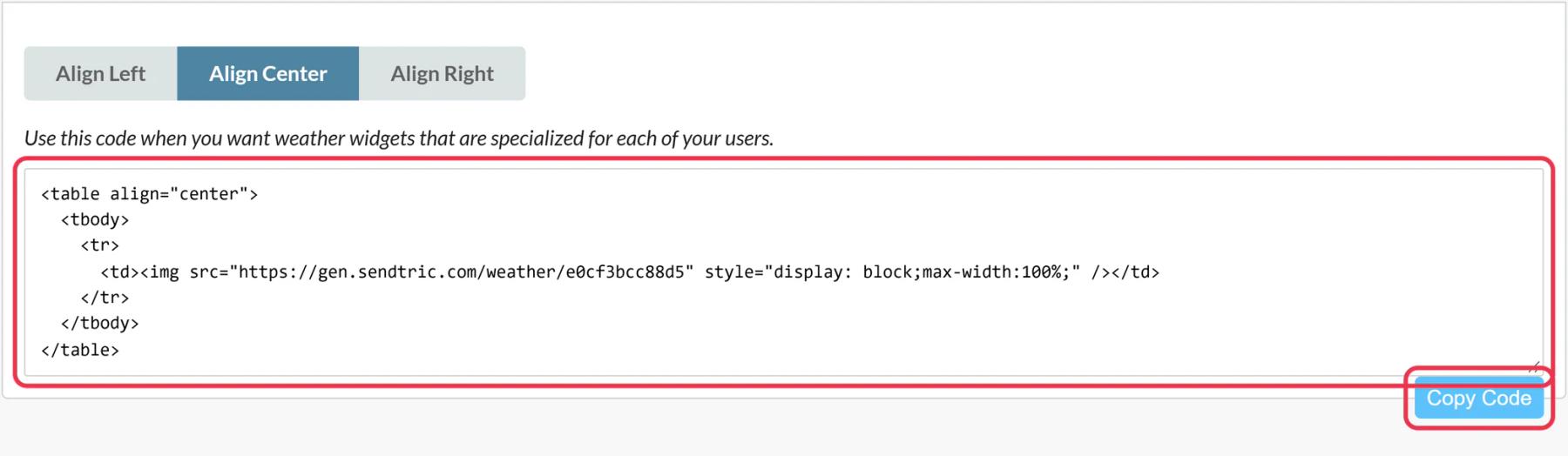
Click Copy Code. For a dynamic location the URL ends with a placeholder such as location=city,countryCode. Replace it with SendGrid tags, for example location={{city}},{{country}}, or location={{postal_code}},{{country}} for postcodes.
Step 4: Paste it into a Code module
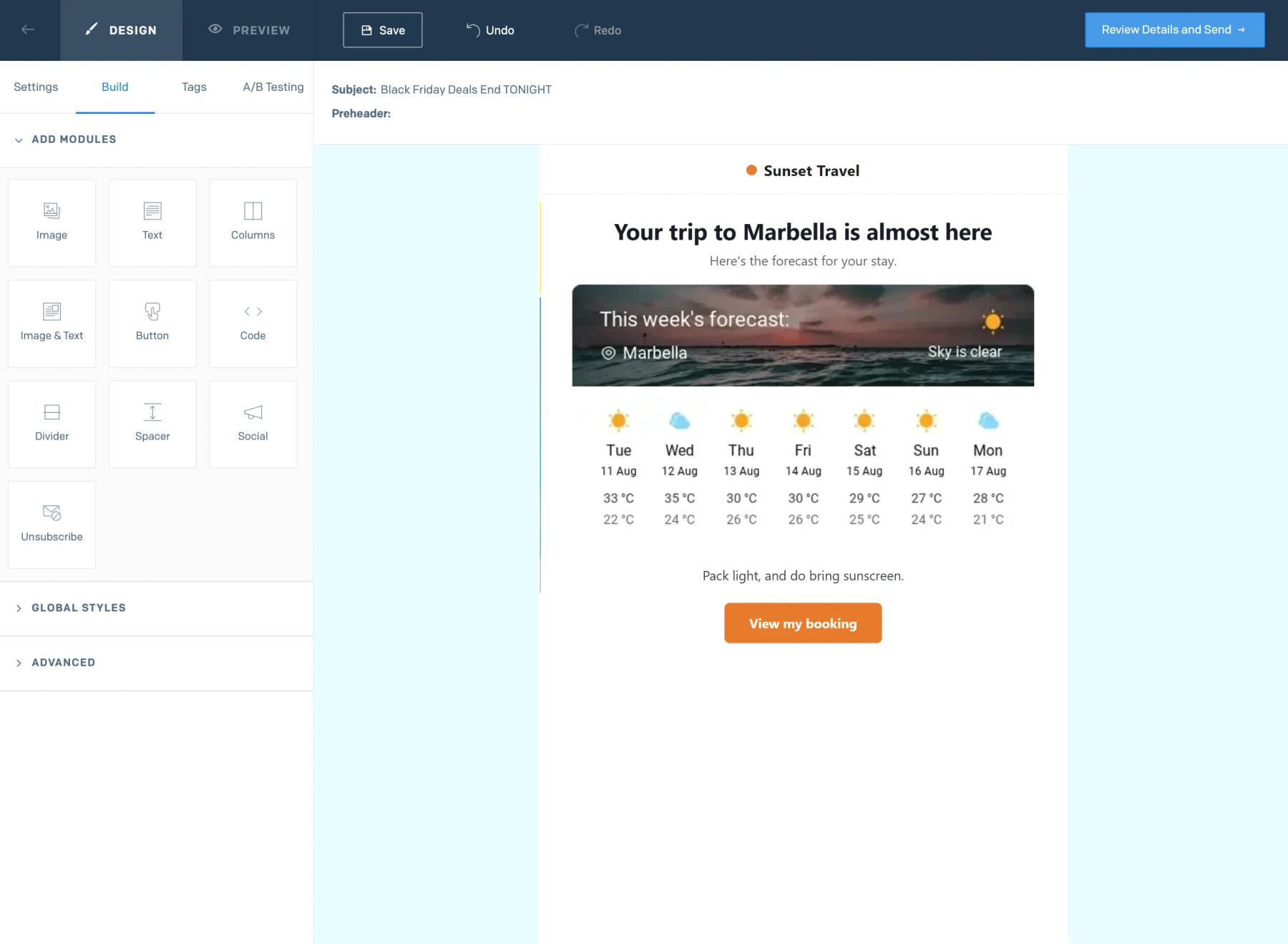
In the SendGrid Design Editor, drag a Code module from Add Modules on the Build tab, paste the code into Edit Module HTML and click Update.
Step 5: Test with real addresses
Send a test to contacts in two different cities and check that each forecast and city name is right. The city name in the header is the weather provider's name for the place, so it can differ slightly from what is stored in SendGrid.
The country field needs a two-letter code
Sendtric expects an ISO country code such as US, GB or DE. If your SendGrid country field holds full names like "United States", add a custom field with the two-letter code and use that tag instead.
Forecasts reach about 10 days ahead
If you pass a trip date in a Dynamic Template, send the email within 10 days of it. Dates further out trigger the fallback, as do unknown places and empty fields.
SendGrid Weather Widget FAQ
Does the widget detect where the reader is?
No. Sendtric never uses the reader's IP address. The location is either the fixed place you choose or the value SendGrid fills in from the contact's fields.
What do contacts with no city on file see?
Whatever you chose as the fallback: nothing at all, or the fallback image you uploaded. Read more in how to show each subscriber their local weather.
How current is the forecast?
It is fetched when the email is opened and each rendered forecast is cached for up to an hour, so someone opening a week after the send still sees an up-to-date outlook.
Can I set the forecast start from a booking date?
Yes, on the Standard plan and above. Choose dynamic dates and pass the date as YYYY-MM-DD, for example date={{checkin_date}} from your Dynamic Template data. Our guide to forecast dates covers the options.
Can the labels be in another language?
Yes. Day names and the header can be shown in 47 languages, set under Language in the widget.
Want to see what else you can do? Explore Sendtric's dynamic weather in more detail, or browse the full email personalization toolkit.
More SendGrid guides
- Countdown Timers - How to Add Countdown Timers to SendGrid
- Live Polls - How to Add Live Polls to SendGrid
- Personalized Images - How to Add Personalized Images to SendGrid
- Rule-Based Images - How to Add Rule-Based Images to SendGrid
- Critical Alerts - How to Add Critical Alerts to SendGrid
- Social Proof Counters - How to Add Social Proof Counters to SendGrid
Using a different platform? See all Sendtric integrations.
