
How to Add Rule-Based Images to SendGrid
Let one image slot in your SendGrid email show different creative per contact or per time of day, chosen by Sendtric when the email is opened.
 First Publish Date:
One image slot in your SendGrid email, different creative for each audience.
Rule-based images let you upload several versions of an image and set rules for when each one shows. Sendtric checks the rules every time the email is opened and serves the first image that matches, so a SendGrid Single Send can show members a different banner from everyone else, or switch from a breakfast offer to a dinner offer during the day.
In SendGrid you can already branch content with Handlebars, for example {{#if}} blocks in a template. Those choices are made when the email is sent. Rule-based images are decided when it is opened, which is what makes time and day rules possible, and they keep the logic out of your template code.
What you can do with rule-based images in SendGrid
- Membership tiers: show a gold, silver or standard banner based on a
tiercustom field. - Regional creative: pick a store or destination photo from the contact's
countryorstate_province_regionfield. - Opening-time offers: swap the hero image depending on the day of the week or the time someone opens the email (Standard plan and above).
- Order status in transactional email: in a Dynamic Template, pass the status and show a matching "packed", "shipped" or "delivered" graphic.
| Rule type | Sendtric plan |
|---|---|
| Text matches on a SendGrid field, email client, operating system | All plans |
| Fallback image when nothing matches | Micro and above |
| Date, day of week and time of day | Standard and above |
| Number comparisons and device type | Power and above |
Free accounts can use two images per widget, Micro four, Standard ten and Power unlimited. See pricing for the rest.
How to add rule-based images to SendGrid
Step 1: Upload your images in priority order
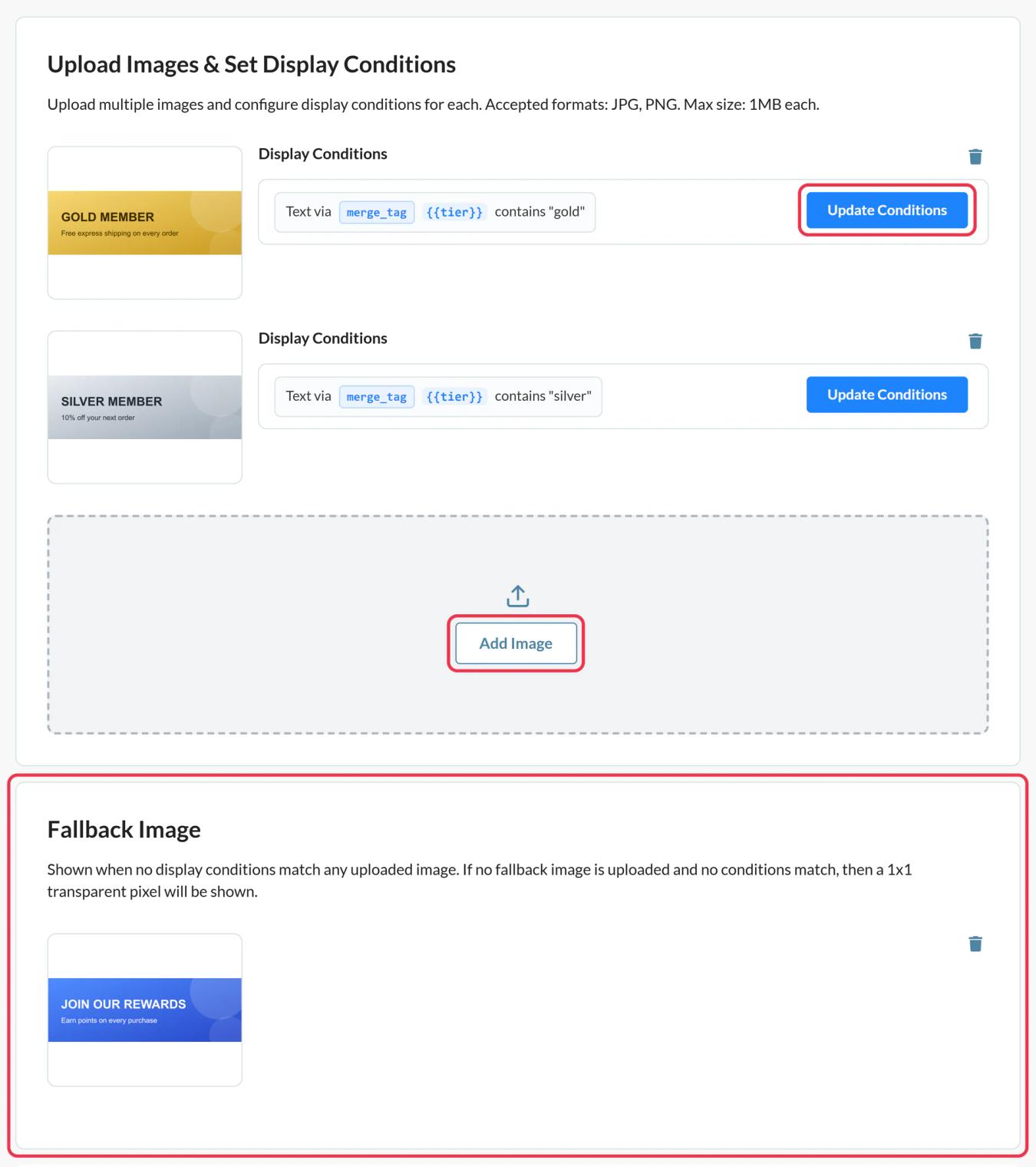
In Sendtric, open Rule-based Images, click Create New and use Add Image for each version. Sendtric checks images from top to bottom and stops at the first match, so add the most specific one first.
Step 2: Set the conditions
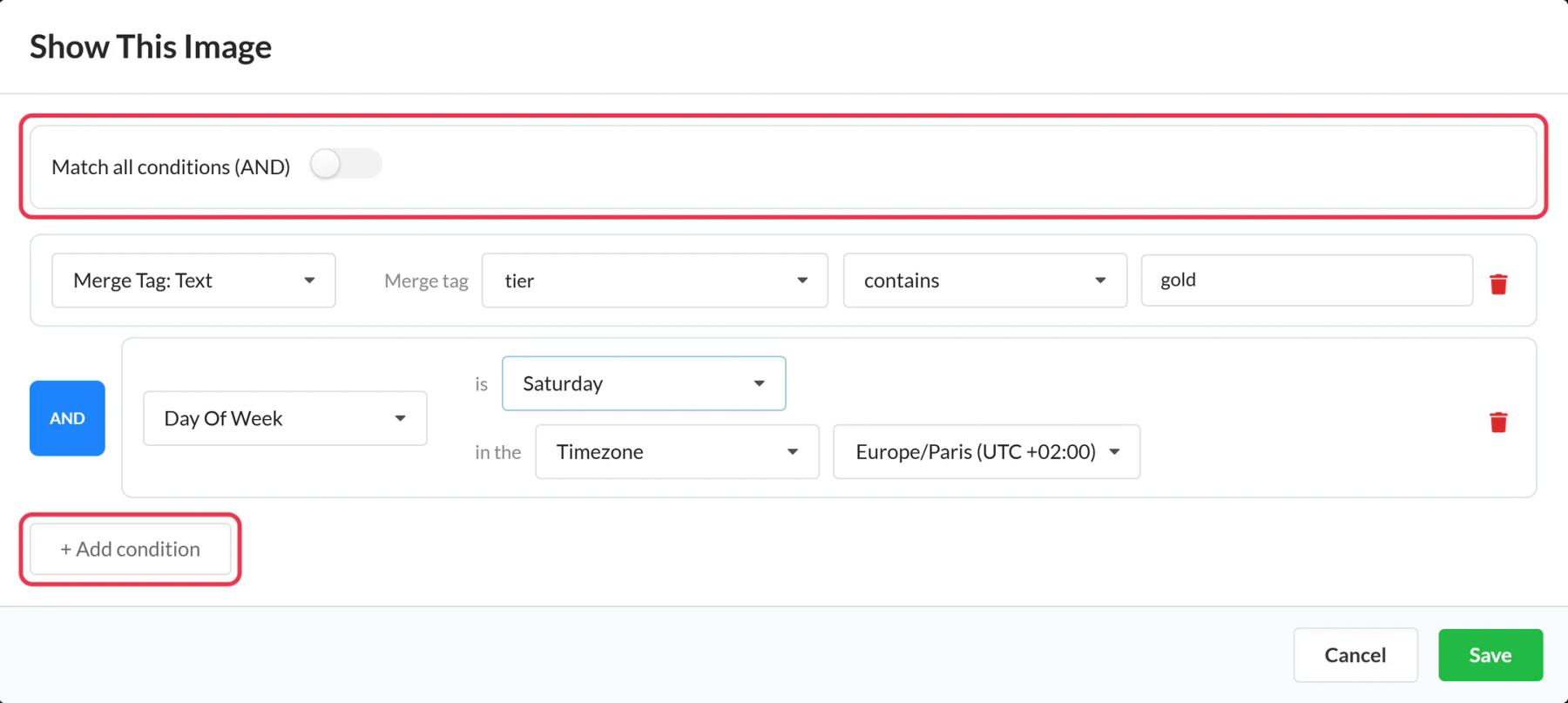
Click Update Conditions on each image card. For a field-based rule choose Merge Tag: Text, give the merge tag a name such as tier, and pick a match like equals "gold". Combine several conditions with AND or OR, then click Save. An image with no conditions is never shown.
Step 3: Copy the code and put in the SendGrid tag
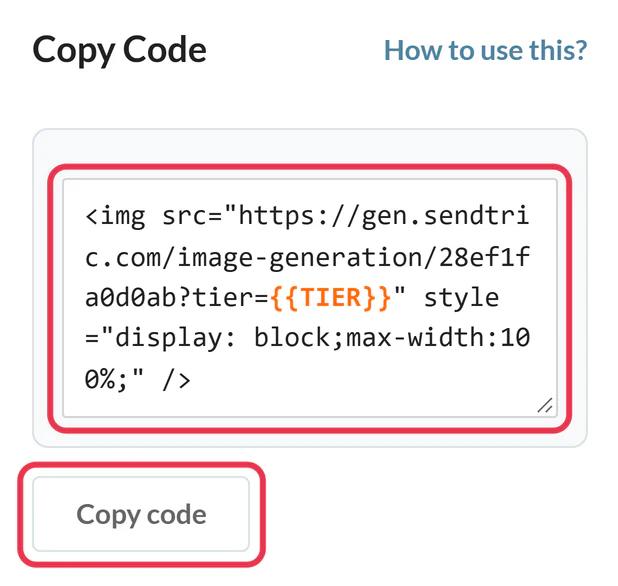
Add a Fallback Image, click Save, then copy the code. Each merge tag rule appears in the URL as tier={{TIER}}. Replace the placeholder with your SendGrid tag, for example tier={{tier}} for a custom field, or the key you pass in dynamic_template_data.
Step 4: Add it to a Code module
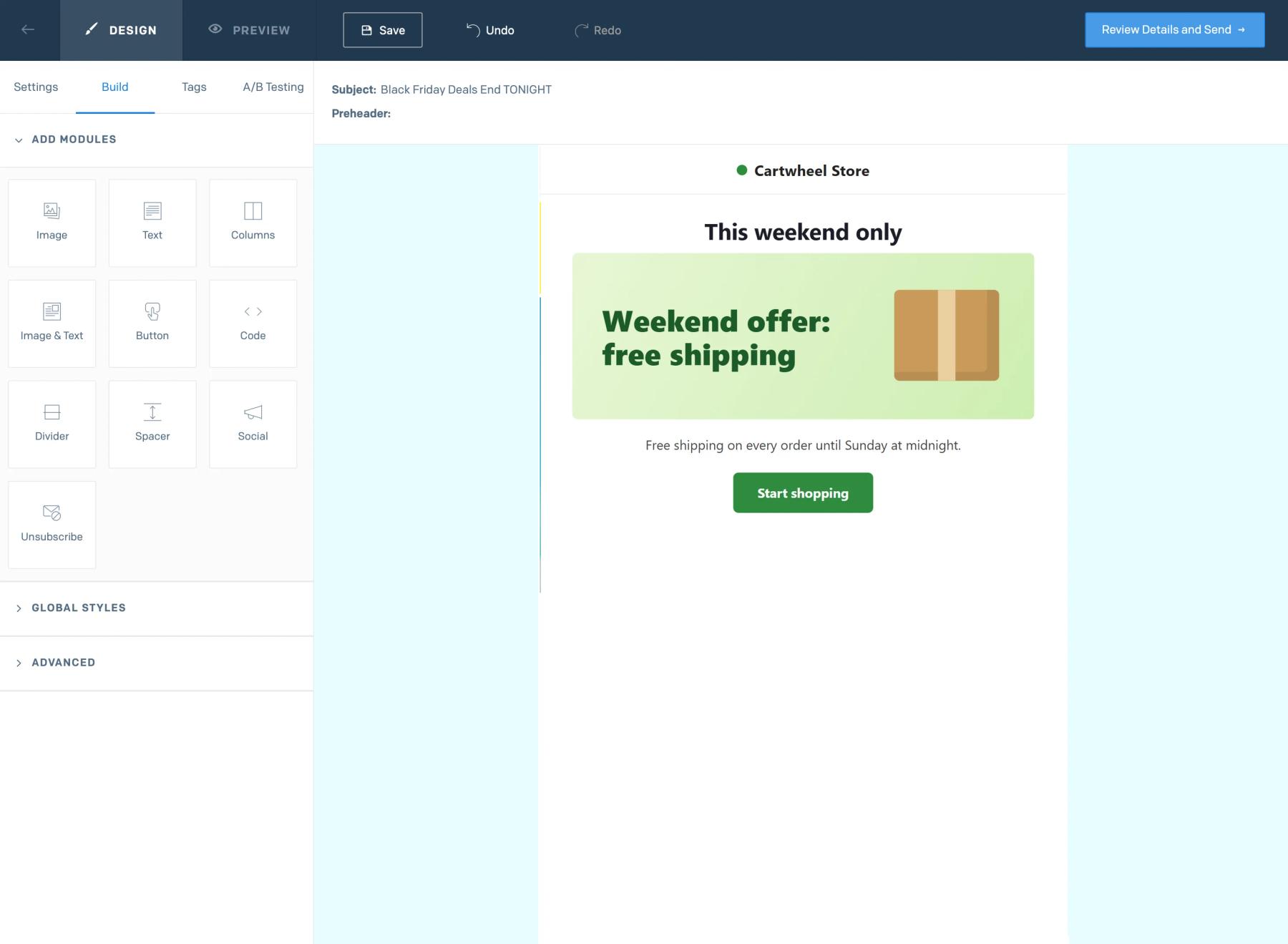
In SendGrid's Design Editor, drag a Code module from the Build tab into place, paste the code into Edit Module HTML and click Update.
Step 5: Simulate, then test
Use Sendtric's Preview to simulate a field value, a date or an email client and see which image wins. Then send a SendGrid test to contacts that should get different images.
Text rules ignore capitals
Merge Tag: Text conditions aren't case sensitive, so "Gold" and "gold" in your SendGrid field both match. Spelling still has to be exact, so check the values stored in the field before you write the rules.
Pass a time zone for time rules
Time and day rules use the time zone you pick. If your contacts are spread out, store a time zone such as America/New_York in a custom field and choose Dynamic Timezone so each contact's local time is used.
SendGrid Rule-Based Images FAQ
What happens when no rule matches?
Sendtric shows your Fallback Image. Without one, it shows an invisible 1 by 1 pixel image, so nothing appears in that spot.
Can I use Handlebars conditions instead?
You can, but they are evaluated at send time and need the logic in each template. Rule-based images decide on open and are managed in one place in Sendtric, which also allows time-of-day rules.
Can a countdown timer be one of the images?
Yes. When you add an image, the library also lists your timers, personalized images and weather widgets, so one rule can show a timer and another a static banner.
Do the rules work in SendGrid Automations?
Yes. The code is an ordinary image, so it works in Automations, Single Sends and Dynamic Templates.
Where can I read more about conditions?
Our help article on display conditions for rule-based images goes through each type.
This guide covers one piece of Sendtric's email personalization platform. For every rule-based images option and example, see the main page.
More SendGrid guides
- Countdown Timers - How to Add Countdown Timers to SendGrid
- Live Polls - How to Add Live Polls to SendGrid
- Personalized Images - How to Add Personalized Images to SendGrid
- Dynamic Weather - How to Add Dynamic Weather to SendGrid
- Critical Alerts - How to Add Critical Alerts to SendGrid
- Social Proof Counters - How to Add Social Proof Counters to SendGrid
Using a different platform? See all Sendtric integrations.
