
How to Add Live Polls to Manago AI
Add an image-based poll with live results to Manago AI emails, count one vote per contact with $contactID$, and download each contact's answer afterwards.
 First Publish Date:
Collect votes from your Manago AI contacts with a poll that shows live results.
A Sendtric live poll is a row of answer images inside your email. A contact clicks the answer they want, the vote is saved against their Manago AI contact ID, and on Power plans the answers can show live percentages or result bars the next time anyone opens the email.
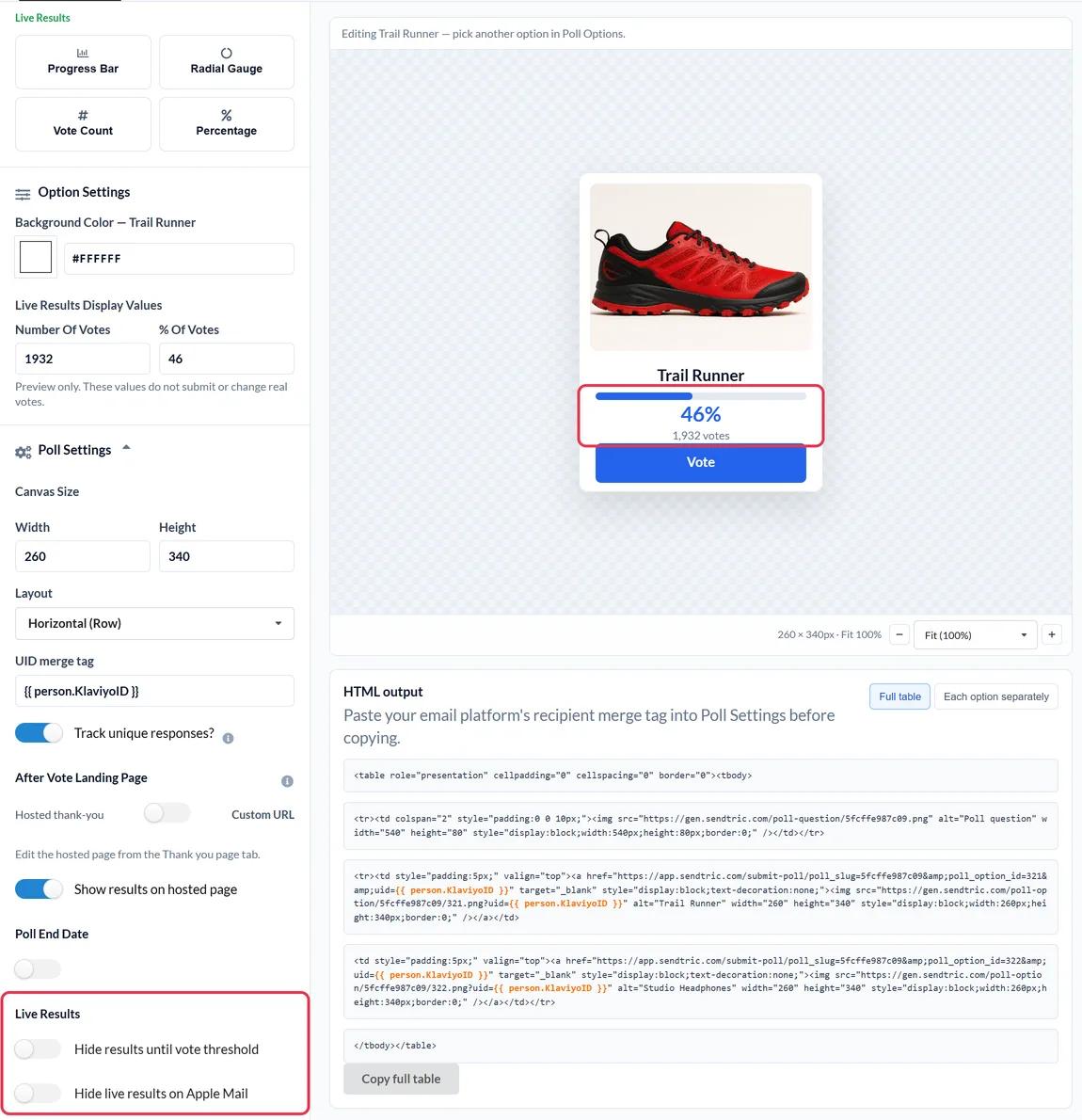
Email Design Studio has its own Surveys widgets, Yes/No and Rating/NPS. A Sendtric poll is for when you want more than that: product images as the answers, up to 11 options, live results drawn into the email itself, or a different landing page for each answer. It goes into the email through Manago AI's HTML content widget.
What you can do with a live poll in Manago AI
- Let contacts pick the next product: show three new arrivals as images and ask which one they'd buy. Use the results to choose what to feature in the next campaign.
- Ask a preference question once, use it for months: "Which categories do you care about?" With unique tracking on, you can download each contact's answer and add it to their Manago AI profile for segmentation.
- Rate a recent order or visit: a 1 to 5 star rating at the end of a post-purchase Workflow email.
- Give people a reason to reopen: live results (Power and above) change as votes come in, so a contact who opens the email again sees the current numbers.
The number of answer options grows with your Sendtric plan: 2 on Free, 3 on Micro, 5 on Standard and 11 on Power and Enterprise. Product vote and feedback presets need Standard, and live results, a custom page per answer and a poll end date need Power. Compare everything on the pricing page.
How to add a live poll to Manago AI
You'll build the poll in Sendtric, tell it how Manago AI identifies each contact, and paste the code into Email Design Studio.
Step 1: Create the poll in Sendtric
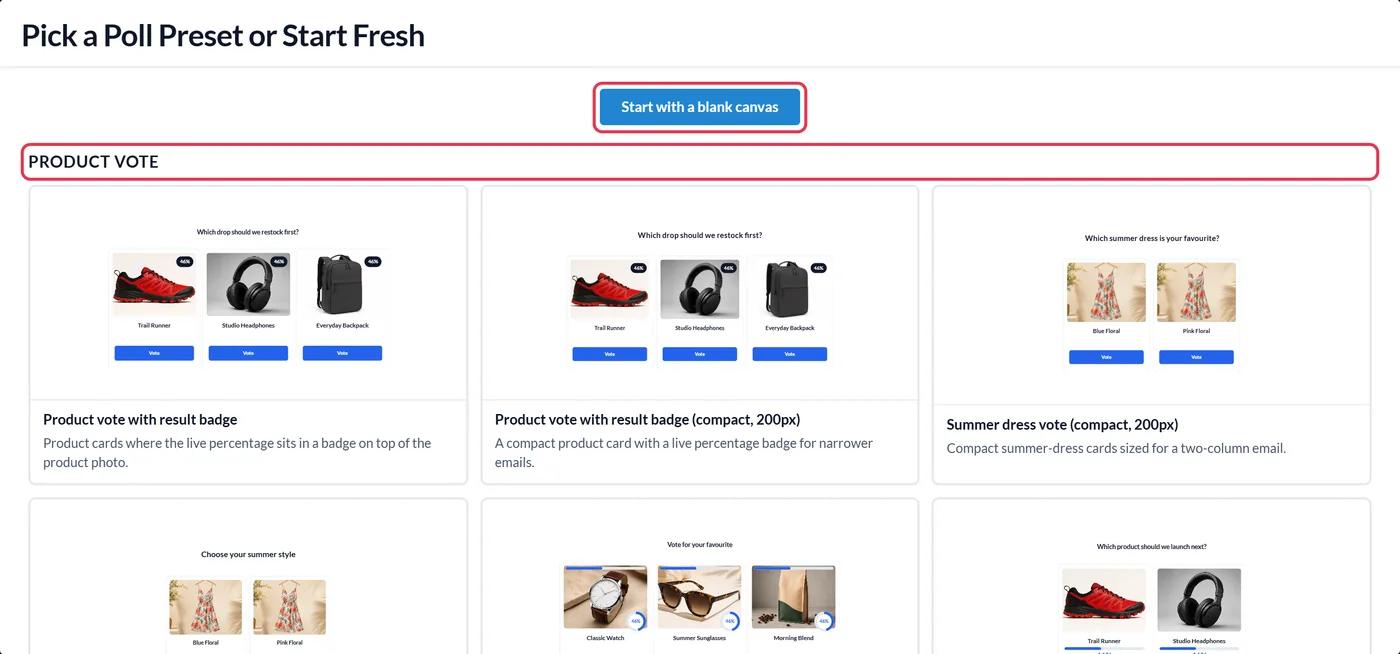
Go to Polls, click Create New and choose a preset or Start with a blank canvas. Write your answers, add images if your plan includes them, and style the options to match your email.
Step 2: Enter $contactID$ as the UID merge tag
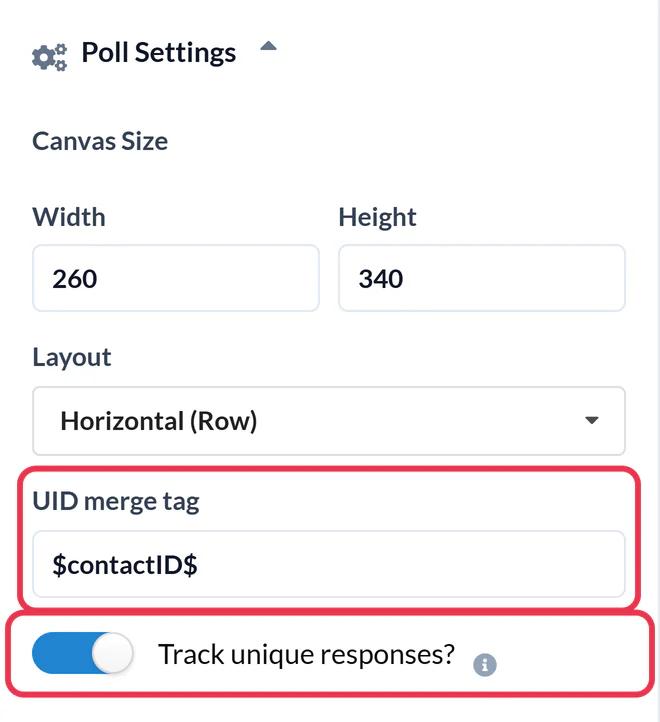
In Poll Settings, type $contactID$ into the UID merge tag field. Manago AI replaces it with each contact's unique ID when the email goes out, so Sendtric can keep one vote per contact. Placeholders in Manago AI are case sensitive, so copy it exactly. Switch on Track unique responses? if you want a file of each contact's answer later, then click Save.
Step 3: Copy the poll code
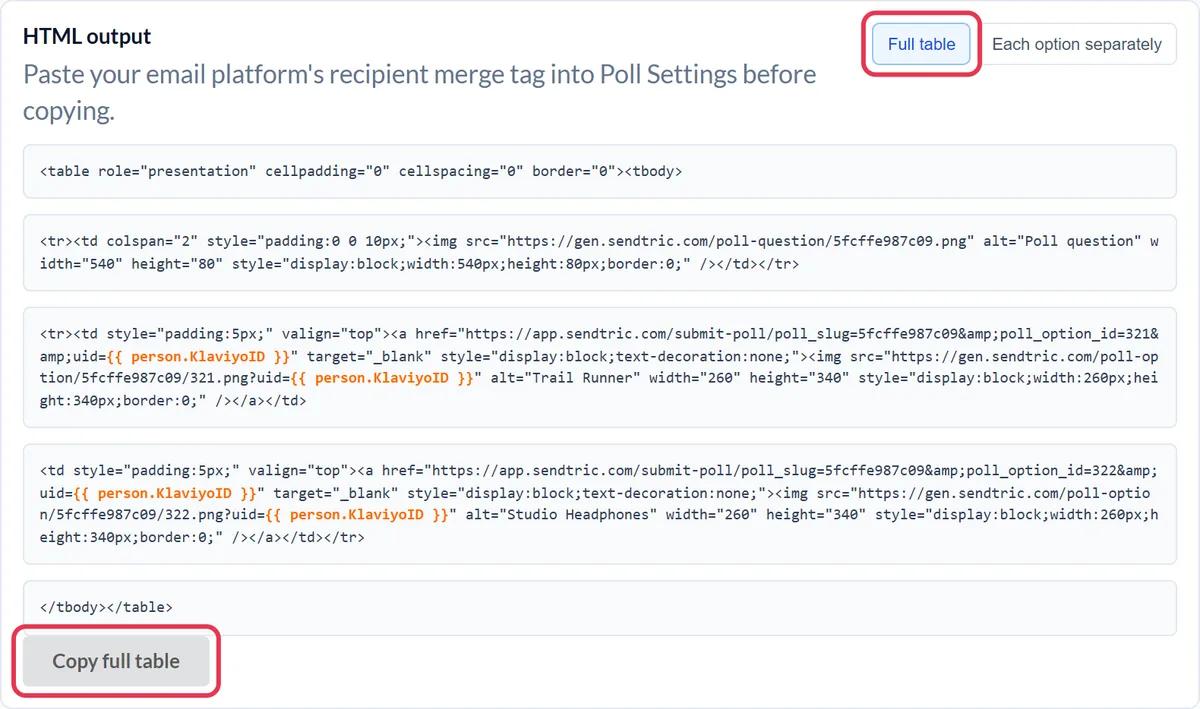
Under the canvas, in HTML output, click Copy full table. You can also copy each answer separately from the Each option separately tab if you want to place them in different parts of the email.
Step 4: Paste it into an HTML content widget
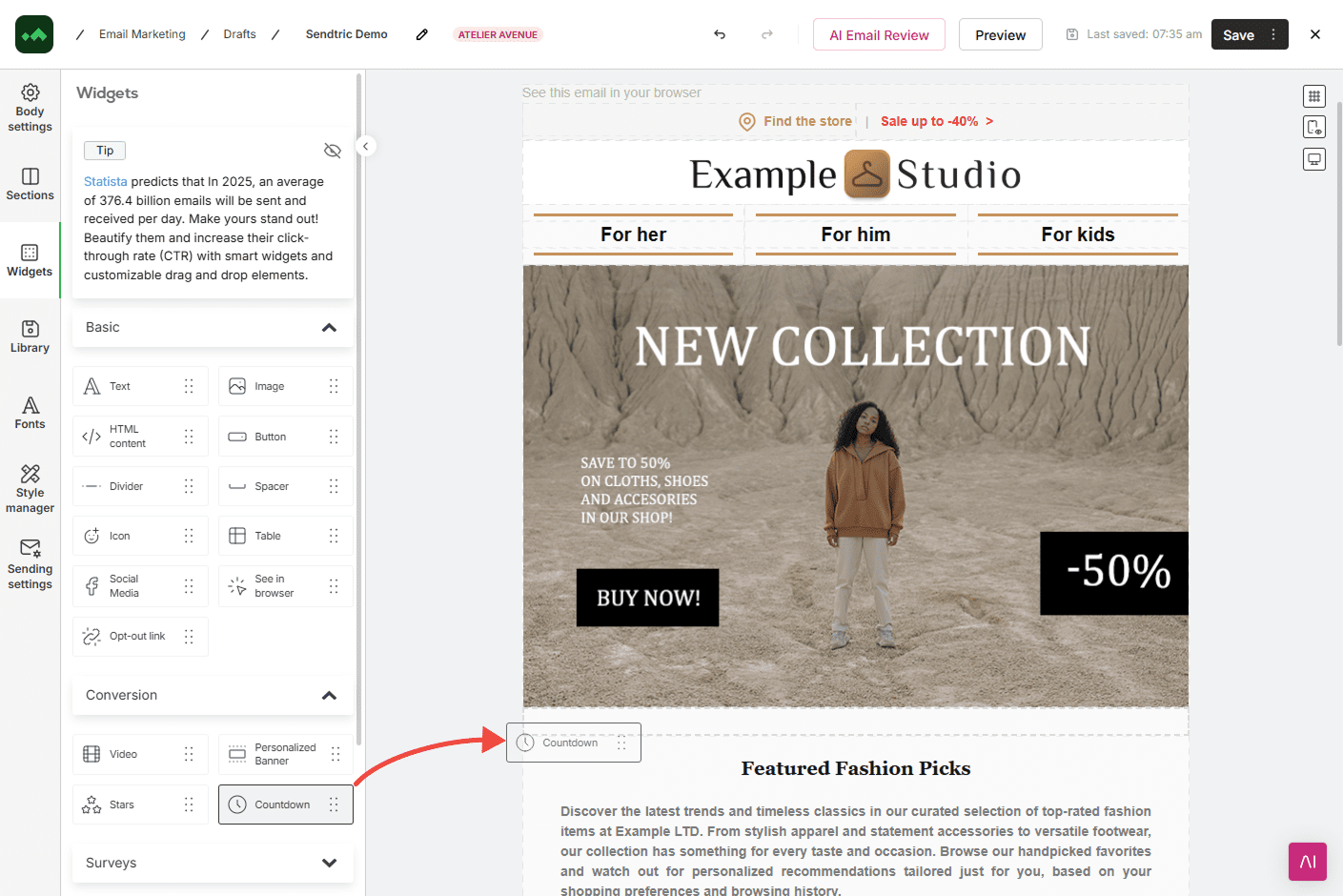
In Email Design Studio, click Widgets and drag HTML content from the Basic group into your email. Open the widget's settings, click the placeholder code in the Content section and paste the poll code into the HTML editor that opens.
Step 5: Test a vote
Send a test to yourself and click one of the answers. A browser tab opens briefly with "Please wait while we submit your response...", then shows the thank-you page or the page you chose. Vote from a second test contact too: if the second vote replaces the first, $contactID$ wasn't filled in, so check the spelling and capital letters.
Keep the placeholder in one piece
Manago AI only replaces a placeholder when the whole formula has the same formatting. That's rarely a problem inside HTML content, but if you edit the code later, don't break $contactID$ across lines or wrap part of it in a tag.
Turning votes into Manago AI segments
With Track unique responses? on, the poll report lets you download a CSV of contact IDs and answers. Use it to update those contacts in Manago AI, and you can aim the next campaign at the people who chose each answer. More on reports in how to see poll results and download reports.
Manago AI Live Poll FAQ
Which Manago AI placeholder should I use for polls?
Use $contactID$. It's a unique ID for every contact, so a contact can only have one vote. If they vote again, their earlier answer is replaced.
How is this different from Manago AI's Yes/No and Rating/NPS widgets?
Those are Manago AI's own survey widgets. A Sendtric poll lets you use your own images as answers, show live results inside the email and send each answer to a different page, depending on your Sendtric plan.
Does the contact stay in the email when they vote?
The poll and its results are in the email, but clicking an answer opens a browser tab for a moment to record the vote. Then the contact sees your thank-you page or the page you set for that answer.
Can I use a poll in a Manago AI Workflow?
Yes. The poll is plain HTML with images and links, so it works in Workflow emails as well as one-off campaigns. Contacts who get the email later still vote into the same poll.
Can I edit the poll after the email has gone out?
You can change colors, text and design, and the change shows on the next open. Don't delete answers or switch presets after sending, though: links in the sent email would stop recording votes.
Ready for more? The live polls overview covers every setting, and the email personalization page shows how to combine it with other Sendtric widgets.
More Manago AI guides
- Countdown Timers - How to Add Countdown Timers to Manago AI
- Personalized Images - How to Add Personalized Images to Manago AI
- Rule-Based Images - How to Add Rule-Based Images to Manago AI
- Dynamic Weather - How to Add Dynamic Weather to Manago AI
- Critical Alerts - How to Add Critical Alerts to Manago AI
- Social Proof Counters - How to Add Social Proof Counters to Manago AI
Using a different platform? See all Sendtric integrations.
