
How to Add Countdown Timers to Manago AI
Use the Countdown widget in Manago AI's Email Design Studio to add a live Sendtric timer without copying code, or paste a timer from your own Sendtric account into HTML content.
 First Publish Date: .Last Updated:
Drag a live countdown into any Manago AI email, straight from Email Design Studio.
A countdown timer shows subscribers exactly how long they have left, and it's redrawn every time the email is opened. In Manago AI (formerly SALESmanago) you don't need to copy any code to get one: Sendtric timers are built into the editor as the Countdown widget.
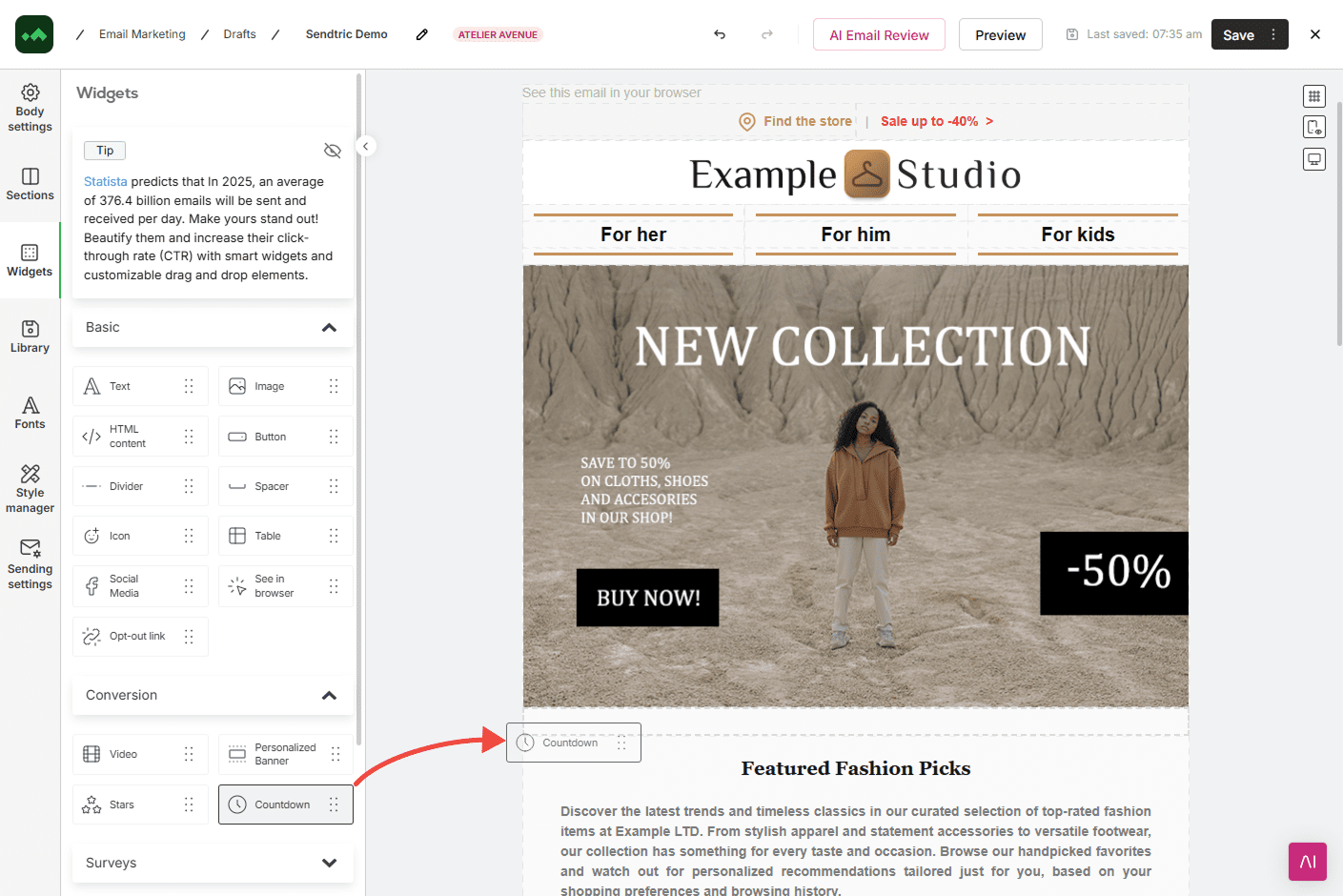
Manago AI's Countdown widget sits in the Conversion group of Email Design Studio's widgets, next to Video, Personalized Banner and Stars. It offers three countdown types (Standard, Start-on-open and Dynamic), five sizes from XS to XL and a choice of styles, and you can use up to four Countdown widgets in one email. If you also have your own Sendtric account, you can paste a timer from the Sendtric dashboard into an HTML content widget instead, which gives you the extra timer types and settings in the table below.
| Feature | Countdown widget in Manago AI | Sendtric code in HTML content |
|---|---|---|
| Fixed date and time | Yes | Yes |
| Start-on-open (evergreen) timer | Yes | Yes |
| Counts down to a date stored on each contact | Yes | Partial |
| Starts from the moment the email is sent | No | Partial |
| Built into the editor, no code to copy | Yes | No |
| Apple Mail fallback image or GIF | Partial | Yes |
"Partial" means it works with some setup: a per-contact date needs that date passed into the code in a format Sendtric reads, and a send-time timer depends on the time zone of Manago AI's sending-time placeholder (see the tips below). The Countdown widget's Apple Mail option is a show-or-hide choice called Show on unsupported devices. Sendtric's Apple Mail fallback images are on the Power plan and above.
Which countdown timers does Manago AI support and what are they used for
The Countdown widget's Countdown type dropdown has three options. Each suits a different kind of campaign.
Standard: one deadline for everyone
Set a date, a time and a time zone, and every contact sees the time left until that moment whenever they open the email. Use it for flash sales, Black Friday, webinar start times and registration deadlines. No placeholders are needed.
Start-on-open: a fresh countdown for each reader
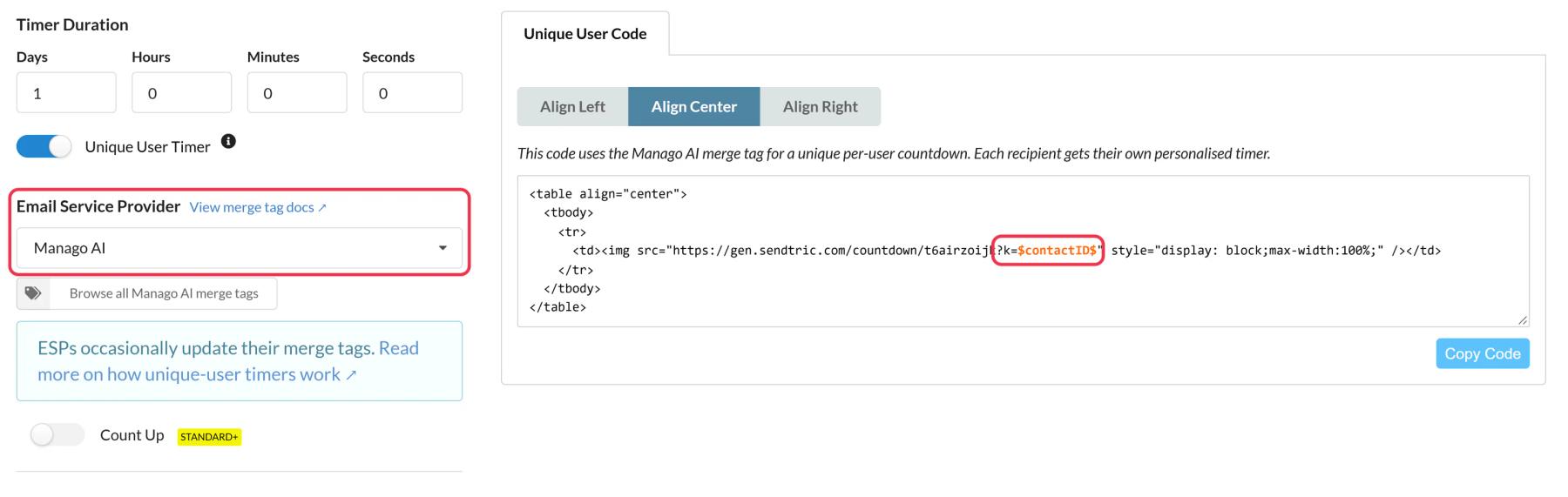
Enter a period, like 24 hours, and the countdown starts when the contact opens the email. It's a good fit for welcome offers and abandoned cart reminders inside a Workflow, where every contact gets the email at a different time. Manago AI also has a reset each time the email is opened option if you want the full period to show on every open. If you build the timer in your own Sendtric account instead, turn on Unique User Timer and use Manago AI's $contactID$ placeholder so each contact keeps one countdown across reopens.
Dynamic: a deadline stored on the contact
Manago AI's Dynamic type counts down to a date-type contact detail, such as a subscription renewal or loyalty points expiry date, so every contact sees their own deadline. You can set a fallback date for contacts who don't have that detail, and Manago AI recommends using this type inside a Workflow that checks the date first.
Start on Email Send: a countdown from the send time
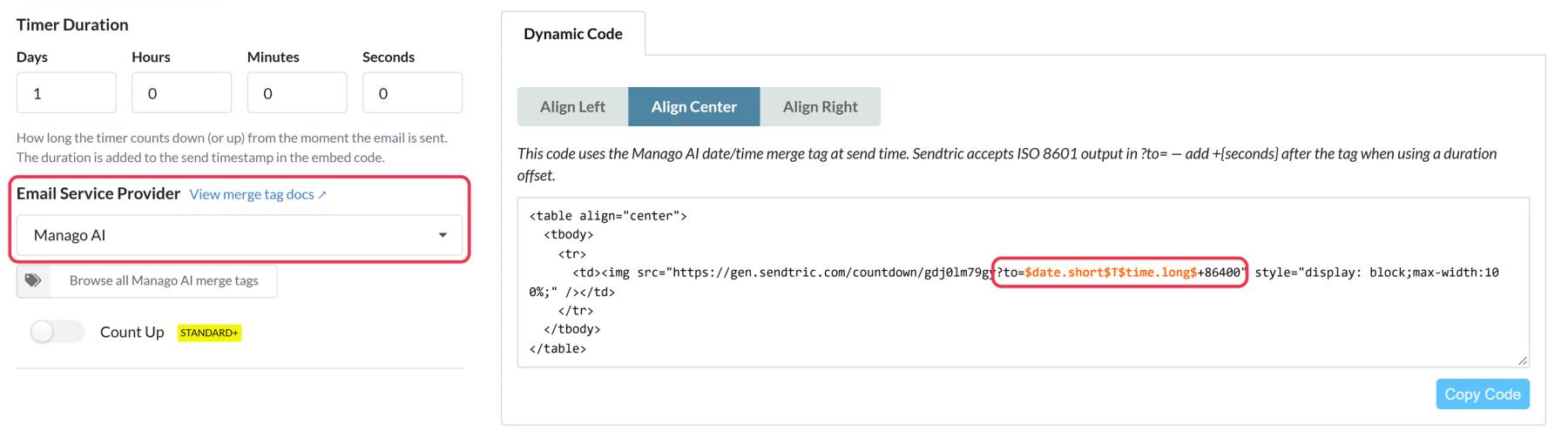
This one isn't in the Countdown widget's list. To count down a fixed period from the moment each email is sent, create a Start on Email Send timer in your Sendtric account (Power plan and above), choose Manago AI as the email platform and paste the code into an HTML content widget. The code uses Manago AI's date and sending-time placeholders, $date.short$T$time.long$, joined by a literal T.
How to add a countdown timer to Manago AI
These steps use the built-in Countdown widget. Allow a couple of minutes.
Step 1: Open your email in Email Design Studio
Go to Channels > Email Marketing, click + New email and choose Email Design Studio, or open an existing draft. Then click Widgets in the left-hand menu.
Step 2: Drag in the Countdown widget
Open the Conversion group and drag Countdown to where you want the timer, usually just below your headline or next to the offer. Click the widget to open its settings on the left.
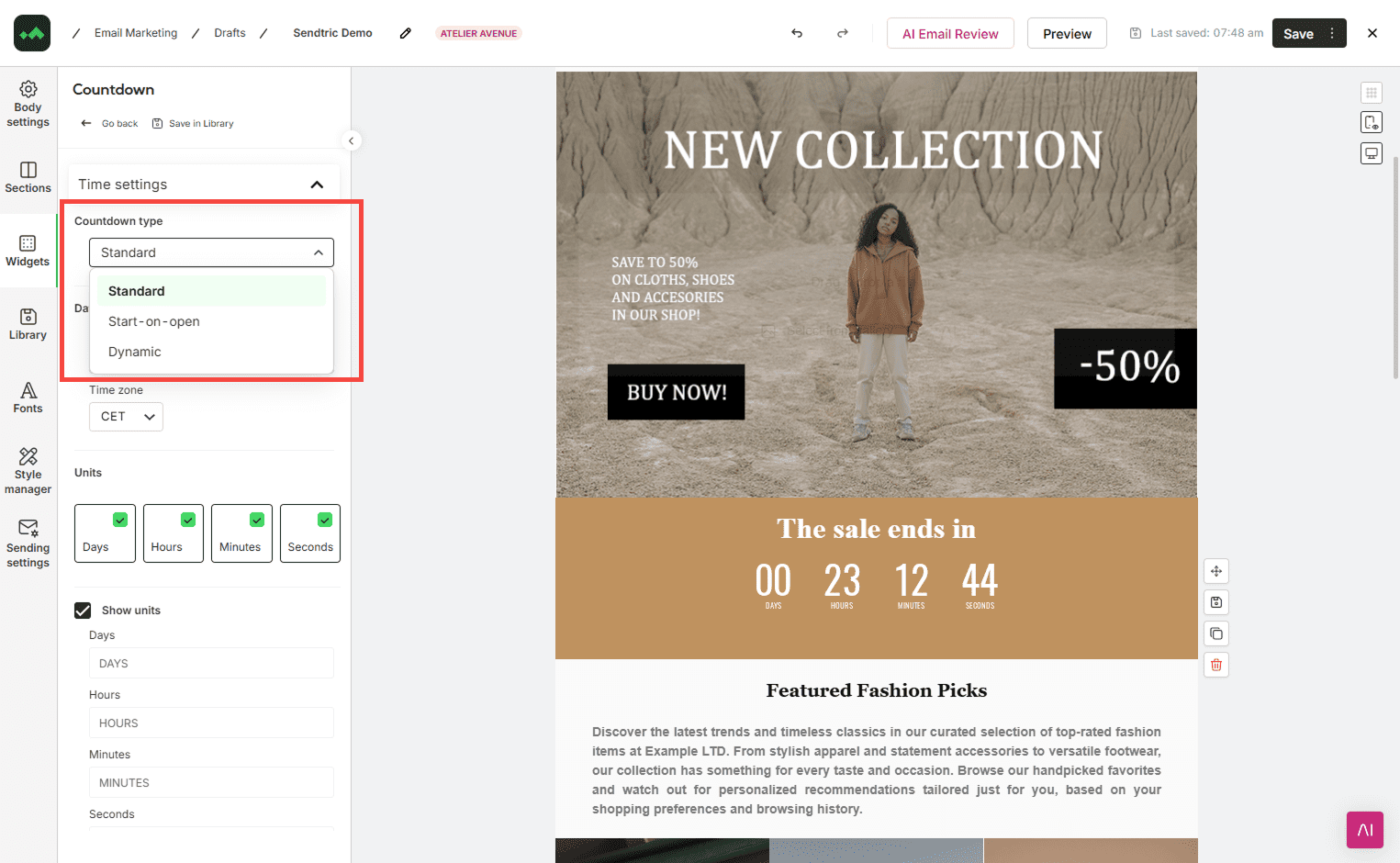
Step 3: Choose the countdown type and timing
In Time settings, pick Standard, Start-on-open or Dynamic from the Countdown type dropdown. Then enter the end date and time zone, the period, or the contact detail to count down to. Tick the units you want to show (days, hours, minutes, seconds) and rename the labels under the digits if your email isn't in English.
Step 4: Match the timer to your design
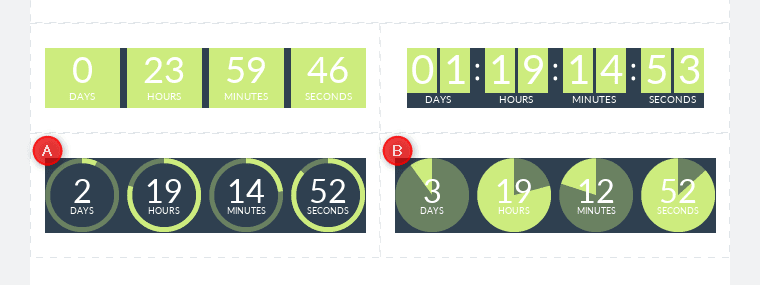
In the Design section, pick a size from XS to XL, a style, colors and fonts. Circular styles can run clockwise or counterclockwise. Check the mobile preview too, so the digits stay easy to read on a small screen.
Step 5: Send yourself a test
Save the email and send a test to your own inbox. Open it twice a few minutes apart: the time left should go down each time. For a Dynamic timer, test with a contact that has the date detail filled in and one that doesn't, so you see the fallback date too.
Apple Mail and Outlook
Show on unsupported devices is on by default, so the timer still shows in Apple Mail and Outlook, which may not display it correctly. Untick it if you'd rather hide the timer there. If you need an Apple Mail fallback image instead, build the timer in Sendtric and use its Apple Mail Fallback Option (Power and above). Our Apple Mail troubleshooting article explains why Apple Mail behaves differently.
Using a timer from your own Sendtric account
In Sendtric, create the timer, choose Manago AI as the email platform and copy the code from the Unique User Code or Dynamic Code tab. In Email Design Studio, drag an HTML content widget (in the Basic group) into the email, click the placeholder code in its Content section and paste. For a unique Start-on-open timer the code ends in ?k=$contactID$.
For a Start on Email Send timer, the code ends in ?to=$date.short$T$time.long$. Manago AI hasn't documented which time zone $time.long$ uses, and Sendtric reads a date with no offset as UTC. If your account sends in another time zone, the timer will be off by that difference, so send a test and compare the time left with what you expect before you schedule.
Manago AI Countdown Timer FAQ
Where is the countdown timer in Manago AI?
In Email Design Studio, click Widgets in the left-hand menu and open the Conversion group. The Countdown widget is there, next to Video, Personalized Banner and Stars.
Is the Manago AI Countdown widget made by Sendtric?
Yes. Sendtric countdown timers are built into Manago AI's interface, so you get a live timer that updates on every open without copying code.
How many countdown timers can I put in one Manago AI email?
Manago AI allows up to four Countdown widgets per email. Most emails only need one, near the offer it refers to.
Can I use countdown timers in Manago AI Workflows?
Yes. Start-on-open and Dynamic timers are made for automated emails, where each contact gets the email at a different time. Manago AI recommends checking the date detail in the Workflow before sending an email with a Dynamic timer.
Do the timers work in dark mode?
Dark mode handling varies by email app. Our dark mode tips for countdown timers cover the colors and backgrounds that hold up best.
What else can I do with countdown timers?
Flash sales, launches, events, trial endings and cart reminders are the most common. See more ideas on our use cases page, or read how the main timer providers compare.
Read more about countdown timers and how it all fits into a wider email personalization strategy.
More Manago AI guides
- Live Polls - How to Add Live Polls to Manago AI
- Personalized Images - How to Add Personalized Images to Manago AI
- Rule-Based Images - How to Add Rule-Based Images to Manago AI
- Dynamic Weather - How to Add Dynamic Weather to Manago AI
- Critical Alerts - How to Add Critical Alerts to Manago AI
- Social Proof Counters - How to Add Social Proof Counters to Manago AI
Using a different platform? See all Sendtric integrations.