
How to Add Personalized Images to Manago AI
Draw a Manago AI contact's first name, city or other details onto a banner image, filled in at open time with Manago AI placeholders like $name.p1$ and $city$.
 First Publish Date:
Put each Manago AI contact's own details on your email banner.
With Sendtric personalized images, you design one image with text layers that read from your contact data. When someone opens the email, Sendtric draws the image with their name, city or any other value Manago AI fills in, so the personalization is part of the picture, not a line of text under it.
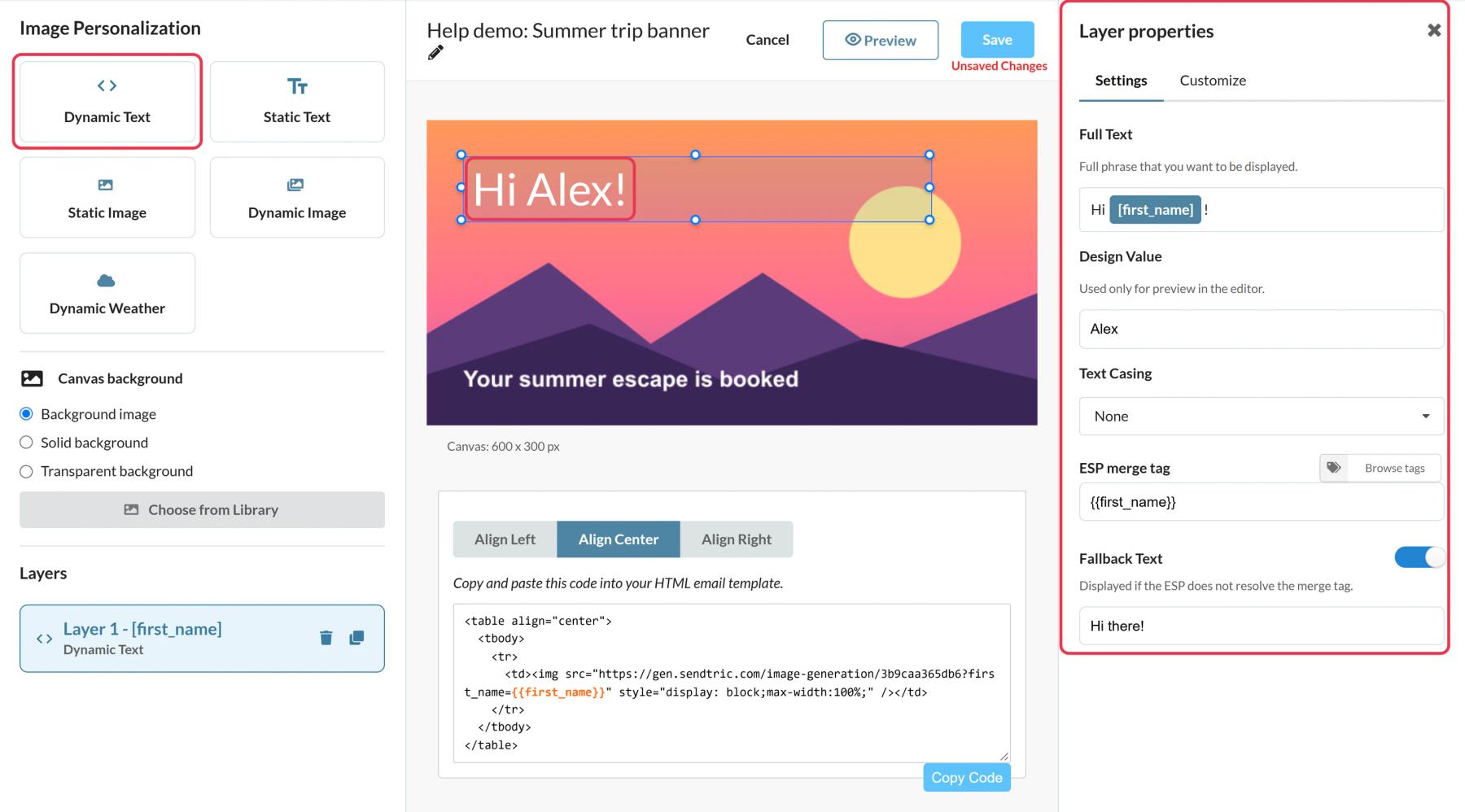
Manago AI already lets you put placeholders like $name.p1$ into the text of an email. A personalized image goes further: the value is drawn in your chosen font, color and position, on top of a photo or graphic.
What you can do with personalized images in Manago AI
- Hero banners that greet by name: "Anna, your autumn picks are here" written across the main image of a newsletter.
- City-specific creative: use
$city$to write "New in Kraków" or "This week in Lyon" on a store or event banner. - Loyalty and account emails: show a contact's tier or points balance on a card-style image, using the placeholder for that contact detail.
- Travel and booking emails: departure city, destination and date on one itinerary image, built once and filled in for every booking.
| Image Personalization | Free | Micro | Standard | Power and Enterprise |
|---|---|---|---|---|
| Dynamic text layers per image | 1 | 2 | 4 | 20 |
| Static image layers | No | No | Yes | Yes |
| Solid background | No | No | Yes | Yes |
| Transparent background | No | No | No | Yes |
How to add a personalized image to Manago AI
Step 1: Create the image in Sendtric
Go to Image Personalization and click Create New. Choose a background from your library, or start with a solid or transparent background, then add a Dynamic Text layer from the left sidebar.
Step 2: Map the layer to a Manago AI placeholder
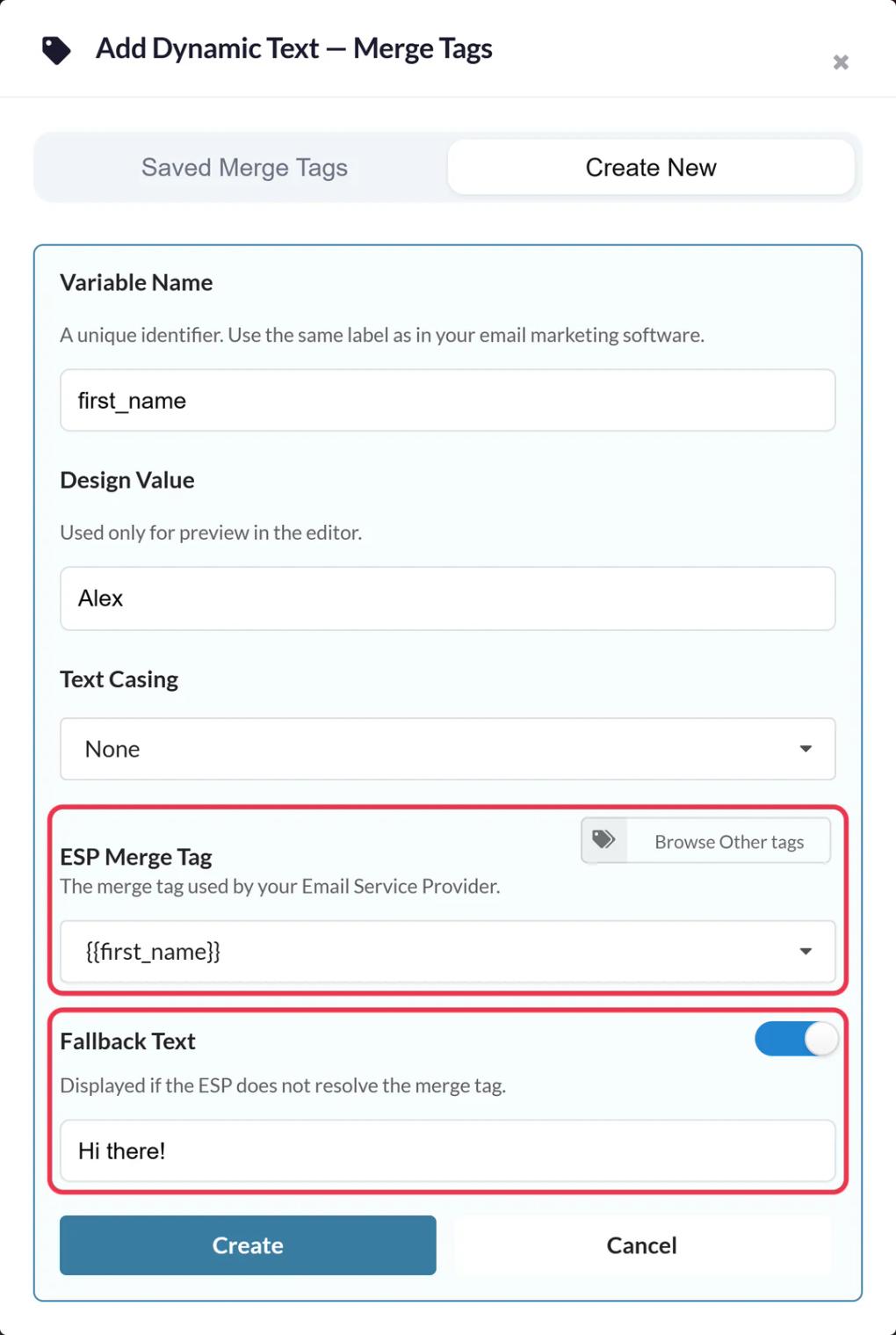
In the Add Dynamic Text window, create a variable such as first_name. In ESP Merge Tag, enter the Manago AI placeholder: $name.p1$ for the first word of the contact's name, or $city$ for their city. Add Fallback Text like "Hi there!" for contacts without that detail, because when the value is missing only the fallback is shown.
Step 3: Save and copy the code
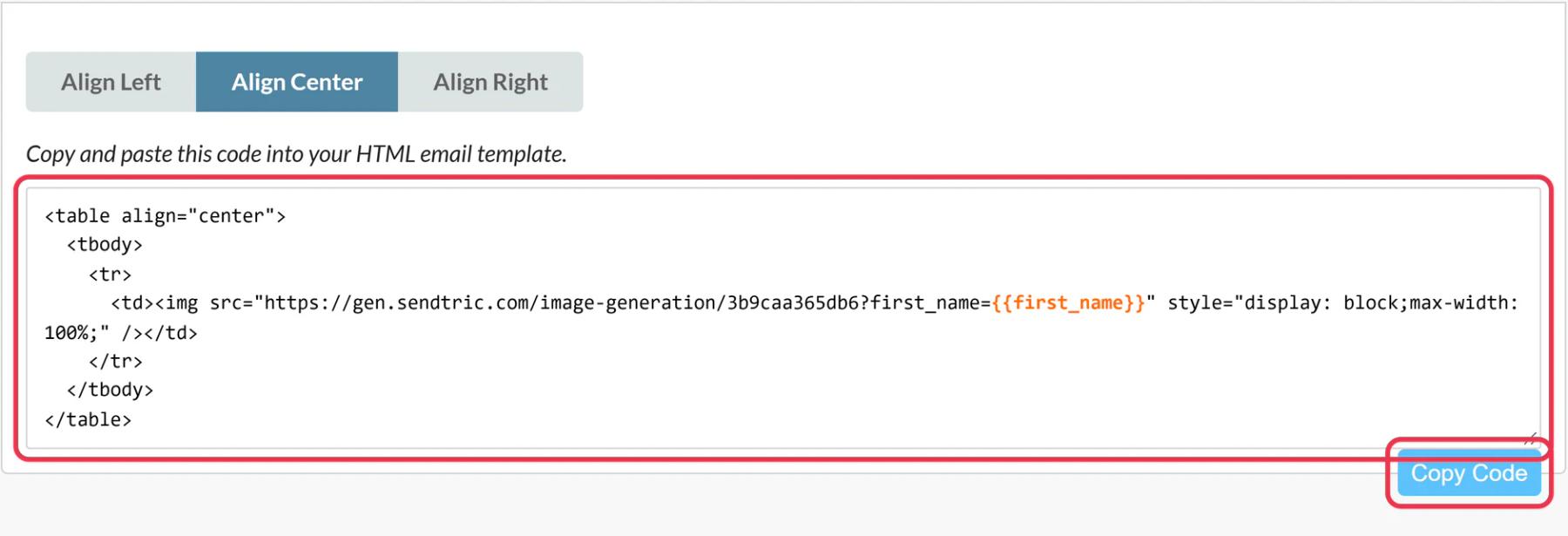
Click Save. The embed code appears below the editor with your placeholder already in the image URL. Pick an alignment and click Copy Code.
Step 4: Paste it into Email Design Studio
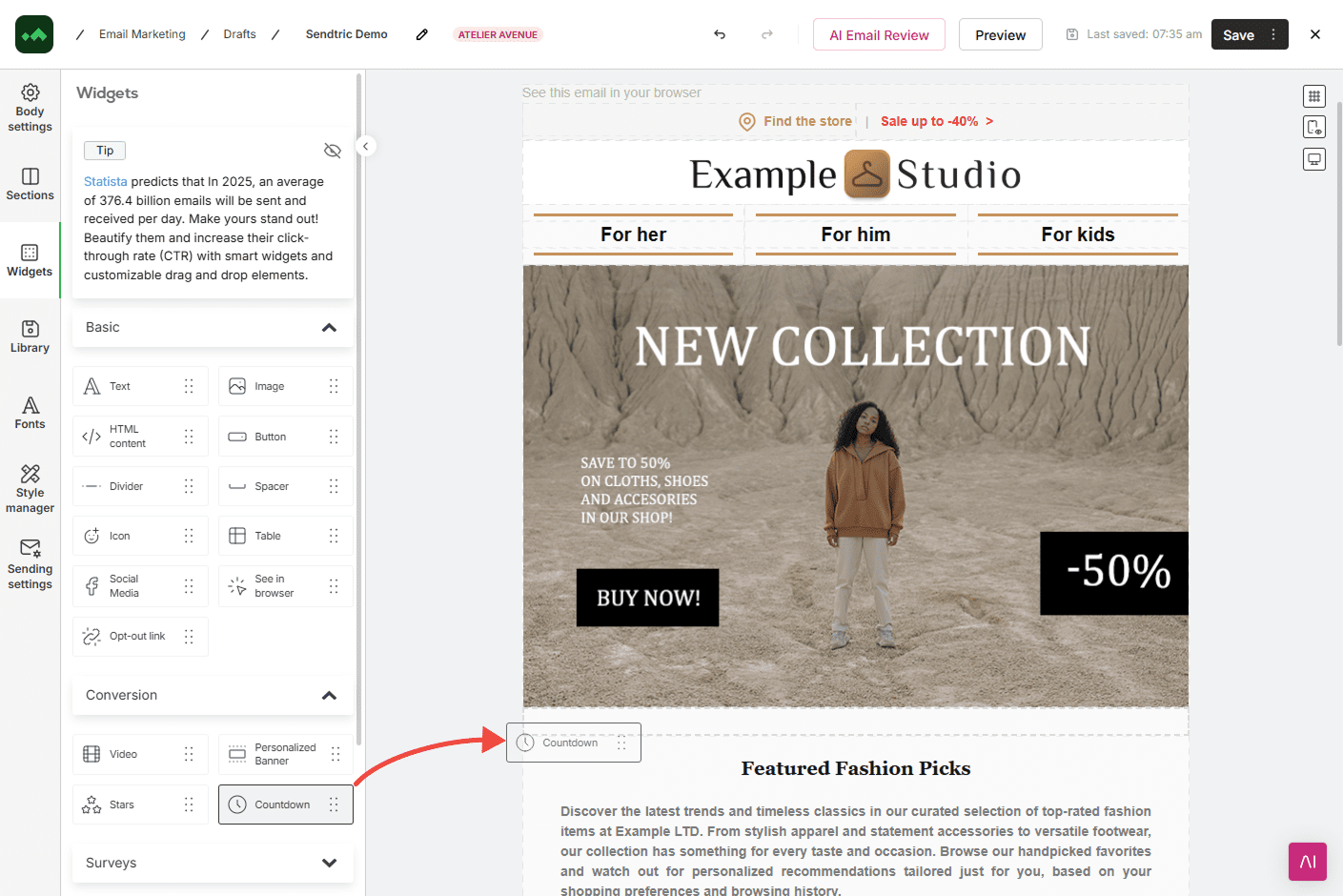
In Email Design Studio, drag an HTML content widget from Widgets > Basic into the email. Open its settings, click the placeholder code in Content and paste.
Step 5: Test with real contacts
Send tests to a contact with a long name, one with a short name and one with no name. Long values wrap inside the text box but don't shrink, so make the box tall enough for your longest realistic value.
Placeholders are case sensitive
Manago AI only recognizes a placeholder written exactly as documented, so $name.p1$ works and $Name.P1$ doesn't. If a test image shows the placeholder itself instead of a name, check the capitals in the ESP Merge Tag field and save again. There's more on fallbacks in how to use merge tags and fallback text in personalized images.
Capitalizing names
If your contact data mixes "anna" and "ANNA", set Text Casing to Title Casing on the Sendtric layer. Manago AI's own $cap: prefix does the same job in plain email text.
Manago AI Personalized Images FAQ
Which Manago AI placeholder gives me the first name?
$name.p1$ returns the first word of the contact's name field, which is the first name for most contacts. $name$ returns the full name.
What happens if a contact has no city or name?
If you set fallback text, the layer shows only that text. If you didn't, the layer is hidden, including any words around the placeholder. Write the fallback as a full phrase.
Will the image slow down my Manago AI email?
The image is generated when the email is opened and then cached for an hour for the same values. Keep your background under 1 MB, which is also Sendtric's upload limit.
Can I change the design after sending?
Yes. The email only holds a link to the image, so saving a new design in Sendtric changes what every contact sees on their next open.
Does every open count as a view?
Yes, each time the image loads counts as one view on your Sendtric plan, including repeat opens. Previews in the Sendtric editor don't count.
Ready for more? The personalized images overview covers every setting, and the email personalization page shows how to combine it with other Sendtric widgets.
More Manago AI guides
- Countdown Timers - How to Add Countdown Timers to Manago AI
- Live Polls - How to Add Live Polls to Manago AI
- Rule-Based Images - How to Add Rule-Based Images to Manago AI
- Dynamic Weather - How to Add Dynamic Weather to Manago AI
- Critical Alerts - How to Add Critical Alerts to Manago AI
- Social Proof Counters - How to Add Social Proof Counters to Manago AI
Using a different platform? See all Sendtric integrations.
