
How to Embed a Sendtric Countdown Timer into a Shopify Email
 First Publish Date:
 Are you tired of sending out email after email without seeing any real results? If you want to take your Shopify email marketing campaigns to the next level, consider adding a Sendtric countdown timer to your templates. This powerful tool creates a sense of urgency that encourages customers to act quickly and make a purchase. And the best part? It's incredibly easy to use. With just a few clicks, you can add a custom countdown timer to any of your marketing emails, making your campaigns more dynamic and effective. If you want to see real engagement and increased ROI, it's time to try out Sendtric countdown timers for yourself. Trust us, you won't be disappointed.
Step 1: Open the Shopify Email Builder
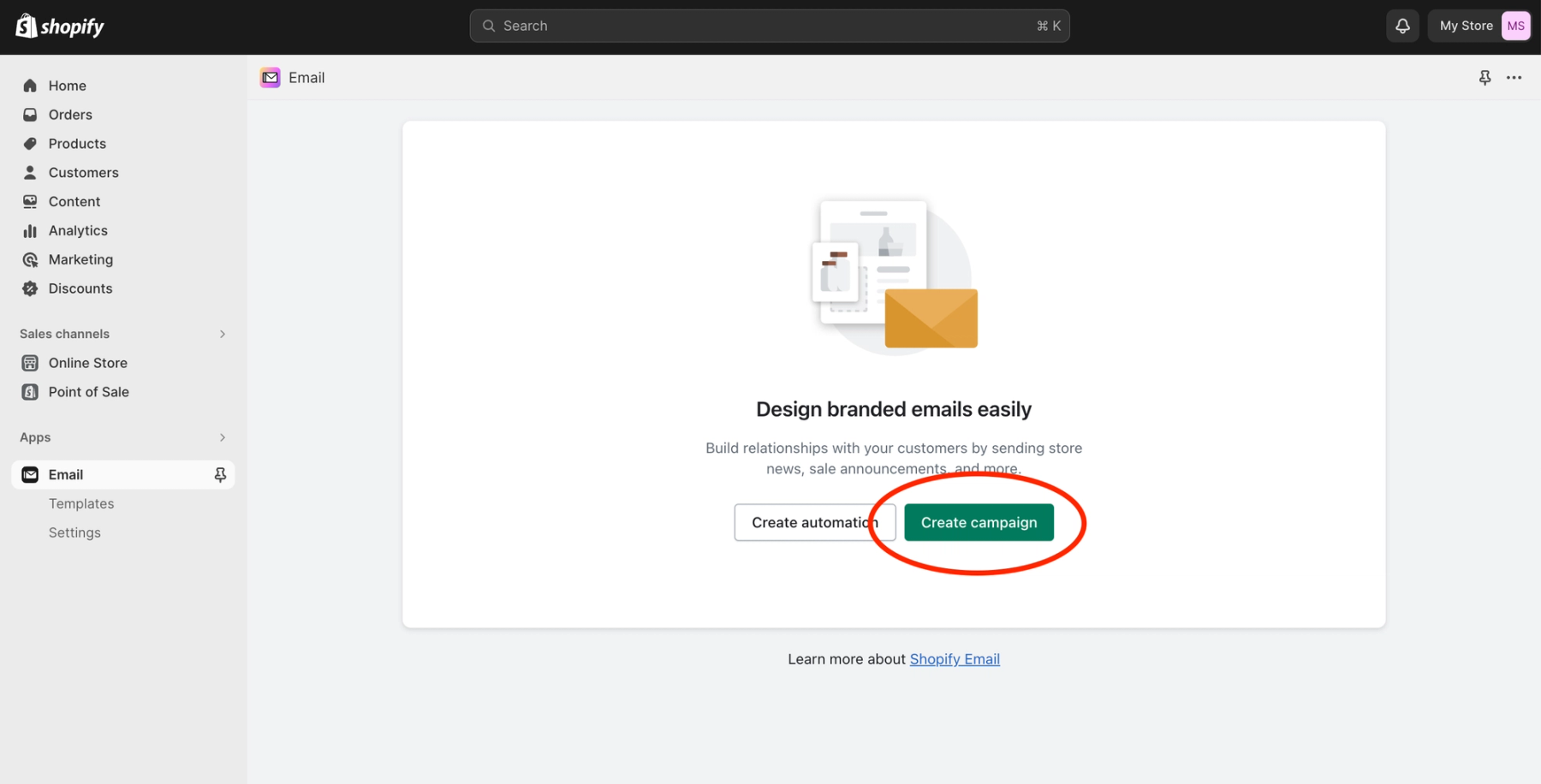
Open the Shopify email app in your dashboard and create a new email by clicking the green “Create Campaign” button.
You can use an existing template, choose a new layout from the Shopify email library, or create a new email design from scratch.
Step 2: Add a New Section
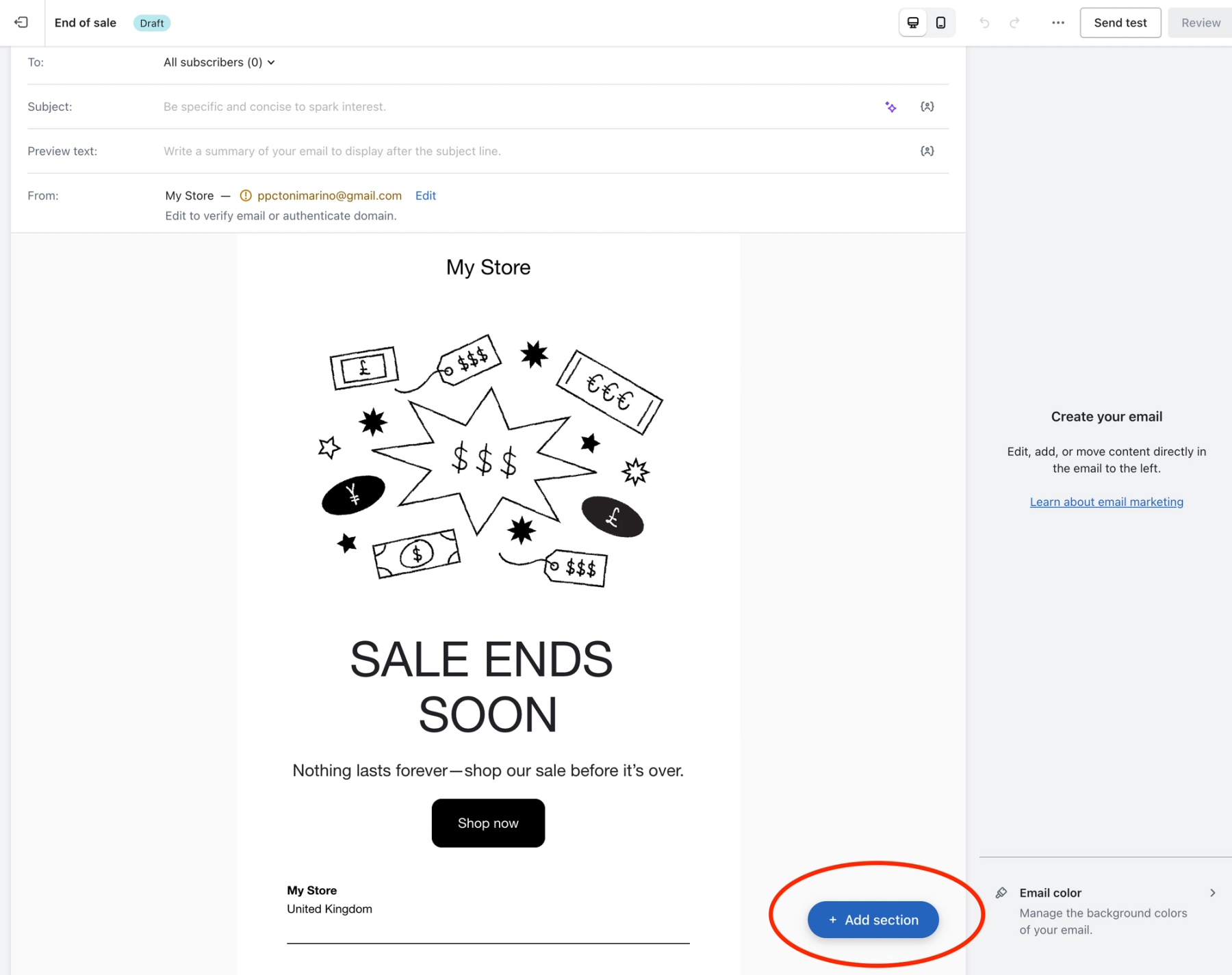
When you have your Shopify email template open, click the blue “Add Section” button.
Step 3: Choose a HTML Block
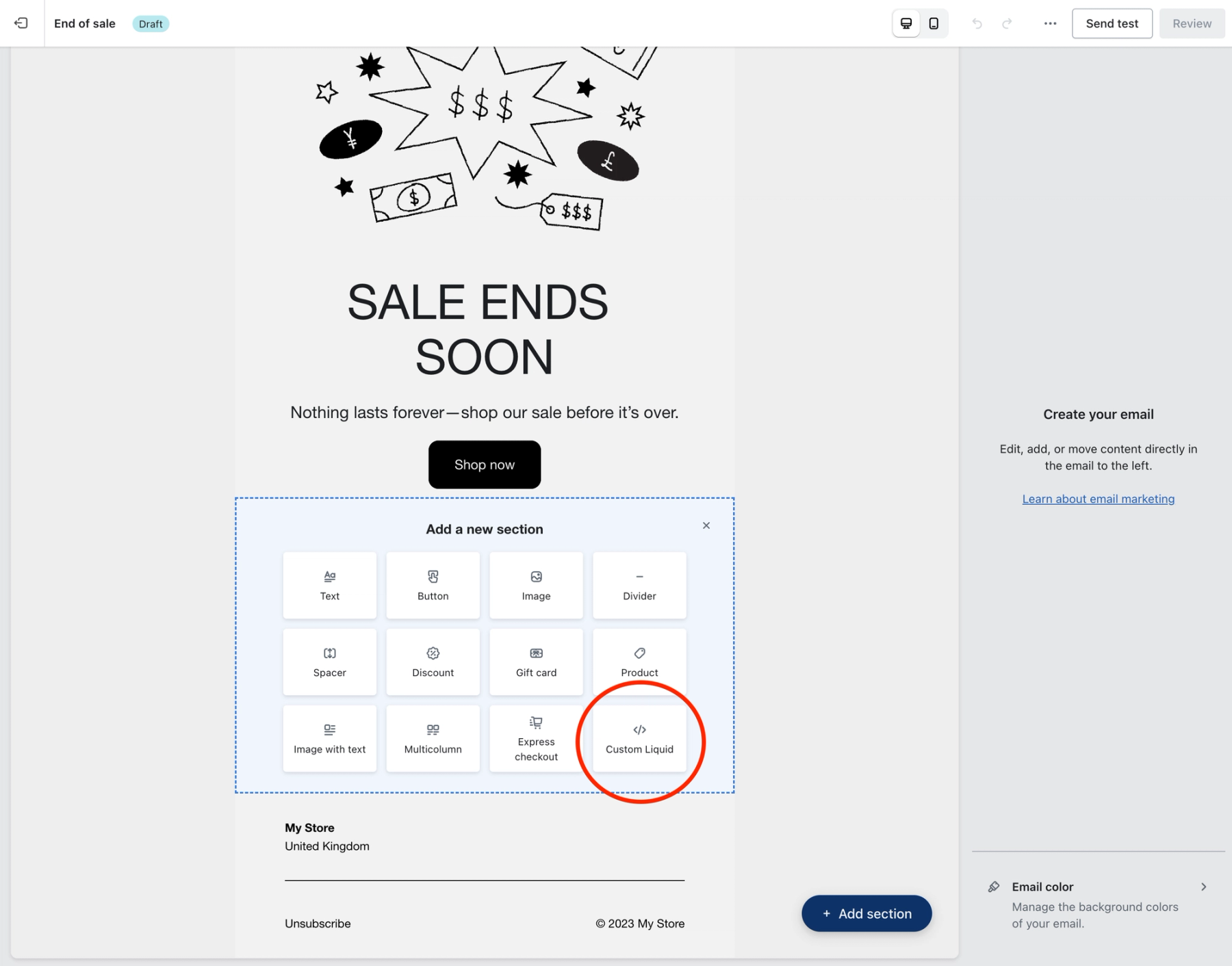
From the menu that opens, choose the “Custom Liquid” option to insert your own HTML code.
Step 4: Create Your Sendtric Countdown Timer
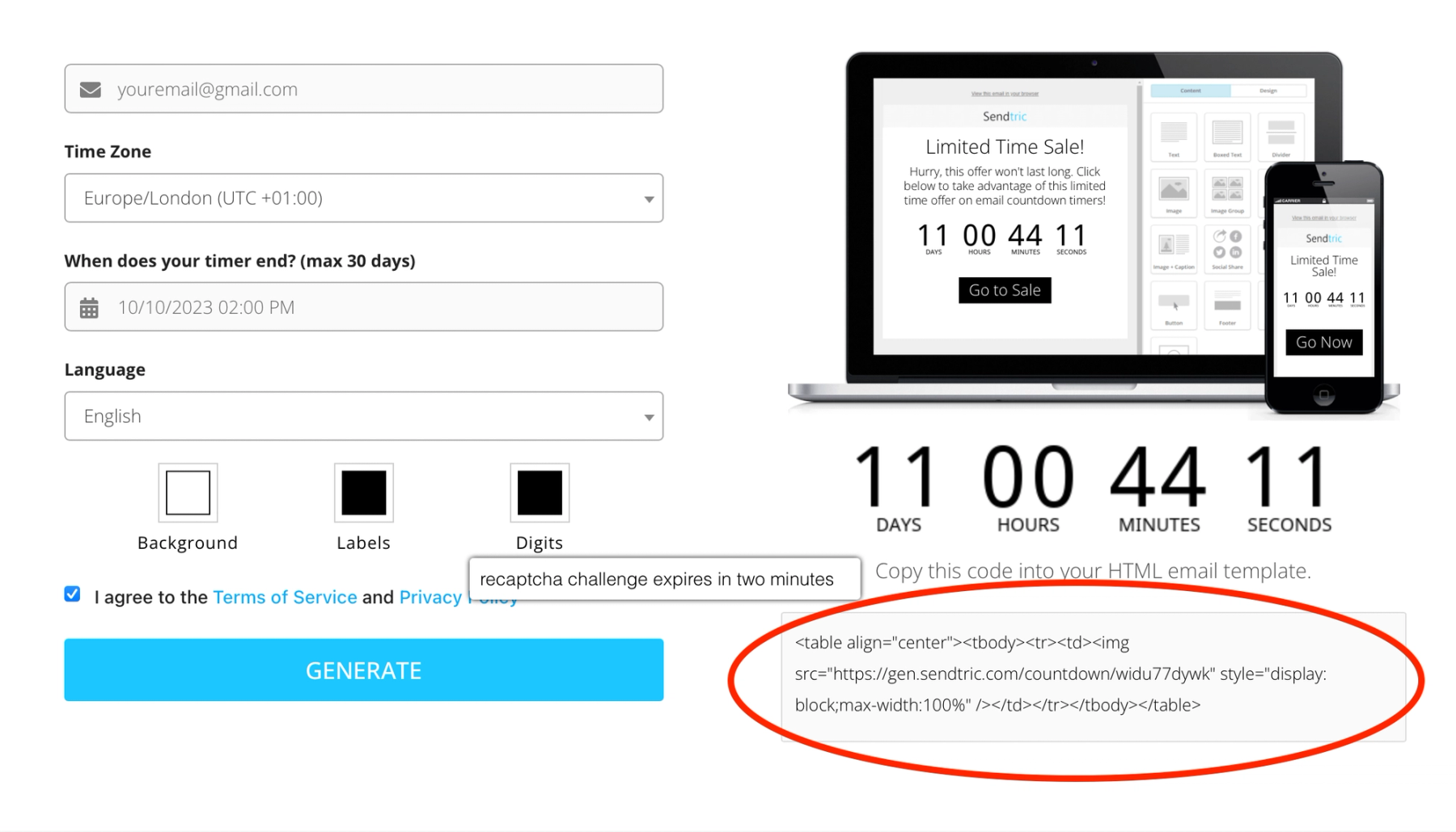
In a separate browser tab, open the Sendtric website. To create your email countdown timer, simply add your email address, set the timer end date and time, and choose your customization options, such as language and colours.
When you have completed the fields, click the blue “Generate” button to create your timer. Copy the unique HTML code that is generated and displayed on the right.
Step 5: Insert the HTML Code into Shopify
Paste your Sendtric countdown timer code into the “Code” box that will automatically appear on the right when you add your “Custom Liquid” content box. Your timer will then appear in the email preview.
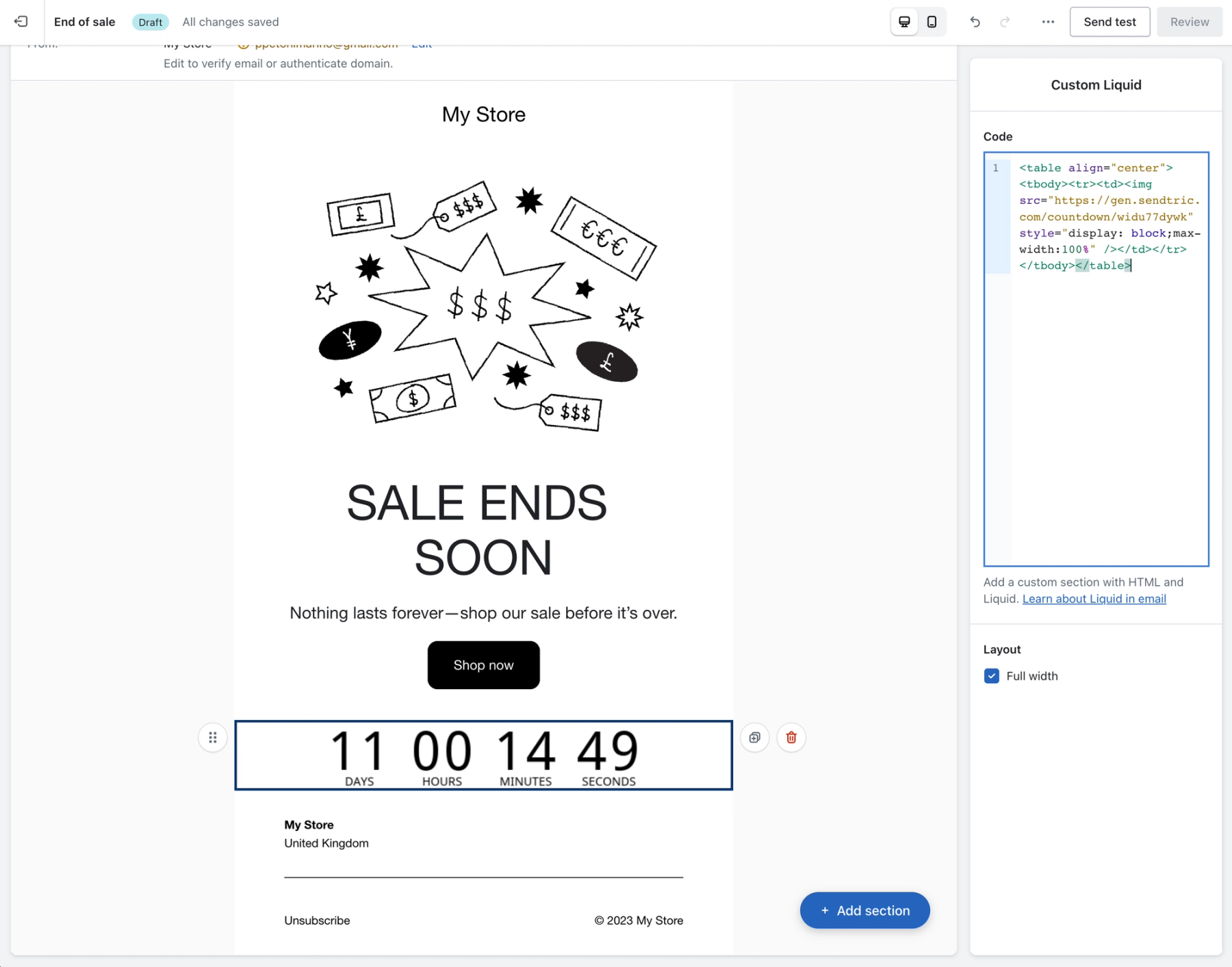
Step 6: Test and Send Your Shopify Email
Before sending out any Shopify email campaign with a Sendtric countdown timer, take a moment to preview it and make sure everything looks just right.You can use the Shopify email template builder tools to further customise the positioning and design of your countdown timer.
This powerful tool gives you the ability to add a digital countdown timer to your emails, creating a sense of urgency that can prompt your recipients to take immediate action. Whether you want to promote a sale, highlight an upcoming event, or simply boost engagement with your audience, Sendtric has you covered. With its easy-to-use interface, you can create free countdown timers for Shopify emails in just a few clicks. Don't wait any longer to take your email marketing to the next level. Try Sendtric today and start seeing results.

Create your free email countdown timer
- Fill out the form with your desired countdown options
- Click Generate
- Confirm your email address
- Copy and paste the provided HTML code into your email template
- Enjoy your free email countdown timer from Sendtric with 10,000 free monthly views.*
No watermark – Up to 10,000 monthly views* on our FREE Plan
*If you exceed 10,000 free views in a month, a watermark will appear until the limit resets. Upgrade to remove it at any time. Paid plans never show a watermark, even if the limit is exceeded.