


From automated workflows to email campaigns, HubSpot powers marketing for businesses of every size across the globe. With Sendtric, you can add a countdown timer or email widget to your HubSpot emails in just a few simple steps.

Note: You need Marketing Hub Pro or Enterprise to add custom HTML modules to your email. If you are on a Free or Starter Plan, HubSpot’s email editor won’t have that option.
Step 1: Create Your Timer on Sendtric
We have free timer widgets on our homepage, as well as an option to build a fully customized one with a paid plan. The process is fast and easy, with prompts and intuitive controls for every tweak.
You can use the editor to match the timer’s design to your email campaign’s look and feel. Make timers that conform to how you intend to use them.
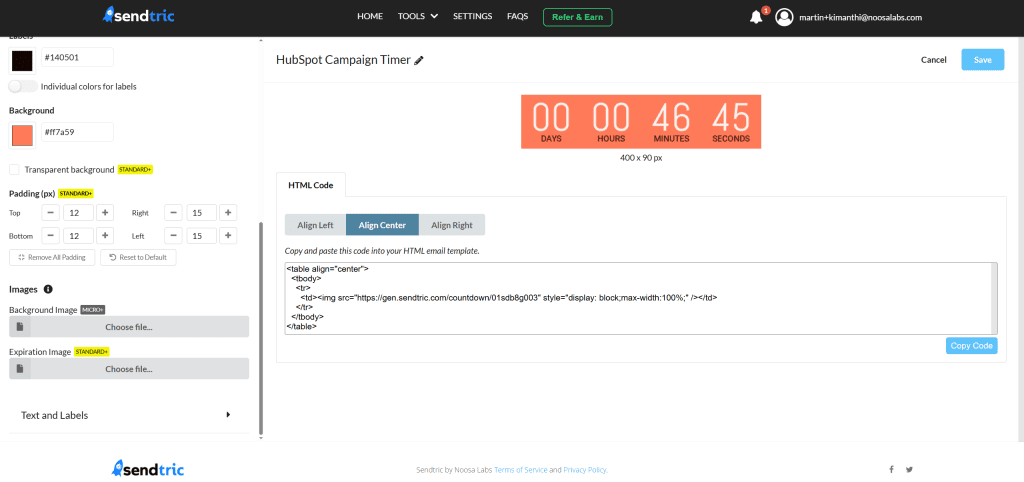
Once your widget is ready, click Copy Code to copy the HTML embed code to your clipboard, then head over to HubSpot.
In the email editor, locate the Custom HTML module in the left-hand content panel. Drag that into your email template to where you want the Sendtric widget to appear.
Click on the Custom HTML block you just added. An HTML editor panel will open up, and that is where you paste the HTML code copied from Sendtric.
The standard Sendtric HTML code for a timer widget is centre aligned and has the following format:
<table align="center"> <tbody> <tr> <td> <img src="https://gen.sendtric.com/countdown/xyz123456" style="display: block; max-width:100%;"/> </td> </tr> </tbody> </table>In the dashboard, you can select whether the timer is aligned in the center, left, or right and the html code will adjust to your preference.
Step 3: You’re Done!
It’s that simple to add a Sendtric countdown timer to your HubSpot email campaigns. Once you’ve previewed the email and confirmed the timer is displaying correctly, you can save or send as usual.
If you’re on a paid Sendtric plan and want to tweak the timer’s design after placing it in a template, such as changing the color, font, or end time, you can head back to the Sendtric editor and make changes quickly.
You won’t have to copy and re-paste the code. The same embed URL will reflect any changes you make automatically.
We’d love to hear how you are using Sendtric with HubSpot. Feel free to reach out at support@sendtric.com with any ideas, questions, or feedback.