


SendGrid, now part of Twilio, is one of the most widely used email platforms among developers and marketers alike. Its reputation comes from solid deliverability and flexible editing options.

It is a go-to for businesses sending everything from transactional emails to full marketing campaigns.
To add a Sendtric Countdown timer or email widget to your SendGrid campaigns, follow the steps below. It’s simple.
Step 1: Create Your Timer on Sendtric
You can create a free timer on our homepage or using your dashboard, or unlock extra features through one of our paid plans. Our free plan is one of the most generous, with 10,000 free monthly views with no watermark, but our paid plans allow you to use advanced customization and other features.
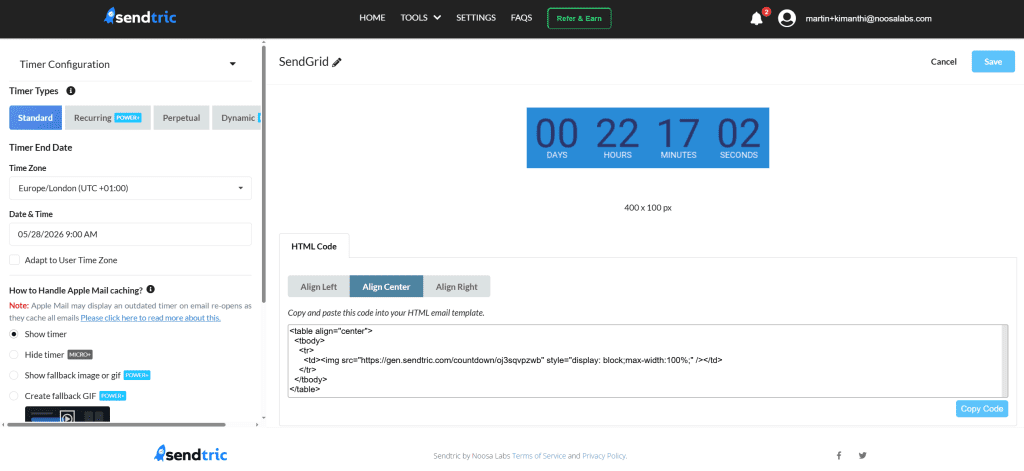
Once the widget is ready, you can copy its HTML embed code to your clipboard and switch over to SendGrid.
Step 2: Insert Your Widget Into Your SendGrid Template
In your SendGrid account, go to Marketing and open Email Templates or go directly to Single Sends if you are working on a one-time campaign. Open an existing template to edit or create a new one. When prompted to choose an editor, select the Design Editor.
In the Design Editor, locate the Code module in the Build section on the left-hand side. Drag it into your email at the position where you want the Sendtric widget to appear.
Click on the Code block to select it and paste the HTML code you copied from Sendtric into the editor panel. The standard sendtric HTML code for a timer widget looks like this when it is centre aligned:
<table align="center"> <tbody> <tr> <td> <img src="https://gen.sendtric.com/countdown/xyz123456" style="display: block; max-width:100%;"/> </td> </tr> </tbody> </table>In the dashboard, you can select whether the time is aligned in the center, left, or right, and the HTML code will adjust to your preference.
Step 3: You’re Done
Once copied, the timer is ready to use on your SendGrid email campaigns. Use SendGrid’s built-in preview and test email tools to confirm the timer displays correctly before sending.
If you opt for the paid Sendtric plan and want to redesign the timer after placing it in a template, all you have to do is open the Sendtric editor to make changes.
There is no need to copy and paste the code again. Being an embedded URL, it will automatically reflect changes as you save them.
We’d love to hear about your experience using Sendtric with SendGrid. Feel free to reach out at support@sendtric.com with any questions, feedback, or ideas.