


Bloomreach is a highly popular marketing platform that offers Email, SMS, and WhatsApp marketing alongside many personalization tools to improve engagement and conversion rates.
Integrating Sendtric’s countdown timers and other email widgets into their campaign editor is easy and quick – it only takes a few minutes maximum.

Step 1: Create your timer on Sendtric
Whether you set up a free timer on our homepage or build a more tailored one through a paid plan, making a countdown timer or another one of our email widgets is fast and straightforward. Just move through the editor steps, update the design so it fits your email campaign, and adjust the settings based on how you plan to use the widget.
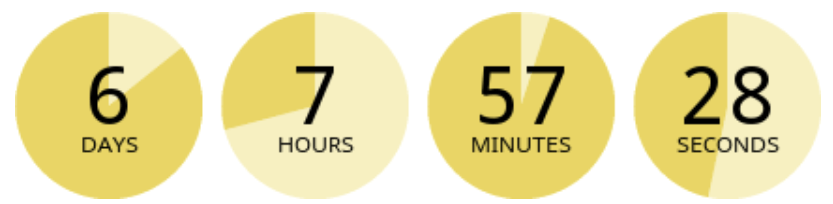
Once you have prepared your widget, copy the HTML code provided and head over to Bloomreach
Step 2: Insert your widget into your Bloomreach Template
Open your Bloomreach Campaigns by going to Campaigns -> Email Campaigns and then either select to edit an existing template or click + New Email Campaign.
Drag & Drop Editor
Select the HTML component and drag it to your email in the location where you want the Sendtric widget to be. Click the HTML component inside the email and paste the HTML code provided by Sendtric into Content Properties.
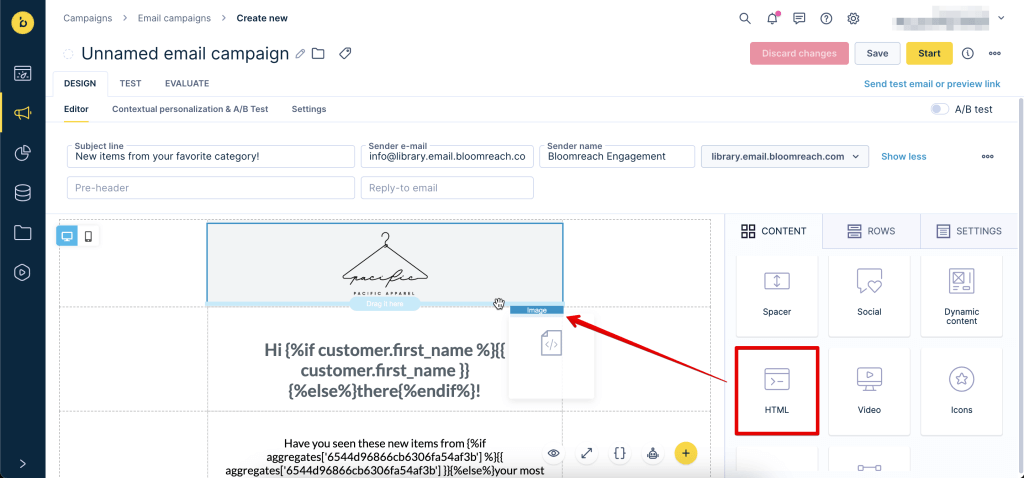
Usual HTML code provided by Sendtric for timer widget:
<img src="https://gen.sendtric.com/countdown/133dvtakwh" style="display: block;max-width:100%;" />
If you would like your timer to be centered, here is some additional code to help center the timer for all email clients:
<table align="center">
  <tbody>
    <tr>
      <td><img src="https://gen.sendtric.com/countdown/xyz123456" style="display: block;max-width:100%;"/></td>
    </tr>
  </tbody>
</table>

Step 3: You are done!
It’s that easy to include a timer from Sendtric in your Bloomreach campaign. If you are using a paid plan and want to make some tweaks to your timer design after seeing it in the template (maybe that color choice wasn’t quite right!) You can easily return to the Sendtric Editor and edit anything about the timer that you wish. You do not need re-copy the timer code, so long as you make sure you edit the same timer that you included in your template.
We’d love to hear about your experience using our timers on Bloomreach too! Feel free to reach out to us at support@sendtric.com with any concerns, questions, or feedback you may have.